<?xml version="1.0" encoding="utf-8"?><feed xmlns="http://www.w3.org/2005/Atom" ><generator uri="https://jekyllrb.com/" version="3.10.0">Jekyll</generator><link href="https://toannguyenitoz.github.io/feed.xml" rel="self" type="application/atom+xml" /><link href="https://toannguyenitoz.github.io/" rel="alternate" type="text/html" /><updated>2026-11-25T19:31:42+00:00</updated><id>https://toannguyenitoz.github.io/feed.xml</id><title type="html">Toan Nguyen IT Oz | Practical Enterprise IT, Automation &amp;amp; Modern Infrastructure</title><subtitle>Real-world IT knowledge, practical automation and tools built from decades of enterprise experience. Windows Server, Active Directory, Azure Cloud, and PowerShell by Toan Nguyen IT Oz, Adelaide, South Australia.</subtitle><author><name>Toan Nguyen</name><email>toannguyenitoz@gmail.com</email></author><entry><title type="html">Windows Tips &amp;amp; Tricks – Part 112: The Truth About CHKDSK – Repair C: Drive the Right Way</title><link href="https://toannguyenitoz.github.io/posts/part-112-repair-c-drive-chkdsk-spotfix/" rel="alternate" type="text/html" title="Windows Tips &amp;amp; Tricks – Part 112: The Truth About CHKDSK – Repair C: Drive the Right Way" /><published>2026-10-02T21:30:00+00:00</published><updated>2026-10-02T21:30:00+00:00</updated><id>https://toannguyenitoz.github.io/posts/part-112-repair-c-drive-chkdsk-spotfix</id><content type="html" xml:base="https://toannguyenitoz.github.io/posts/part-112-repair-c-drive-chkdsk-spotfix/"><![CDATA[<div class="cmd-annotation-card" style="margin-bottom: 24px;">
  <div class="annotation-badge">
    <svg viewBox="0 0 24 24" width="14" height="14" fill="none" stroke="currentColor" stroke-width="2"><circle cx="12" cy="12" r="10"></circle><line x1="12" y1="16" x2="12" y2="12"></line><line x1="12" y1="8" x2="12.01" y2="8"></line></svg>
    <span>LinkedIn Enterprise Series — Phase 3: SysAdmin Tools</span>
  </div>
  <p class="annotation-text">
    This guide is Part 112 of the <em>Windows Tips &amp; Tricks</em> series published by <strong>Toan Nguyen (Toan Nguyen IT OZ)</strong>. In Phase 3, we bust viral social media myths, master core storage integrity tools, and teach modern NTFS self-healing methods that replace legacy multi-hour downtime. Follow on <a href="https://www.linkedin.com/in/toan-nguyen-it-oz/" target="_blank" rel="noopener noreferrer">LinkedIn</a>.
  </p>
</div>

<p><img src="/assets/images/posts/part-112-repair-c-drive-chkdsk-spotfix.jpg" alt="Windows Tips &amp; Tricks – Part 112: The Truth About CHKDSK – Repair C: Drive the Right Way" /></p>

<h2 id="1-scenario-overview--the-social-media-myth">1. Scenario Overview &amp; The Social Media Myth</h2>

<p>🚀 <strong>Windows Tips &amp; Tricks – Part 112</strong><br />
🛠️ <strong>The Truth About CHKDSK: Repair C: Drive Errors the Right Way</strong></p>

<p>You have probably seen viral TikToks, YouTube Shorts, or Facebook Reels showing this quick trick:</p>
<ol>
  <li>Open Command Prompt as Administrator.</li>
  <li>Type <code class="language-plaintext highlighter-rouge">chkdsk C:</code> and press <kbd>Enter</kbd>.</li>
  <li>Voiceover announces: <em>“This simple command will automatically find errors on your C drive and fix them for you!”</em></li>
</ol>

<blockquote>
  <p>🛑 <strong>Wait! Did you notice the message in the terminal?</strong></p>
</blockquote>

<div class="language-text highlighter-rouge"><div class="highlight"><pre class="highlight"><code><table class="rouge-table"><tbody><tr><td class="rouge-gutter gl"><pre class="lineno">1
2
</pre></td><td class="rouge-code"><pre>WARNING! /F parameter not specified.
Running CHKDSK in read-only mode.
</pre></td></tr></tbody></table></code></pre></div></div>

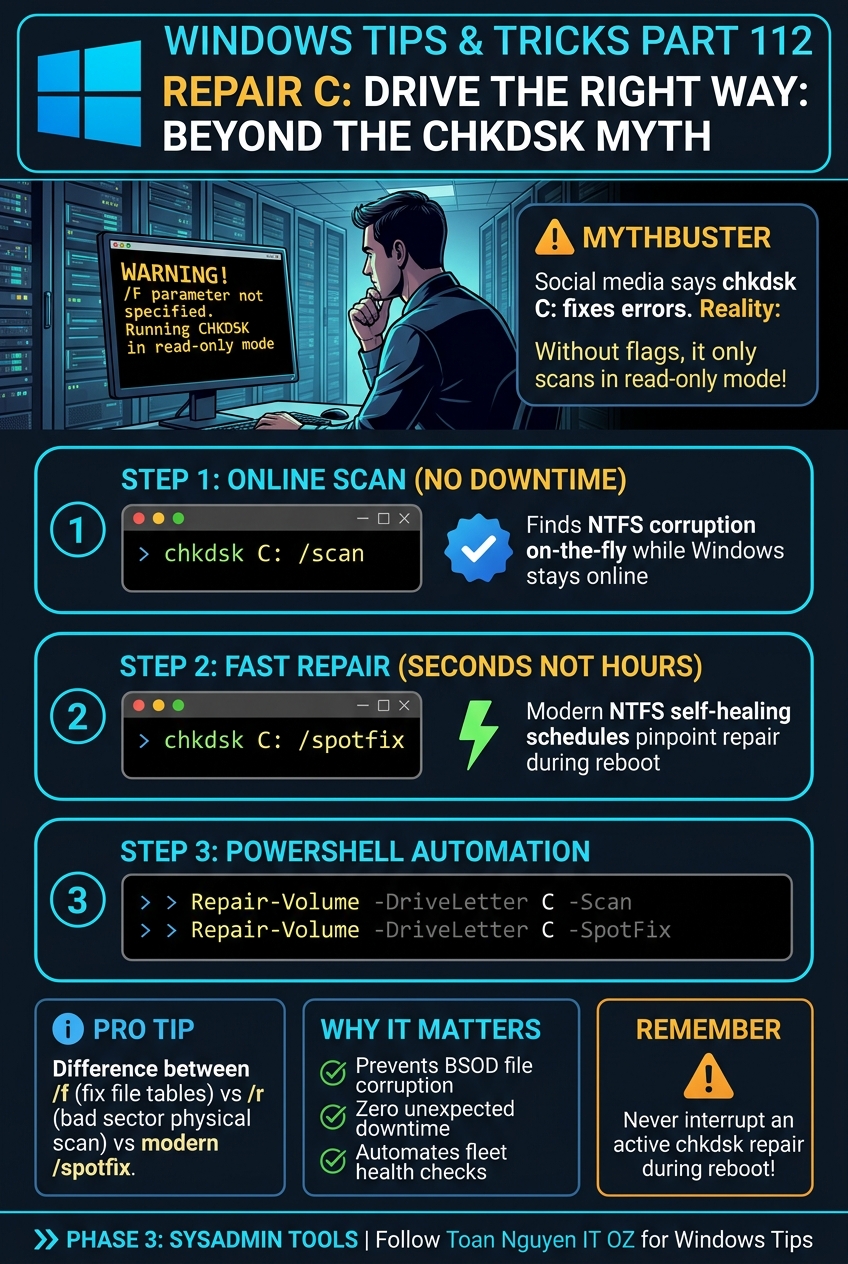
<p>When you run <code class="language-plaintext highlighter-rouge">chkdsk C:</code> without flags, <strong>Windows will NEVER fix a single error</strong>. It runs purely in <strong>read-only mode</strong>, merely analyzing the Master File Table (MFT) and volume descriptors without writing any corrections to disk.</p>

<p>If filesystem corruption exists, running a naked <code class="language-plaintext highlighter-rouge">chkdsk</code> leaves the damage completely untouched.</p>

<hr />

<h2 id="2--modern-ntfs-why-you-rarely-need-4-hour-offline-scans">2. ⚡ Modern NTFS: Why You Rarely Need 4-Hour Offline Scans</h2>

<p>In the days of Windows 7 and Windows Server 2008, repairing drive <code class="language-plaintext highlighter-rouge">C:</code> with <code class="language-plaintext highlighter-rouge">chkdsk /f /r</code> was a nightmare:</p>
<ul>
  <li>The system locked the drive and forced a reboot.</li>
  <li>The computer stayed stuck at a black screen counting percentage for 3 to 8 hours.</li>
  <li>If power cut out during the scan, the repair would stop mid-way and, in rare cases, could leave filesystem corruption behind — but chkdsk itself does not destroy the partition table.</li>
</ul>

<p>Fortunately, modern Windows (Windows 10, 11, and Windows Server 2016–2025) features <strong>Self-Healing NTFS</strong>. You no longer need to lock down an entire workstation or server for half a day to repair filesystem anomalies.</p>

<hr />

<h2 id="3--the-professional-chkdsk-playbook">3. ⚡ The Professional CHKDSK Playbook</h2>

<p>Here is the exact hierarchy of commands enterprise SysAdmins use depending on the severity of the issue:</p>

<h3 id="step-1-online-non-intrusive-scan-zero-downtime">Step 1: Online Non-Intrusive Scan (Zero Downtime)</h3>
<p>Before scheduling reboots, perform an online scan while Windows and all user applications remain running:</p>

<pre><code class="language-cmd">chkdsk C: /scan
</code></pre>

<p>🔍 <strong>What this does:</strong><br />
Windows scans the volume in the background. If it finds inconsistencies, it writes the repair instructions into a system log file without taking the volume offline.</p>

<hr />

<h3 id="step-2-instant-spotfix-repairs-in-seconds-not-hours">Step 2: Instant SpotFix (Repairs in Seconds, Not Hours)</h3>
<p>If <code class="language-plaintext highlighter-rouge">/scan</code> detects issues, do <strong>not</strong> run a brute-force <code class="language-plaintext highlighter-rouge">/f</code>. Instead, use modern spot-fixing:</p>

<pre><code class="language-cmd">chkdsk C: /spotfix
</code></pre>

<p>💡 <strong>Why it is revolutionary:</strong><br />
Windows prompts to schedule the fix upon the next reboot. When the computer restarts, instead of re-scanning all millions of files, it <strong>only touches the specific corrupt records logged by <code class="language-plaintext highlighter-rouge">/scan</code></strong>. The repair finishes in <strong>under 10 seconds</strong>!</p>

<hr />

<h3 id="step-3-traditional-offline-fix-when-metadata-is-severely-corrupt">Step 3: Traditional Offline Fix (When Metadata is Severely Corrupt)</h3>
<p>If an online scan cannot resolve the corruption, force a traditional repair:</p>

<pre><code class="language-cmd">chkdsk C: /f
</code></pre>

<p>Windows will prompt:</p>
<div class="language-text highlighter-rouge"><div class="highlight"><pre class="highlight"><code><table class="rouge-table"><tbody><tr><td class="rouge-gutter gl"><pre class="lineno">1
2
</pre></td><td class="rouge-code"><pre>Chkdsk cannot run because the volume is in use by another process.
Would you like to schedule this volume to be checked the next time the system restarts? (Y/N)
</pre></td></tr></tbody></table></code></pre></div></div>
<p>Type <kbd>Y</kbd> and restart during your approved maintenance window.</p>

<hr />

<h3 id="step-4-bad-sector-scan-physical-surface-inspection">Step 4: Bad Sector Scan (Physical Surface Inspection)</h3>
<pre><code class="language-cmd">chkdsk C: /r
</code></pre>
<ul>
  <li>Locates physical bad sectors on the disk and attempts to salvage readable data.</li>
  <li>Includes the functionality of <code class="language-plaintext highlighter-rouge">/f</code>.</li>
</ul>

<blockquote>
  <p>⚠️ <strong>SSD &amp; NVMe Notice:</strong> Do <strong>NOT</strong> routinely run <code class="language-plaintext highlighter-rouge">chkdsk /r</code> on modern Solid State Drives (SSDs). SSDs use internal wear-leveling controllers that automatically remap dead NAND blocks. Running <code class="language-plaintext highlighter-rouge">/r</code> causes unnecessary write cycles without diagnostic benefits.</p>
</blockquote>

<hr />

<h2 id="4-️-modern-powershell-cmdlets-repair-volume">4. 🛠️ Modern PowerShell Cmdlets: <code class="language-plaintext highlighter-rouge">Repair-Volume</code></h2>

<p>For IT automation engineers and RMM scripting (Intune, NinjaOne, Datto), use the native Storage module cmdlets:</p>

<h3 id="1-non-disruptive-online-scan">1. Non-Disruptive Online Scan:</h3>
<div class="language-powershell highlighter-rouge"><div class="highlight"><pre class="highlight"><code><table class="rouge-table"><tbody><tr><td class="rouge-gutter gl"><pre class="lineno">1
</pre></td><td class="rouge-code"><pre><span class="n">Repair-Volume</span><span class="w"> </span><span class="nt">-DriveLetter</span><span class="w"> </span><span class="nx">C</span><span class="w"> </span><span class="nt">-Scan</span><span class="w">
</span></pre></td></tr></tbody></table></code></pre></div></div>
<p><em>(Returns <code class="language-plaintext highlighter-rouge">NoErrorsFound</code> or logs issues for remediation).</em></p>

<h3 id="2-schedule-instant-spotfix">2. Schedule Instant SpotFix:</h3>
<div class="language-powershell highlighter-rouge"><div class="highlight"><pre class="highlight"><code><table class="rouge-table"><tbody><tr><td class="rouge-gutter gl"><pre class="lineno">1
</pre></td><td class="rouge-code"><pre><span class="n">Repair-Volume</span><span class="w"> </span><span class="nt">-DriveLetter</span><span class="w"> </span><span class="nx">C</span><span class="w"> </span><span class="nt">-SpotFix</span><span class="w">
</span></pre></td></tr></tbody></table></code></pre></div></div>

<h3 id="3-full-offline-scan--fix">3. Full Offline Scan &amp; Fix:</h3>
<div class="language-powershell highlighter-rouge"><div class="highlight"><pre class="highlight"><code><table class="rouge-table"><tbody><tr><td class="rouge-gutter gl"><pre class="lineno">1
</pre></td><td class="rouge-code"><pre><span class="n">Repair-Volume</span><span class="w"> </span><span class="nt">-DriveLetter</span><span class="w"> </span><span class="nx">C</span><span class="w"> </span><span class="nt">-OfflineScanAndFix</span><span class="w">
</span></pre></td></tr></tbody></table></code></pre></div></div>

<hr />

<h2 id="5--pro-tip--check-disk-health-via-smart-first">5. 💡 Pro Tip — Check Disk Health via S.M.A.R.T. First!</h2>

<p>Filesystem errors are often a symptom, not the root cause. If <code class="language-plaintext highlighter-rouge">chkdsk</code> keeps finding errors repeatedly on the same machine, <strong>the physical drive is likely failing</strong>.</p>

<p>Before running aggressive disk repairs, check the hardware health via PowerShell:</p>

<div class="language-powershell highlighter-rouge"><div class="highlight"><pre class="highlight"><code><table class="rouge-table"><tbody><tr><td class="rouge-gutter gl"><pre class="lineno">1
</pre></td><td class="rouge-code"><pre><span class="n">Get-PhysicalDisk</span><span class="w"> </span><span class="o">|</span><span class="w"> </span><span class="n">Select-Object</span><span class="w"> </span><span class="nx">DeviceId</span><span class="p">,</span><span class="w"> </span><span class="nx">FriendlyName</span><span class="p">,</span><span class="w"> </span><span class="nx">MediaType</span><span class="p">,</span><span class="w"> </span><span class="nx">OperationalStatus</span><span class="p">,</span><span class="w"> </span><span class="nx">HealthStatus</span><span class="w">
</span></pre></td></tr></tbody></table></code></pre></div></div>

<p>If <code class="language-plaintext highlighter-rouge">HealthStatus</code> returns anything other than <strong><code class="language-plaintext highlighter-rouge">Healthy</code></strong>, immediately image the drive and replace the hardware before running write-intensive repair commands!</p>

<hr />

<h2 id="6--why-it-matters-for-it-operations">6. 🎯 Why It Matters for IT Operations</h2>

<ul>
  <li>✅ <strong>Busts Helpdesk Misconceptions:</strong> Ensures Tier 1/2 engineers understand that plain <code class="language-plaintext highlighter-rouge">chkdsk</code> does not repair corruption.</li>
  <li>✅ <strong>Prevents Unplanned Downtime:</strong> Replacing <code class="language-plaintext highlighter-rouge">/f</code> with <code class="language-plaintext highlighter-rouge">/scan</code> + <code class="language-plaintext highlighter-rouge">/spotfix</code> cuts downtime from hours to seconds.</li>
  <li>✅ <strong>Stops BSOD Boot Loops:</strong> Eliminates crashes caused by corrupted system pointers (<code class="language-plaintext highlighter-rouge">NTFS_FILE_SYSTEM</code>, <code class="language-plaintext highlighter-rouge">CRITICAL_PROCESS_DIED</code>).</li>
  <li>✅ <strong>Automated Fleet Maintenance:</strong> Cmdlets like <code class="language-plaintext highlighter-rouge">Repair-Volume -Scan</code> can run weekly across 1,000+ endpoints via Intune Proactive Remediations with zero user disruption.</li>
</ul>

<hr />

<h2 id="7--the-sysadmin-mindset">7. 🎯 The SysAdmin Mindset</h2>

<p>Don’t believe every 15-second social media reel claiming to “fix your PC in one command.”</p>

<blockquote>
  <p><strong>Senior SysAdmins read the command flags.</strong><br />
<strong>We know that <code class="language-plaintext highlighter-rouge">chkdsk C:</code> without parameters is just an audit. Real repairs require purpose.</strong> 🛡️</p>
</blockquote>

<hr />

<blockquote>
  <p>💬 <strong>Community Discussion:</strong><br />
When was the last time you ran a full <code class="language-plaintext highlighter-rouge">chkdsk /r</code> and had it run overnight? Have you migrated your maintenance workflows to <code class="language-plaintext highlighter-rouge">Repair-Volume -SpotFix</code>?<br />
👉 <strong><a href="https://www.linkedin.com/in/toan-nguyen-it-oz/">Share your experiences and connect with Toan Nguyen on LinkedIn</a></strong></p>

  <p><em>Authored by <a href="https://www.linkedin.com/in/toan-nguyen-it-oz/">Toan Nguyen (Toan Nguyen IT OZ)</a> — Enterprise Systems Administrator in Adelaide, South Australia.</em></p>
</blockquote>]]></content><author><name>Toan Nguyen</name></author><category term="SysAdmin" /><category term="Storage" /><category term="Storage" /><category term="CHKDSK" /><category term="SysAdmin" /><category term="Windows Server" /><category term="PowerShell" /><category term="IT Support" /><category term="IT Operations" /><category term="Troubleshooting" /><category term="ToanNguyenItOz" /><category term="Part-112" /><category term="WindowsTips" /><summary type="html"><![CDATA[Social media claims running 'chkdsk C:' magically fixes all drive errors. But did you see the read-only warning? Learn how to audit and fix NTFS corruption with /scan and /spotfix.]]></summary><media:thumbnail xmlns:media="http://search.yahoo.com/mrss/" url="https://toannguyenitoz.github.io/assets/images/posts/part-112-repair-c-drive-chkdsk-spotfix.jpg" /><media:content medium="image" url="https://toannguyenitoz.github.io/assets/images/posts/part-112-repair-c-drive-chkdsk-spotfix.jpg" xmlns:media="http://search.yahoo.com/mrss/" /></entry><entry><title type="html">Windows Tips &amp;amp; Tricks – Part 111: Reclaim Hidden Disk Space – Manage Volume Shadow Storage</title><link href="https://toannguyenitoz.github.io/posts/part-111-reclaim-hidden-disk-space-vssadmin/" rel="alternate" type="text/html" title="Windows Tips &amp;amp; Tricks – Part 111: Reclaim Hidden Disk Space – Manage Volume Shadow Storage" /><published>2026-10-02T21:00:00+00:00</published><updated>2026-10-02T21:00:00+00:00</updated><id>https://toannguyenitoz.github.io/posts/part-111-reclaim-hidden-disk-space-vssadmin</id><content type="html" xml:base="https://toannguyenitoz.github.io/posts/part-111-reclaim-hidden-disk-space-vssadmin/"><![CDATA[<div class="cmd-annotation-card" style="margin-bottom: 24px;">
  <div class="annotation-badge">
    <svg viewBox="0 0 24 24" width="14" height="14" fill="none" stroke="currentColor" stroke-width="2"><circle cx="12" cy="12" r="10"></circle><line x1="12" y1="16" x2="12" y2="12"></line><line x1="12" y1="8" x2="12.01" y2="8"></line></svg>
    <span>LinkedIn Enterprise Series — Phase 3: SysAdmin Tools</span>
  </div>
  <p class="annotation-text">
    This guide is Part 111 of the <em>Windows Tips &amp; Tricks</em> series published by <strong>Toan Nguyen (Toan Nguyen IT OZ)</strong>. In Phase 3, we dive into enterprise storage forensics, low-disk-space triage, and native command-line utilities that solve stubborn endpoint and server crises. Follow on <a href="https://www.linkedin.com/in/toan-nguyen-it-oz/" target="_blank" rel="noopener noreferrer">LinkedIn</a>.
  </p>
</div>

<p><img src="/assets/images/posts/part-111-reclaim-hidden-disk-space-vssadmin.jpg" alt="Windows Tips &amp; Tricks – Part 111: Reclaim Hidden Disk Space – Manage Volume Shadow Storage" /></p>

<h2 id="1-scenario-overview--problem-context">1. Scenario Overview &amp; Problem Context</h2>

<p>🚀 <strong>Windows Tips &amp; Tricks – Part 111</strong><br />
💾 <strong>Reclaim Hidden Disk Space: Manage Volume Shadow Storage</strong></p>

<ul>
  <li>A user or monitoring alert warns that <strong>Drive C: is at 99% capacity (Low Disk Space)</strong>.</li>
  <li>You run standard <strong>Disk Cleanup (<code class="language-plaintext highlighter-rouge">cleanmgr</code>)</strong>, empty the Recycle Bin, and clear <code class="language-plaintext highlighter-rouge">%TEMP%</code> folders.</li>
  <li>Result: You barely freed 500 MB. File Explorer still displays a scary red progress bar.</li>
  <li>When you highlight all folders in <code class="language-plaintext highlighter-rouge">C:\</code> and check Properties, the total size is 60 GB, yet Windows insists your 128 GB drive is completely full.</li>
</ul>

<blockquote>
  <p>❓ <strong>Where did 40 to 60 GB of storage disappear?</strong></p>
</blockquote>

<p>In Windows and Windows Server, the primary suspect behind phantom disk consumption is the <strong>Volume Shadow Copy Service (VSS)</strong>. Windows automatically creates shadow copies for:</p>
<ol>
  <li><strong>System Restore Points</strong> before Windows updates, driver installations, or patch cycles.</li>
  <li><strong>Previous Versions</strong> file history snapshots on local and network shares.</li>
  <li><strong>Backup Solutions</strong> (such as Windows Server Backup, Veeam, or Azure Backup) that retain delta change logs.</li>
</ol>

<p>By default, Windows can reserve <strong>10% to 20% (or even an unbounded maximum)</strong> of the entire volume for shadow copies. Because these snapshots reside in the protected <code class="language-plaintext highlighter-rouge">System Volume Information</code> folder, regular file explorers and cleanup tools cannot see or calculate them!</p>

<hr />

<h2 id="2--step-by-step-resolution-with-vssadmin">2. ⚡ Step-by-Step Resolution with <code class="language-plaintext highlighter-rouge">vssadmin</code></h2>

<p>You do not need third-party disk cleaners or partition expanders. Windows provides a built-in administrative tool: <strong><code class="language-plaintext highlighter-rouge">vssadmin</code></strong>.</p>

<h3 id="step-1-open-command-prompt-or-windows-terminal-as-administrator">Step 1: Open Command Prompt or Windows Terminal as Administrator</h3>
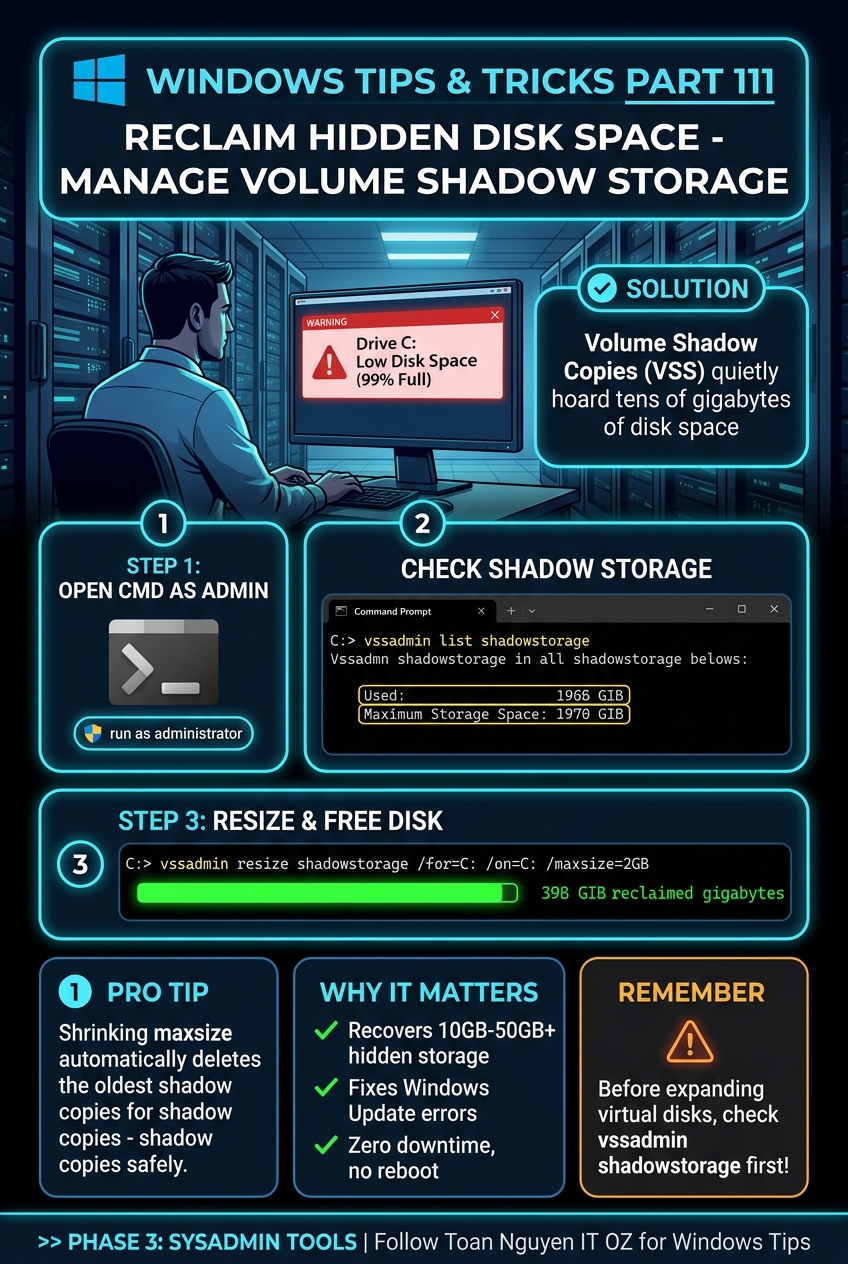
<p>Press <kbd>Windows</kbd> + <kbd>S</kbd>, type <strong>cmd</strong> (or <strong>Terminal</strong>), right-click and choose <strong>Run as administrator</strong>.</p>

<h3 id="step-2-check-current-shadow-storage-allocation">Step 2: Check Current Shadow Storage Allocation</h3>
<p>Run the following command to see how much space VSS is actively consuming and what its maximum allowed limit is:</p>

<pre><code class="language-cmd">vssadmin list shadowstorage
</code></pre>

<p><strong>Example Output:</strong></p>
<div class="language-text highlighter-rouge"><div class="highlight"><pre class="highlight"><code><table class="rouge-table"><tbody><tr><td class="rouge-gutter gl"><pre class="lineno">1
2
3
4
5
6
7
8
9
10
</pre></td><td class="rouge-code"><pre>C:\Windows\system32&gt;vssadmin list shadowstorage
vssadmin 1.1 - Volume Shadow Copy Service administrative command-line tool
(C) Copyright 2001-2013 Microsoft Corp.

Shadow Copy Storage association
   For volume: (C:)\\?\Volume{a1b2c3d4-e5f6-7890-abcd-ef1234567890}\
   Shadow Copy Storage volume: (C:)\\?\Volume{a1b2c3d4-e5f6-7890-abcd-ef1234567890}\
   Used Shadow Copy Storage space: 48.35 GB (38%)
   Allocated Shadow Copy Storage space: 50.12 GB (40%)
   Maximum Shadow Copy Storage space: UNBOUNDED (100%)
</pre></td></tr></tbody></table></code></pre></div></div>

<p>🔍 <strong>Key metrics to observe:</strong></p>
<ul>
  <li><strong>Used Shadow Copy Storage space:</strong> The actual size currently consumed by existing snapshots (here: nearly 50 GB!).</li>
  <li><strong>Maximum Shadow Copy Storage space:</strong> The ceiling limit. If set to <code class="language-plaintext highlighter-rouge">UNBOUNDED</code> or a high percentage, VSS will greedily hold storage.</li>
</ul>

<hr />

<h3 id="step-3-resize-and-reclaim-space-instantly">Step 3: Resize and Reclaim Space Instantly</h3>
<p>To set a safe, manageable cap and immediately release excessive shadow copies, run:</p>

<pre><code class="language-cmd">vssadmin resize shadowstorage /for=C: /on=C: /maxsize=2GB
</code></pre>

<p><em>(You can adjust <code class="language-plaintext highlighter-rouge">/maxsize=</code> to <code class="language-plaintext highlighter-rouge">2GB</code>, <code class="language-plaintext highlighter-rouge">5GB</code>, or <code class="language-plaintext highlighter-rouge">10GB</code> depending on your retention needs).</em></p>

<p><strong>Example Confirmation:</strong></p>
<div class="language-text highlighter-rouge"><div class="highlight"><pre class="highlight"><code><table class="rouge-table"><tbody><tr><td class="rouge-gutter gl"><pre class="lineno">1
</pre></td><td class="rouge-code"><pre>Successfully resized the shadow copy storage association
</pre></td></tr></tbody></table></code></pre></div></div>

<p>💡 <strong>What happens under the hood?</strong><br />
Windows immediately calculates the new boundary and <strong>automatically purges the oldest shadow copies</strong> to fit within the new limit. It retains your newest restore point while releasing tens of gigabytes back to Drive C: in seconds!</p>

<hr />

<h3 id="step-4-bonus--deleting-old-shadow-copies-directly">Step 4: Bonus — Deleting Old Shadow Copies Directly</h3>
<p>If you want to manually purge shadow copies without altering the maximum storage limit:</p>

<p><strong>Delete only the oldest snapshot:</strong></p>
<pre><code class="language-cmd">vssadmin delete shadows /for=C: /oldest
</code></pre>

<p><strong>Delete all existing snapshots on drive C:</strong></p>
<pre><code class="language-cmd">vssadmin delete shadows /for=C: /all
</code></pre>

<hr />

<h2 id="3-️-modern-powershell-equivalent">3. 🛠️ Modern PowerShell Equivalent</h2>

<p>If you are managing remote systems or writing enterprise automation scripts, PowerShell can audit and manage shadow copies via WMI / CIM:</p>

<h3 id="audit-shadow-copies-with-powershell">Audit Shadow Copies with PowerShell:</h3>
<div class="language-powershell highlighter-rouge"><div class="highlight"><pre class="highlight"><code><table class="rouge-table"><tbody><tr><td class="rouge-gutter gl"><pre class="lineno">1
</pre></td><td class="rouge-code"><pre><span class="n">Get-CimInstance</span><span class="w"> </span><span class="nx">Win32_ShadowCopy</span><span class="w"> </span><span class="o">|</span><span class="w"> </span><span class="n">Select-Object</span><span class="w"> </span><span class="nx">ID</span><span class="p">,</span><span class="w"> </span><span class="nx">InstallDate</span><span class="p">,</span><span class="w"> </span><span class="nx">DeviceObject</span><span class="p">,</span><span class="w"> </span><span class="nx">VolumeName</span><span class="w"> </span><span class="o">|</span><span class="w"> </span><span class="n">Format-Table</span><span class="w"> </span><span class="nt">-AutoSize</span><span class="w">
</span></pre></td></tr></tbody></table></code></pre></div></div>

<h3 id="delete-the-oldest-shadow-copy-via-powershell">Delete the Oldest Shadow Copy via PowerShell:</h3>
<div class="language-powershell highlighter-rouge"><div class="highlight"><pre class="highlight"><code><table class="rouge-table"><tbody><tr><td class="rouge-gutter gl"><pre class="lineno">1
2
3
4
</pre></td><td class="rouge-code"><pre><span class="nv">$OldestSnapshot</span><span class="w"> </span><span class="o">=</span><span class="w"> </span><span class="n">Get-CimInstance</span><span class="w"> </span><span class="nx">Win32_ShadowCopy</span><span class="w"> </span><span class="o">|</span><span class="w"> </span><span class="n">Sort-Object</span><span class="w"> </span><span class="nx">InstallDate</span><span class="w"> </span><span class="o">|</span><span class="w"> </span><span class="n">Select-Object</span><span class="w"> </span><span class="nt">-First</span><span class="w"> </span><span class="nx">1</span><span class="w">
</span><span class="kr">if</span><span class="w"> </span><span class="p">(</span><span class="nv">$OldestSnapshot</span><span class="p">)</span><span class="w"> </span><span class="p">{</span><span class="w">
    </span><span class="n">Remove-CimInstance</span><span class="w"> </span><span class="nt">-InputObject</span><span class="w"> </span><span class="nv">$OldestSnapshot</span><span class="w"> </span><span class="nt">-Verbose</span><span class="w">
</span><span class="p">}</span><span class="w">
</span></pre></td></tr></tbody></table></code></pre></div></div>

<hr />

<h2 id="4--pro-tip--production--server-considerations">4. 💡 Pro Tip — Production &amp; Server Considerations</h2>

<p>Before aggressively purging or resizing VSS on production systems, keep these best practices in mind:</p>

<ol>
  <li><strong>Windows Workstations (Endpoints):</strong>
    <ul>
      <li>Setting <code class="language-plaintext highlighter-rouge">/maxsize=2GB</code> or <code class="language-plaintext highlighter-rouge">5GB</code> is typically ideal. It keeps 1 to 2 fresh System Restore points for disaster recovery while preventing disk exhaustion.</li>
    </ul>
  </li>
  <li><strong>File Servers with “Previous Versions”:</strong>
    <ul>
      <li>If users rely on Windows File History or Volume Shadow Copies to recover earlier versions of deleted files, do not shrink maxsize too small, or their recovery window will shorten.</li>
    </ul>
  </li>
  <li><strong>Hyper-V &amp; Backup Integrations:</strong>
    <ul>
      <li>If a backup job failed mid-process, an orphaned VSS snapshot might stay locked. If <code class="language-plaintext highlighter-rouge">vssadmin list shadows</code> shows persistent snapshots from previous backup dates, deleting them or restarting the <code class="language-plaintext highlighter-rouge">Volume Shadow Copy</code> service (<code class="language-plaintext highlighter-rouge">net stop vss &amp;&amp; net start vss</code>) resolves the lock.</li>
    </ul>
  </li>
</ol>

<hr />

<h2 id="5--why-it-matters-for-it-operations">5. 🎯 Why It Matters for IT Operations</h2>

<ul>
  <li>✅ <strong>Instant Triage in Under 60 Seconds:</strong> Eliminates urgent disk-space helpdesk tickets without rebooting the system or closing applications.</li>
  <li>✅ <strong>Fixes Windows Update Failures:</strong> Resolves update installation errors such as <code class="language-plaintext highlighter-rouge">0x80070070</code> (ERROR_DISK_FULL) caused by invisible VSS saturation.</li>
  <li>✅ <strong>Stops Unnecessary Cloud Disk Expansion:</strong> Avoids requesting expensive cloud storage upgrades (Azure Managed Disks / AWS EBS) when the VM only needed a VSS prune.</li>
  <li>✅ <strong>Fleet-Wide Automation:</strong> Easily deployable via Microsoft Intune Proactive Remediations, Datto, NinjaOne, or PowerShell Remoting (<code class="language-plaintext highlighter-rouge">Invoke-Command</code>).</li>
</ul>

<hr />

<h2 id="6--the-sysadmin-mindset">6. 🎯 The SysAdmin Mindset</h2>

<p>When a drive runs out of space, junior techs look for large video files or download folders. Senior SysAdmins look at the storage allocation tables and the shadow copies.</p>

<blockquote>
  <p><strong>Before you resize the virtual disk, check what is hiding in the shadows.</strong><br />
<strong><code class="language-plaintext highlighter-rouge">vssadmin list shadowstorage</code> is your first line of defense.</strong> 🛡️</p>
</blockquote>

<hr />

<blockquote>
  <p>💬 <strong>Community Discussion:</strong><br />
Have you ever had a server or user PC run out of disk space due to runaway shadow copies? What is your standard maximum VSS threshold?<br />
👉 <strong><a href="https://www.linkedin.com/in/toan-nguyen-it-oz/">Share your thoughts and connect with Toan Nguyen on LinkedIn</a></strong></p>

  <p><em>Authored by <a href="https://www.linkedin.com/in/toan-nguyen-it-oz/">Toan Nguyen (Toan Nguyen IT OZ)</a> — Enterprise Systems Administrator in Adelaide, South Australia.</em></p>
</blockquote>]]></content><author><name>Toan Nguyen</name></author><category term="SysAdmin" /><category term="Storage" /><category term="Windows Server" /><category term="Storage" /><category term="SysAdmin" /><category term="PowerShell" /><category term="IT Support" /><category term="IT Operations" /><category term="Troubleshooting" /><category term="ToanNguyenItOz" /><category term="Part-111" /><category term="WindowsTips" /><summary type="html"><![CDATA[Is your C: drive mysteriously full even after running Disk Cleanup? Discover how to inspect and resize hidden Volume Shadow Copy storage using vssadmin.]]></summary><media:thumbnail xmlns:media="http://search.yahoo.com/mrss/" url="https://toannguyenitoz.github.io/assets/images/posts/part-111-reclaim-hidden-disk-space-vssadmin.jpg" /><media:content medium="image" url="https://toannguyenitoz.github.io/assets/images/posts/part-111-reclaim-hidden-disk-space-vssadmin.jpg" xmlns:media="http://search.yahoo.com/mrss/" /></entry><entry><title type="html">Windows Tips &amp;amp; Tricks – Part 110: Check the Clock – Fix Kerberos Time Drift</title><link href="https://toannguyenitoz.github.io/posts/part-110-check-the-clock-fix-kerberos-time-drift/" rel="alternate" type="text/html" title="Windows Tips &amp;amp; Tricks – Part 110: Check the Clock – Fix Kerberos Time Drift" /><published>2026-09-16T21:00:00+00:00</published><updated>2026-09-16T21:00:00+00:00</updated><id>https://toannguyenitoz.github.io/posts/part-110-check-the-clock-fix-kerberos-time-drift</id><content type="html" xml:base="https://toannguyenitoz.github.io/posts/part-110-check-the-clock-fix-kerberos-time-drift/"><![CDATA[<div class="cmd-annotation-card" style="margin-bottom: 24px;">
  <div class="annotation-badge">
    <svg viewBox="0 0 24 24" width="14" height="14" fill="none" stroke="currentColor" stroke-width="2"><circle cx="12" cy="12" r="10"></circle><line x1="12" y1="16" x2="12" y2="12"></line><line x1="12" y1="8" x2="12.01" y2="8"></line></svg>
    <span>LinkedIn Enterprise Series — Phase 3: SysAdmin Tools</span>
  </div>
  <p class="annotation-text">
    This guide is Part 110 of the <em>Windows Tips &amp; Tricks</em> series published by <strong>Toan Nguyen (Toan Nguyen IT OZ)</strong>. In Phase 3, we master core enterprise identity protocols, Kerberos authentication constraints, and infrastructure time synchronization. Follow on <a href="https://www.linkedin.com/posts/toan-nguyen-it-oz_windowstips-sysadmin-itsupport-share-7506101538336030722-uiDd/" target="_blank" rel="noopener noreferrer">LinkedIn</a>.
  </p>
</div>

<p><img src="/assets/images/posts/part-110-check-the-clock-fix-kerberos-time-drift.jpg" alt="Windows Tips &amp; Tricks – Part 110: Check the Clock – Fix Kerberos Time Drift" /></p>

<h2 id="1-scenario-overview--problem-context">1. Scenario Overview &amp; Problem Context</h2>

<p>🚀 <strong>Windows Tips &amp; Tricks – Part 110</strong></p>

<p>⏱️ <strong>Check the Clock: Fix Kerberos Time Drift</strong></p>

<ul>
  <li>Users suddenly cannot log in to the domain.</li>
  <li>Network drives and shared folders return <strong>“Access Denied.”</strong></li>
  <li>Event Viewer is flooded with cryptic Kerberos authentication errors.</li>
</ul>

<blockquote>
  <p>⚠️ <em>Before resetting user passwords, rebooting Domain Controllers, or assuming that Active Directory database is corrupted — <strong>check the system clock!</strong></em></p>
</blockquote>

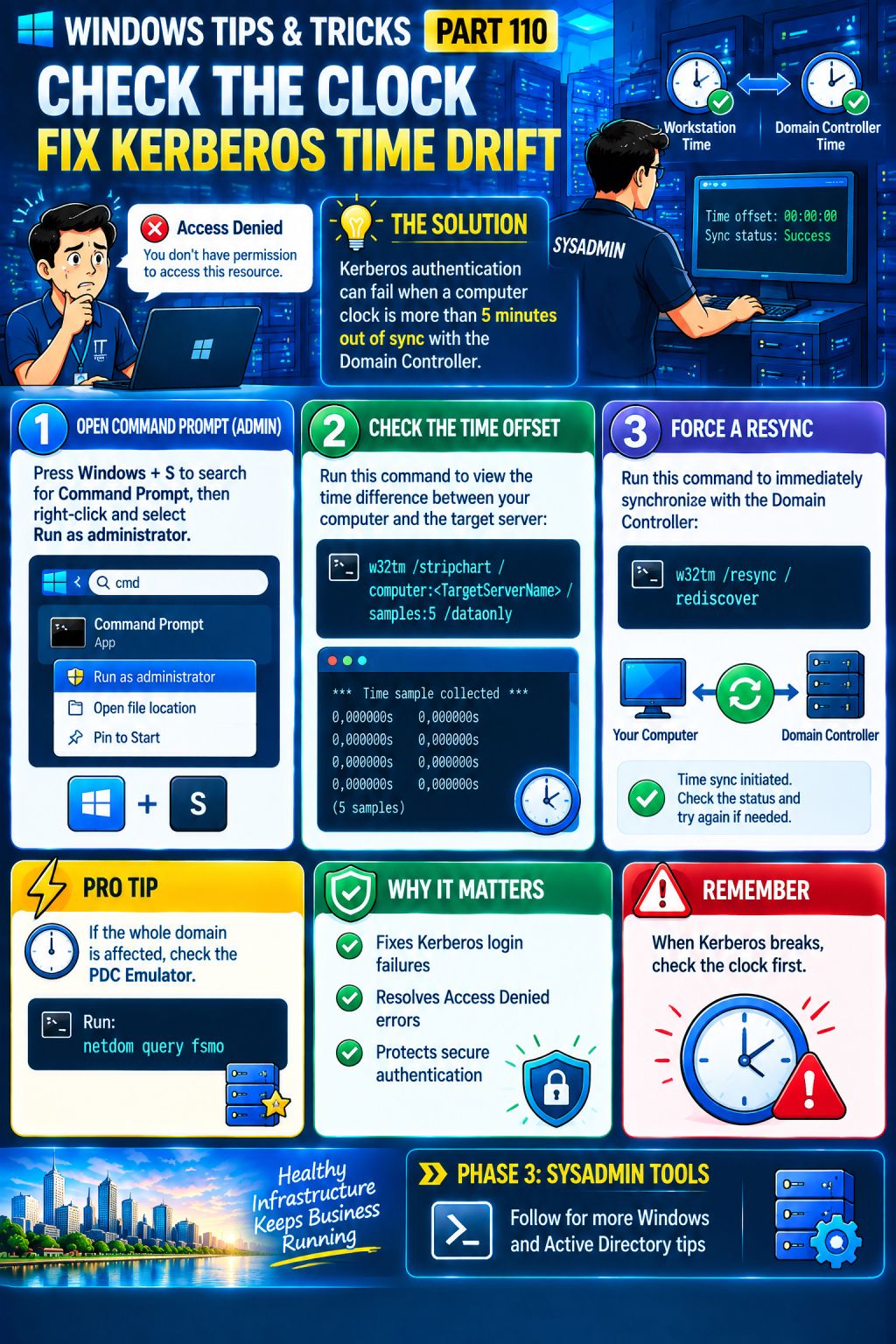
<p>In an Active Directory environment, time synchronization is not just a cosmetic setting — <strong>it is a critical security requirement</strong>. Kerberos ticket authentication will fail immediately when an endpoint workstation or server clock differs from the Domain Controller by more than <strong>5 minutes</strong> (default Kerberos maximum tolerance for computer clock synchronization).</p>

<p>This strict threshold protects the domain against <strong>replay attacks</strong> (where malicious actors intercept tickets and attempt to reuse them later).</p>

<hr />

<h2 id="2--step-by-step-time-drift-troubleshooting">2. ⚡ Step-by-Step Time Drift Troubleshooting</h2>

<h3 id="step-1-open-command-prompt-as-administrator">Step 1: Open Command Prompt as Administrator</h3>
<p>Press <kbd>Windows</kbd> + <kbd>S</kbd> to search for <strong>Command Prompt</strong> (or <strong>Terminal</strong>), right-click and select <strong>Run as Administrator</strong>.</p>

<h3 id="step-2-check-the-time-offset">Step 2: Check the Time Offset</h3>
<p>Use the built-in Windows Time diagnostics tool (<code class="language-plaintext highlighter-rouge">w32tm</code>) to view the exact time difference (in seconds) between your machine and the target server:</p>

<pre><code class="language-cmd">w32tm /stripchart /computer:&lt;TargetServerName&gt; /samples:5 /dataonly
</code></pre>

<p><em>(Replace <code class="language-plaintext highlighter-rouge">&lt;TargetServerName&gt;</code> with your Domain Controller hostname, e.g., <code class="language-plaintext highlighter-rouge">DC-01</code> or <code class="language-plaintext highlighter-rouge">AD-PDC</code>)</em></p>

<p><strong>Example Output:</strong></p>
<div class="language-text highlighter-rouge"><div class="highlight"><pre class="highlight"><code><table class="rouge-table"><tbody><tr><td class="rouge-gutter gl"><pre class="lineno">1
2
3
4
5
6
7
8
9
</pre></td><td class="rouge-code"><pre>C:\&gt; w32tm /stripchart /computer:DC-01 /samples:5 /dataonly
Tracking DC-01 [192.168.1.10:123].
Collecting 5 samples.
The current time is 17/09/2026 06:30:15.
06:30:15, +00.0001200s
06:30:17, +00.0001150s
06:30:19, +00.0000980s
06:30:21, +00.0001040s
06:30:23, +00.0001110s
</pre></td></tr></tbody></table></code></pre></div></div>

<blockquote>
  <p>ℹ️ <em>If the offset exceeds <code class="language-plaintext highlighter-rouge">+300.0000000s</code> or <code class="language-plaintext highlighter-rouge">-300.0000000s</code> (5 minutes), Kerberos ticket granting will systematically fail.</em></p>
</blockquote>

<h3 id="step-3-force-immediate-resync">Step 3: Force Immediate Resync</h3>
<p>If the machine is out of sync, force it to rediscover the Domain Controller and sync its clock immediately:</p>

<p><strong>On local machine:</strong></p>
<pre><code class="language-cmd">w32tm /resync /rediscover
</code></pre>

<p><strong>Remotely via PowerShell (Admin):</strong></p>
<div class="language-powershell highlighter-rouge"><div class="highlight"><pre class="highlight"><code><table class="rouge-table"><tbody><tr><td class="rouge-gutter gl"><pre class="lineno">1
</pre></td><td class="rouge-code"><pre><span class="n">Invoke-Command</span><span class="w"> </span><span class="nt">-ComputerName</span><span class="w"> </span><span class="err">&lt;</span><span class="nx">TargetServerName</span><span class="err">&gt;</span><span class="w"> </span><span class="nt">-ScriptBlock</span><span class="w"> </span><span class="p">{</span><span class="w"> </span><span class="n">w32tm</span><span class="w"> </span><span class="nx">/resync</span><span class="w"> </span><span class="nx">/rediscover</span><span class="w"> </span><span class="p">}</span><span class="w">
</span></pre></td></tr></tbody></table></code></pre></div></div>

<blockquote>
  <p>⚠️ <em>Note: Running this command remotely requires appropriate administrative permissions and enabled PowerShell Remoting (WinRM).</em></p>
</blockquote>

<hr />

<h2 id="3--pro-tip--investigate-the-pdc-emulator">3. 💡 Pro Tip — Investigate the PDC Emulator</h2>

<p>In a healthy Active Directory domain:</p>
<ol>
  <li><strong>Domain Member Workstations &amp; Servers</strong> sync time with any available authenticating Domain Controller.</li>
  <li><strong>Domain Controllers</strong> sync time with the <strong>PDC (Primary Domain Controller) Emulator</strong>.</li>
  <li><strong>PDC Emulator</strong> must be configured to sync with a reliable external NTP source (such as <code class="language-plaintext highlighter-rouge">pool.ntp.org</code> or your enterprise GPS/hardware clock).</li>
</ol>

<p>If multiple systems across your domain are experiencing simultaneous time drift, <strong>the PDC Emulator itself is likely out of sync</strong>.</p>

<h3 id="identify-the-pdc-emulator-fsmo-role">Identify the PDC Emulator FSMO Role:</h3>
<p>Run this command from any domain machine:</p>

<pre><code class="language-cmd">netdom query fsmo
</code></pre>

<p>Or via PowerShell:</p>
<div class="language-powershell highlighter-rouge"><div class="highlight"><pre class="highlight"><code><table class="rouge-table"><tbody><tr><td class="rouge-gutter gl"><pre class="lineno">1
</pre></td><td class="rouge-code"><pre><span class="p">(</span><span class="n">Get-ADDomain</span><span class="p">)</span><span class="o">.</span><span class="nf">PDCEmulator</span><span class="w">
</span></pre></td></tr></tbody></table></code></pre></div></div>

<p>Once identified, inspect the PDC Emulator’s NTP configuration and verify it reaches approved external time servers over UDP Port 123.</p>

<hr />

<h2 id="4--why-it-matters-for-it-operations">4. 🎯 Why It Matters for IT Operations</h2>

<ul>
  <li>✅ <strong>Fixes Kerberos Login Failures:</strong> Eliminates mysterious domain authentication lockouts and blank login screens.</li>
  <li>✅ <strong>Resolves Unexpected “Access Denied” Errors:</strong> Restores mapped drives, shared printer access, and DFS namespaces.</li>
  <li>✅ <strong>Protects Database &amp; Transaction Consistency:</strong> Prevents timestamp mismatch in SQL clustering, Exchange DAG replication, and SIEM logs.</li>
  <li>✅ <strong>Catches Virtual Machine Time Glitches:</strong> Hyper-V and VMware guests often desync after host snapshots or sleep states.</li>
  <li>✅ <strong>Maintains Zero-Trust Security Hygiene:</strong> Keeps Kerberos ticket validation compliant with enterprise security baselines.</li>
</ul>

<hr />

<h2 id="5--the-bigger-picture">5. 🎯 The Bigger Picture</h2>

<p>When authentication suddenly breaks across the floor, do not rush to rebuild Active Directory, change trust relationships, or reset passwords.</p>

<blockquote>
  <p><strong>SysAdmins do not panic when Kerberos breaks.</strong><br />
<strong>We check the clock. ⏱️</strong></p>
</blockquote>

<hr />

<blockquote>
  <p>🔗 <strong>Join the Live Community Discussion:</strong><br />
Have you ever encountered a domain-wide outage caused purely by a few minutes of time drift?<br />
👉 <strong><a href="https://www.linkedin.com/posts/toan-nguyen-it-oz_windowstips-sysadmin-itsupport-share-7506101538336030722-uiDd/">View and join the original LinkedIn post discussion</a></strong></p>

  <p><em>Authored by <a href="https://www.linkedin.com/in/toan-nguyen-it-oz/">Toan Nguyen (Toan Nguyen IT OZ)</a> — Enterprise Systems Administrator in Adelaide, South Australia.</em></p>
</blockquote>]]></content><author><name>Toan Nguyen</name></author><category term="SysAdmin" /><category term="Active Directory" /><category term="Active Directory" /><category term="Kerberos" /><category term="SysAdmin" /><category term="PowerShell" /><category term="Windows Server" /><category term="IT Support" /><category term="IT Operations" /><category term="Infrastructure" /><category term="Troubleshooting" /><category term="ToanNguyenItOz" /><category term="Part-110" /><category term="WindowsTips" /><summary type="html"><![CDATA[Users suddenly cannot log in or access network shares, and Event Viewer is flooded with Kerberos errors. Before restarting servers, check the clock! Fix time drift beyond 5 minutes.]]></summary><media:thumbnail xmlns:media="http://search.yahoo.com/mrss/" url="https://toannguyenitoz.github.io/assets/images/posts/part-110-check-the-clock-fix-kerberos-time-drift.jpg" /><media:content medium="image" url="https://toannguyenitoz.github.io/assets/images/posts/part-110-check-the-clock-fix-kerberos-time-drift.jpg" xmlns:media="http://search.yahoo.com/mrss/" /></entry><entry><title type="html">Windows Tips &amp;amp; Tricks – Part 108: Audit Group Policy (GPO) Remotely</title><link href="https://toannguyenitoz.github.io/posts/part-108-audit-group-policy-remotely/" rel="alternate" type="text/html" title="Windows Tips &amp;amp; Tricks – Part 108: Audit Group Policy (GPO) Remotely" /><published>2026-09-14T21:00:00+00:00</published><updated>2026-09-14T21:00:00+00:00</updated><id>https://toannguyenitoz.github.io/posts/part-108-audit-group-policy-remotely</id><content type="html" xml:base="https://toannguyenitoz.github.io/posts/part-108-audit-group-policy-remotely/"><![CDATA[<div class="cmd-annotation-card" style="margin-bottom: 24px;">
  <div class="annotation-badge">
    <svg viewBox="0 0 24 24" width="14" height="14" fill="none" stroke="currentColor" stroke-width="2"><circle cx="12" cy="10" r="10"></circle><line x1="12" y1="16" x2="12" y2="12"></line><line x1="12" y1="8" x2="12.01" y2="8"></line></svg>
    <span>LinkedIn Enterprise Series — Phase 3: SysAdmin Tools</span>
  </div>
  <p class="annotation-text">
    This guide is Part 108 of the <em>Windows Tips &amp; Tricks</em> series published by <strong>Toan Nguyen (Toan Nguyen IT OZ)</strong>. In Phase 3, we build enterprise infrastructure skills and replace disruptive RDP troubleshooting with non-intrusive remote audit tools. Follow on <a href="https://www.linkedin.com/posts/toan-nguyen-it-oz_windowstips-sysadmin-activedirectory-share-7505376954053922817-0khM/" target="_blank" rel="noopener noreferrer">LinkedIn</a>.
  </p>
</div>

<p><img src="/assets/images/posts/part-108-audit-group-policy-remotely.jpg" alt="Windows Tips &amp; Tricks – Part 108: Audit Group Policy (GPO) Remotely" /></p>

<h2 id="1-scenario-overview--problem-context">1. Scenario Overview &amp; Problem Context</h2>

<p>🚀 <strong>Windows Tips &amp; Tricks – Part 108</strong></p>

<p>📜 <strong>Audit Group Policy (GPO) Remotely</strong></p>

<p>💻 <em>User says:</em></p>
<blockquote>
  <p><strong>“My mapped drive is missing, and my browser settings are wrong.”</strong></p>
</blockquote>

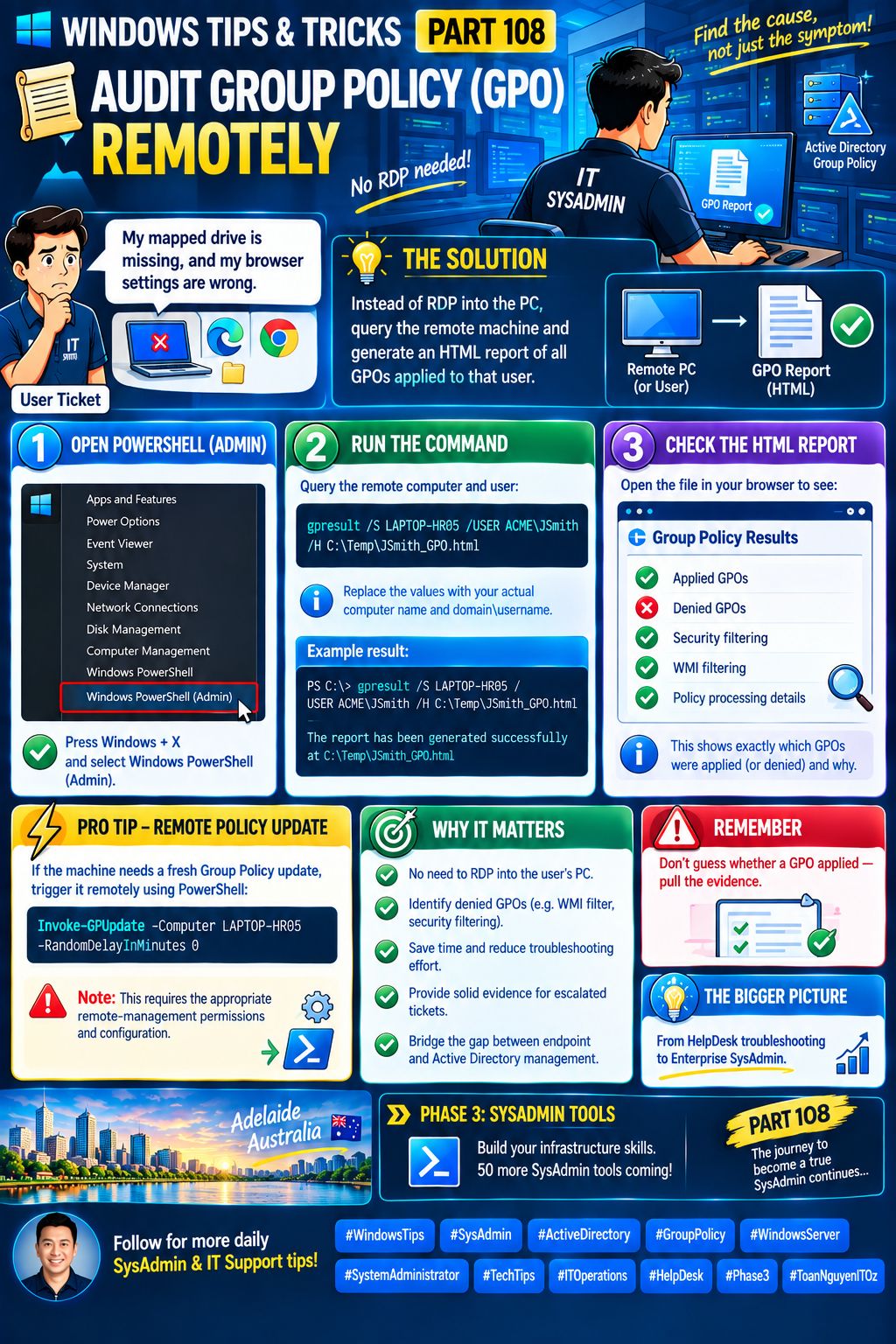
<p>Before interrupting the user by establishing an RDP session or taking over their screen, check exactly what Group Policy Objects (GPOs) were applied to their machine and account.</p>

<p>💡 <strong>The SysAdmin Solution:</strong><br />
Instead of logging into the workstation, query the remote machine directly and generate an HTML report of all GPOs processed for that specific user.</p>

<hr />

<h2 id="2--step-by-step-remote-gpo-audit">2. ⚡ Step-by-Step Remote GPO Audit</h2>

<h3 id="step-1-open-powershell-or-cmd-as-administrator">Step 1: Open PowerShell or CMD as Administrator</h3>
<p>Press <kbd>Windows</kbd> + <kbd>X</kbd> and select <strong>Windows PowerShell (Admin)</strong> or <strong>Terminal (Admin)</strong> on your IT management workstation.</p>

<h3 id="step-2-run-the-remote-gpresult-command">Step 2: Run the Remote GPResult Command</h3>
<p>Query the target workstation and user scope to export a clean, structured HTML report:</p>

<div class="language-powershell highlighter-rouge"><div class="highlight"><pre class="highlight"><code><table class="rouge-table"><tbody><tr><td class="rouge-gutter gl"><pre class="lineno">1
</pre></td><td class="rouge-code"><pre><span class="n">gpresult</span><span class="w"> </span><span class="nx">/S</span><span class="w"> </span><span class="nx">LAPTOP-HR05</span><span class="w"> </span><span class="nx">/USER</span><span class="w"> </span><span class="nx">ACME\JSmith</span><span class="w"> </span><span class="nx">/H</span><span class="w"> </span><span class="nx">C:\Temp\JSmith_GPO.html</span><span class="w">
</span></pre></td></tr></tbody></table></code></pre></div></div>

<blockquote>
  <p>ℹ️ <em>Replace <code class="language-plaintext highlighter-rouge">LAPTOP-HR05</code> with your target computer name and <code class="language-plaintext highlighter-rouge">ACME\JSmith</code> with the actual domain\username.</em></p>
</blockquote>

<p><strong>Example result:</strong></p>
<div class="language-text highlighter-rouge"><div class="highlight"><pre class="highlight"><code><table class="rouge-table"><tbody><tr><td class="rouge-gutter gl"><pre class="lineno">1
2
</pre></td><td class="rouge-code"><pre>PS C:\&gt; gpresult /S LAPTOP-HR05 /USER ACME\JSmith /H C:\Temp\JSmith_GPO.html
The report has been generated successfully at C:\Temp\JSmith_GPO.html
</pre></td></tr></tbody></table></code></pre></div></div>

<hr />

<h2 id="3--what-to-investigate-in-the-html-report">3. 📊 What to Investigate in the HTML Report</h2>

<p>Open <code class="language-plaintext highlighter-rouge">C:\Temp\JSmith_GPO.html</code> in your browser. The generated report breaks down every detail of the client-side Group Policy processing:</p>

<ul>
  <li>✅ <strong>Applied GPOs:</strong> Verified policies successfully running on the machine (drive maps, firewall rules, security baselines).</li>
  <li>❌ <strong>Denied GPOs:</strong> Policies that failed to apply, along with the explicit reason (Disabled, Empty, WMI Filter Failed, or Access Denied).</li>
  <li>🔐 <strong>Security Filtering:</strong> Check whether the user or machine object has <em>Read</em> and <em>Apply Group Policy</em> permissions.</li>
  <li>🧩 <strong>WMI Filtering:</strong> Validate if WMI queries (such as OS version or chassis type) evaluated to <code class="language-plaintext highlighter-rouge">True</code> or <code class="language-plaintext highlighter-rouge">False</code>.</li>
  <li>⏱️ <strong>Policy Processing Details:</strong> Inspect client-side extension (CSE) execution times and detect slow link thresholds or DC discovery issues.</li>
</ul>

<blockquote>
  <p>ℹ️ <em>This provides irrefutable evidence showing exactly which GPOs were applied or denied, and why.</em></p>
</blockquote>

<hr />

<h2 id="4--pro-tip--remote-policy-update-via-powershell">4. 💡 Pro Tip — Remote Policy Update via PowerShell</h2>

<p>If your investigation confirms the policy was recently fixed in the Group Policy Management Console (GPMC) and the remote computer just needs a fresh refresh, trigger it remotely without touching the user’s desktop:</p>

<div class="language-powershell highlighter-rouge"><div class="highlight"><pre class="highlight"><code><table class="rouge-table"><tbody><tr><td class="rouge-gutter gl"><pre class="lineno">1
</pre></td><td class="rouge-code"><pre><span class="n">Invoke-GPUpdate</span><span class="w"> </span><span class="nt">-Computer</span><span class="w"> </span><span class="nx">LAPTOP-HR05</span><span class="w"> </span><span class="nt">-RandomDelayInMinutes</span><span class="w"> </span><span class="nx">0</span><span class="w">
</span></pre></td></tr></tbody></table></code></pre></div></div>

<blockquote>
  <p>⚠️ <em>Note: This requires remote management permissions (WinRM / RPC ports enabled and configured in your domain environment).</em></p>
</blockquote>

<hr />

<h2 id="5--why-it-matters-for-it-operations">5. 🎯 Why It Matters for IT Operations</h2>

<ul>
  <li>🚀 <strong>No RDP Needed:</strong> Never interrupt end-user productivity by kicking them off their desktop or locking their session.</li>
  <li>🔍 <strong>Identify Denied GPOs Instantly:</strong> Rapidly diagnose root causes (WMI filter syntax errors, security filtering exclusions, OU link order).</li>
  <li>⏱️ <strong>Save Valuable Helpdesk Time:</strong> Eliminate guesswork and resolve escalations with empirical evidence.</li>
  <li>📋 <strong>Solid Evidence for Escalations:</strong> Attach the generated HTML report directly to the ITSM service ticket for Tier 3 / Identity engineers.</li>
  <li>🌉 <strong>Bridge the Gap:</strong> Transition your daily operational workflow from Helpdesk reactive firefighting to proactive Enterprise Active Directory management.</li>
</ul>

<hr />

<h2 id="6--sysadmin-mindset">6. 🎯 SysAdmin Mindset</h2>

<blockquote>
  <p><strong>Don’t guess whether a GPO applied — pull the evidence.</strong></p>

  <p><em>From HelpDesk troubleshooting → Enterprise SysAdmin. 🚀</em></p>
</blockquote>

<hr />

<blockquote>
  <p>🔗 <strong>Join the Live Community Discussion:</strong><br />
Have questions or best practices about troubleshooting Group Policy remotely?<br />
👉 <strong><a href="https://www.linkedin.com/posts/toan-nguyen-it-oz_windowstips-sysadmin-activedirectory-share-7505376954053922817-0khM/">View and join the original LinkedIn post discussion</a></strong></p>

  <p><em>Authored by <a href="https://www.linkedin.com/in/toan-nguyen-it-oz/">Toan Nguyen (Toan Nguyen IT OZ)</a> — Enterprise Systems Administrator in Adelaide, South Australia.</em></p>
</blockquote>]]></content><author><name>Toan Nguyen</name></author><category term="SysAdmin" /><category term="Active Directory" /><category term="Active Directory" /><category term="Group Policy" /><category term="GPO" /><category term="SysAdmin" /><category term="PowerShell" /><category term="Windows Server" /><category term="IT Support" /><category term="IT Operations" /><category term="Troubleshooting" /><category term="ToanNguyenItOz" /><category term="Part-108" /><category term="WindowsTips" /><summary type="html"><![CDATA[User says: 'My mapped drive is missing, and my browser settings are wrong.' Don't RDP into the PC. Audit applied and denied GPOs remotely with gpresult HTML reports.]]></summary><media:thumbnail xmlns:media="http://search.yahoo.com/mrss/" url="https://toannguyenitoz.github.io/assets/images/posts/part-108-audit-group-policy-remotely.jpg" /><media:content medium="image" url="https://toannguyenitoz.github.io/assets/images/posts/part-108-audit-group-policy-remotely.jpg" xmlns:media="http://search.yahoo.com/mrss/" /></entry><entry><title type="html">Windows Tips &amp;amp; Tricks – Part 107: Hunt Down the Source of AD Account Lockouts</title><link href="https://toannguyenitoz.github.io/posts/part-107-hunt-down-the-source-of-ad-account-lockouts/" rel="alternate" type="text/html" title="Windows Tips &amp;amp; Tricks – Part 107: Hunt Down the Source of AD Account Lockouts" /><published>2026-09-13T20:57:45+00:00</published><updated>2026-09-13T20:57:45+00:00</updated><id>https://toannguyenitoz.github.io/posts/part-107-hunt-down-the-source-of-ad-account-lockouts</id><content type="html" xml:base="https://toannguyenitoz.github.io/posts/part-107-hunt-down-the-source-of-ad-account-lockouts/"><![CDATA[<div class="cmd-annotation-card" style="margin-bottom: 24px;">
  <div class="annotation-badge">
    <svg viewBox="0 0 24 24" width="14" height="14" fill="none" stroke="currentColor" stroke-width="2"><circle cx="12" cy="12" r="10"></circle><line x1="12" y1="16" x2="12" y2="12"></line><line x1="12" y1="8" x2="12.01" y2="8"></line></svg>
    <span>LinkedIn Enterprise Series — Phase 3: SysAdmin Tools</span>
  </div>
  <p class="annotation-text">
    This guide is Part 107 of the <em>Windows Tips &amp; Tricks</em> series published by <strong>Toan Nguyen (Toan Nguyen IT OZ)</strong>. In Phase 3, we move from basic helpdesk ticketing to root-cause enterprise identity and infrastructure troubleshooting. Follow on <a href="https://www.linkedin.com/posts/toan-nguyen-it-oz_windowstips-sysadmin-activedirectory-activity-7505006834483732480-M6vO" target="_blank" rel="noopener noreferrer">LinkedIn</a>.
  </p>
</div>

<p><img src="/assets/images/posts/part-107-hunt-down-the-source-of-ad-account-lockouts.jpg" alt="Windows Tips &amp; Tricks – Part 107: Hunt Down the Source of AD Account Lockouts" /></p>

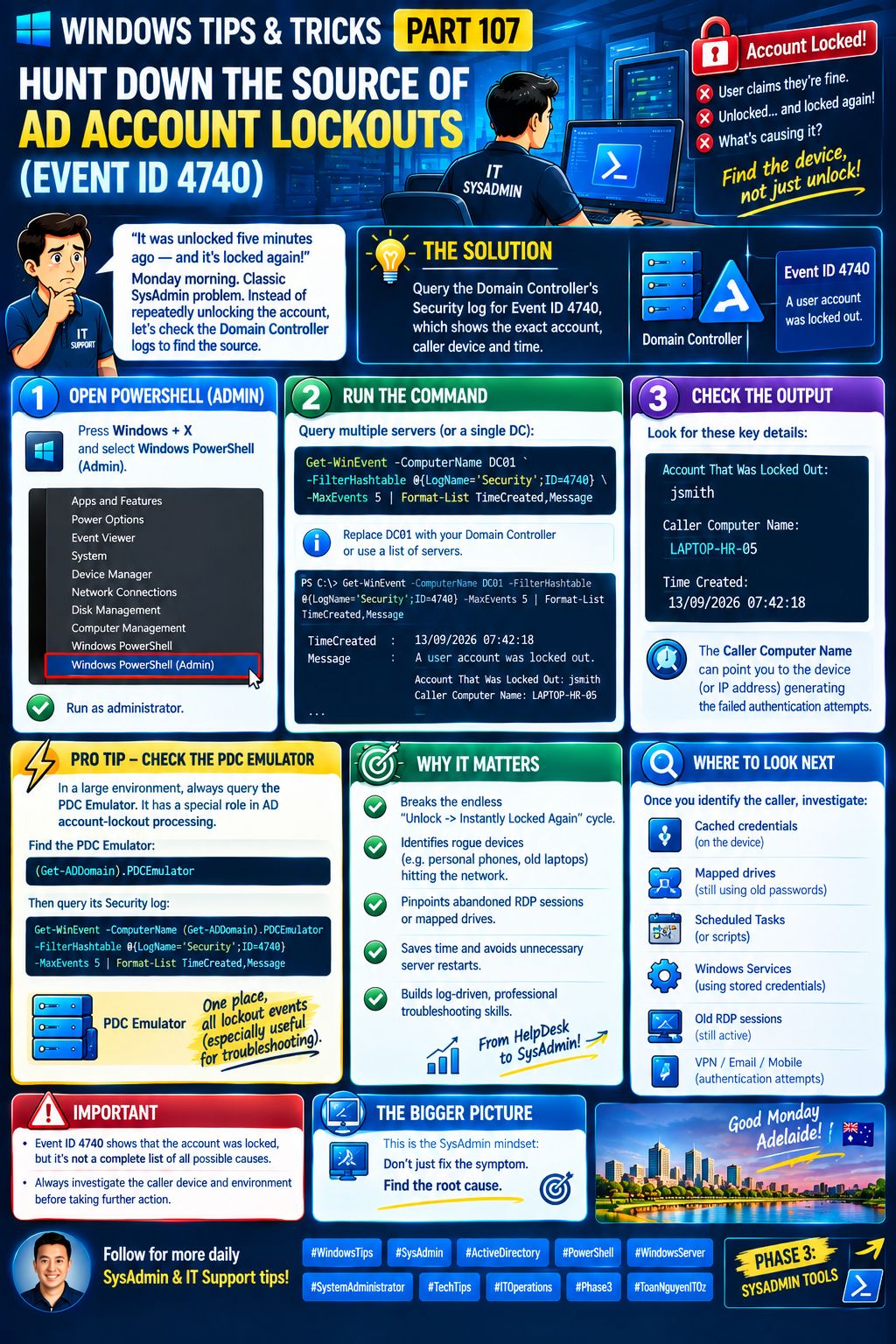
<h2 id="1-scenario-overview--problem-context">1. Scenario Overview &amp; Problem Context</h2>

<p>🕵️ <strong>Windows Tips &amp; Tricks – Part 107</strong></p>

<p>🔐 <strong>Hunt Down the Source of AD Account Lockouts</strong></p>

<blockquote>
  <p><em>“It was unlocked five minutes ago — and it’s locked again!”</em></p>
</blockquote>

<p>Monday morning. Classic SysAdmin headache. 😅</p>

<p>A user calls the service desk complaining their domain account keeps locking out repeatedly despite typing their password correctly.</p>

<p>Instead of playing a losing game of repeatedly clicking “Unlock account”, go straight to the Domain Controller to identify the originating source machine.</p>

<hr />

<h2 id="2--event-id-4740-the-lockout-event">2. 🎯 Event ID 4740: The Lockout Event</h2>

<p>In Windows Active Directory, <strong>Event ID 4740</strong> in the Security Event Log records:</p>
<blockquote>
  <p><em>“A user account was locked out.”</em></p>
</blockquote>

<p>Run this PowerShell command to query the most recent lockout events directly from your Domain Controller:</p>

<div class="language-powershell highlighter-rouge"><div class="highlight"><pre class="highlight"><code><table class="rouge-table"><tbody><tr><td class="rouge-gutter gl"><pre class="lineno">1
2
</pre></td><td class="rouge-code"><pre><span class="n">Get-WinEvent</span><span class="w"> </span><span class="nt">-ComputerName</span><span class="w"> </span><span class="nx">DC01</span><span class="w"> </span><span class="nt">-FilterHashtable</span><span class="w"> </span><span class="p">@{</span><span class="nx">LogName</span><span class="o">=</span><span class="s1">'Security'</span><span class="p">;</span><span class="w"> </span><span class="nx">ID</span><span class="o">=</span><span class="mi">4740</span><span class="p">}</span><span class="w"> </span><span class="nt">-MaxEvents</span><span class="w"> </span><span class="nx">5</span><span class="w"> </span><span class="o">|</span><span class="w"> 
    </span><span class="n">Format-List</span><span class="w"> </span><span class="nx">TimeCreated</span><span class="p">,</span><span class="w"> </span><span class="nx">Message</span><span class="w">
</span></pre></td></tr></tbody></table></code></pre></div></div>

<p>🔎 <strong>What to look for in the event details:</strong></p>
<ul>
  <li>👤 <strong>Target Account Name:</strong> The username that was locked out.</li>
  <li>💻 <strong>Caller Computer Name:</strong> The hostname of the workstation, server, or device sending the failed authentication attempts.</li>
</ul>

<p>The <strong>Caller Computer Name</strong> is your golden lead — it points you directly toward the endpoint generating the bad password traffic.</p>

<hr />

<h2 id="3--pro-tip--always-query-the-pdc-emulator">3. ⚡ Pro Tip — Always Query the PDC Emulator</h2>

<p>In a multi-DC environment, authentication failures are forwarded to the <strong>PDC (Primary Domain Controller) Emulator</strong> FSMO role for validation. Consequently, lockout events are centralized on the PDC Emulator.</p>

<p>Find your domain’s PDC Emulator dynamically and query its Security log in one seamless workflow:</p>

<div class="language-powershell highlighter-rouge"><div class="highlight"><pre class="highlight"><code><table class="rouge-table"><tbody><tr><td class="rouge-gutter gl"><pre class="lineno">1
2
3
4
5
6
</pre></td><td class="rouge-code"><pre><span class="c"># 1. Discover the PDC Emulator in your Active Directory domain</span><span class="w">
</span><span class="p">(</span><span class="n">Get-ADDomain</span><span class="p">)</span><span class="o">.</span><span class="nf">PDCEmulator</span><span class="w">

</span><span class="c"># 2. Query Event ID 4740 directly on the PDC Emulator</span><span class="w">
</span><span class="n">Get-WinEvent</span><span class="w"> </span><span class="nt">-ComputerName</span><span class="w"> </span><span class="p">(</span><span class="n">Get-ADDomain</span><span class="p">)</span><span class="o">.</span><span class="nf">PDCEmulator</span><span class="w"> </span><span class="nt">-FilterHashtable</span><span class="w"> </span><span class="p">@{</span><span class="nx">LogName</span><span class="o">=</span><span class="s1">'Security'</span><span class="p">;</span><span class="w"> </span><span class="nx">ID</span><span class="o">=</span><span class="mi">4740</span><span class="p">}</span><span class="w"> </span><span class="nt">-MaxEvents</span><span class="w"> </span><span class="mi">5</span><span class="w"> </span><span class="o">|</span><span class="w"> 
    </span><span class="n">Select-Object</span><span class="w"> </span><span class="nx">TimeCreated</span><span class="p">,</span><span class="w"> </span><span class="p">@{</span><span class="nx">N</span><span class="o">=</span><span class="s1">'User'</span><span class="p">;</span><span class="w"> </span><span class="nx">E</span><span class="o">=</span><span class="p">{</span><span class="bp">$_</span><span class="o">.</span><span class="n">Properties</span><span class="p">[</span><span class="mi">0</span><span class="p">]</span><span class="o">.</span><span class="nf">Value</span><span class="p">}},</span><span class="w"> </span><span class="p">@{</span><span class="nx">N</span><span class="o">=</span><span class="s1">'CallerComputer'</span><span class="p">;</span><span class="w"> </span><span class="nx">E</span><span class="o">=</span><span class="p">{</span><span class="bp">$_</span><span class="o">.</span><span class="n">Properties</span><span class="p">[</span><span class="mi">1</span><span class="p">]</span><span class="o">.</span><span class="nf">Value</span><span class="p">}}</span><span class="w">
</span></pre></td></tr></tbody></table></code></pre></div></div>

<p>Because the PDC Emulator has a specialized role in Active Directory account-lockout processing, it is always the most authoritative place to inspect during investigations.</p>

<hr />

<h2 id="4--where-to-hunt-next-on-the-source-device">4. 🔍 Where to Hunt Next on the Source Device</h2>

<p>Once you pinpoint the <strong>Caller Computer Name</strong>, inspect these common culprits that silently keep trying old credentials in the background:</p>

<ul>
  <li>🔹 <strong>Windows Credential Manager:</strong> Stale saved network passwords or expired domain credentials.</li>
  <li>🔹 <strong>Persistent Mapped Network Drives:</strong> Batches connecting with obsolete cached passwords.</li>
  <li>🔹 <strong>Scheduled Tasks:</strong> Tasks configured to run under the user’s account with an old password.</li>
  <li>🔹 <strong>Windows Services:</strong> Background services set to Log On As the affected domain user.</li>
  <li>🔹 <strong>Disconnected RDP Sessions:</strong> Active/disconnected remote desktop sessions running in the background trying to refresh Kerberos tickets.</li>
  <li>🔹 <strong>Mobile / Email / VPN Clients:</strong> Smartphones, tablets, or remote VPN clients caching expired corporate Wi-Fi or Exchange credentials.</li>
</ul>

<hr />

<h2 id="5--why-it-matters-for-it-operations">5. 🎯 Why It Matters for IT Operations</h2>

<ul>
  <li>✅ <strong>Find the root cause fast:</strong> Stop treating the symptom by constantly unlocking accounts.</li>
  <li>✅ <strong>Identify rogue devices:</strong> Pinpoint unmanaged mobile devices or forgotten test servers attacking domain credentials.</li>
  <li>✅ <strong>Save valuable Helpdesk time:</strong> Eliminate repetitive ticket loops for the same user.</li>
  <li>✅ <strong>Audit enterprise authentication health:</strong> Maintain security hygiene and reduce Kerberos/NTLM authentication noise across domain controllers.</li>
</ul>

<hr />

<h2 id="6--sysadmin-mindset">6. 💡 SysAdmin Mindset</h2>

<blockquote>
  <p><strong>Don’t keep unlocking the account.</strong></p>

  <p><strong>Find what is causing the lockout. 🎯</strong></p>
</blockquote>

<p>🚀 Phase 3 — SysAdmin Tools continues!</p>

<hr />

<blockquote>
  <p>🔗 <strong>Join the Live Community Discussion:</strong>
Have questions or additional tips about Active Directory account lockouts and Event ID 4740?
👉 <strong><a href="https://www.linkedin.com/posts/toan-nguyen-it-oz_windowstips-sysadmin-activedirectory-activity-7505006834483732480-M6vO">View and join the original LinkedIn post discussion</a></strong></p>

  <p><em>Authored by <a href="https://www.linkedin.com/in/toan-nguyen-it-oz/">Toan Nguyen (Toan Nguyen IT OZ)</a> — Enterprise Systems Administrator in Adelaide, South Australia.</em></p>
</blockquote>]]></content><author><name>Toan Nguyen</name></author><category term="SysAdmin" /><category term="Active Directory" /><category term="Active Directory" /><category term="SysAdmin" /><category term="PowerShell" /><category term="Windows Server" /><category term="IT Support" /><category term="Infrastructure" /><category term="Account Lockout" /><category term="Troubleshooting" /><category term="ToanNguyenItOz" /><category term="Part-107" /><category term="WindowsTips" /><summary type="html"><![CDATA[It was unlocked five minutes ago — and it's locked again! Monday morning classic SysAdmin problem. Trace the Caller Computer Name with Event ID 4740 on the PDC Emulator.]]></summary><media:thumbnail xmlns:media="http://search.yahoo.com/mrss/" url="https://toannguyenitoz.github.io/assets/images/posts/part-107-hunt-down-the-source-of-ad-account-lockouts.jpg" /><media:content medium="image" url="https://toannguyenitoz.github.io/assets/images/posts/part-107-hunt-down-the-source-of-ad-account-lockouts.jpg" xmlns:media="http://search.yahoo.com/mrss/" /></entry><entry><title type="html">Windows Tips &amp;amp; Tricks – Part 106: Bulk Check Server Uptime</title><link href="https://toannguyenitoz.github.io/posts/part-106-bulk-check-server-uptime/" rel="alternate" type="text/html" title="Windows Tips &amp;amp; Tricks – Part 106: Bulk Check Server Uptime" /><published>2026-09-12T20:55:47+00:00</published><updated>2026-09-12T20:55:47+00:00</updated><id>https://toannguyenitoz.github.io/posts/part-106-bulk-check-server-uptime</id><content type="html" xml:base="https://toannguyenitoz.github.io/posts/part-106-bulk-check-server-uptime/"><![CDATA[<div class="cmd-annotation-card" style="margin-bottom: 24px;">
  <div class="annotation-badge">
    <svg viewBox="0 0 24 24" width="14" height="14" fill="none" stroke="currentColor" stroke-width="2"><circle cx="12" cy="12" r="10"></circle><line x1="12" y1="16" x2="12" y2="12"></line><line x1="12" y1="8" x2="12.01" y2="8"></line></svg>
    <span>LinkedIn Enterprise Series — Phase 3: SysAdmin Tools</span>
  </div>
  <p class="annotation-text">
    This guide is Part 106 of the <em>Windows Tips &amp; Tricks</em> series published by <strong>Toan Nguyen (Toan Nguyen IT OZ)</strong>. In Phase 3, we scale operational skills from single-workstation support to multi-server infrastructure management. Follow on <a href="https://www.linkedin.com/posts/toan-nguyen-it-oz_windowstips-sysadmin-windowsserver-activity-7504643952982257665-aVI3" target="_blank" rel="noopener noreferrer">LinkedIn</a>.
  </p>
</div>

<p><img src="/assets/images/posts/part-106-bulk-check-server-uptime.jpg" alt="Windows Tips &amp; Tricks – Part 106: Bulk Check Server Uptime" /></p>

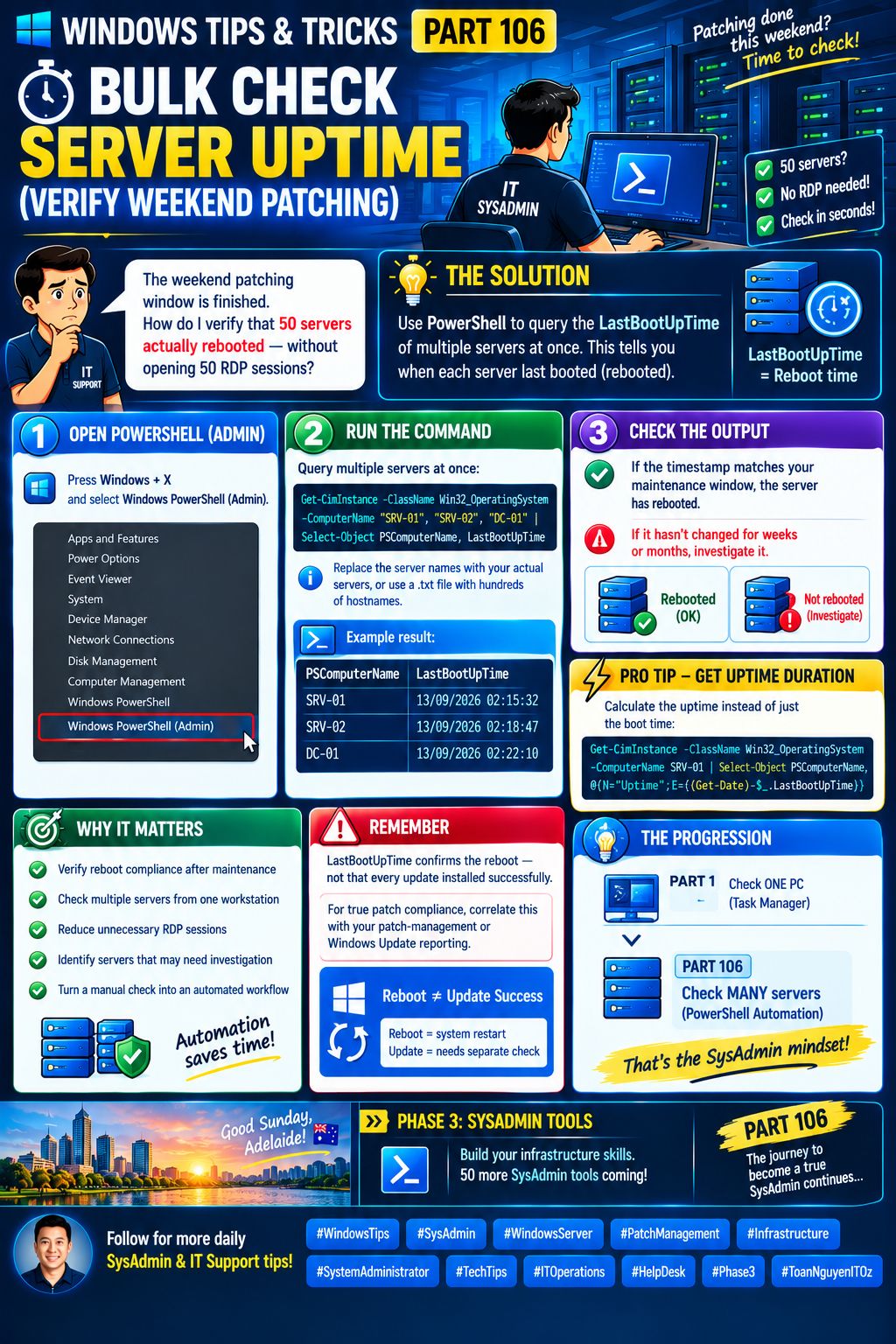
<h2 id="1-scenario-overview--problem-context">1. Scenario Overview &amp; Problem Context</h2>

<p>⏱️ <strong>Windows Tips &amp; Tricks – Part 106</strong></p>

<p>🏢 <strong>Bulk Check Server Uptime</strong></p>

<blockquote>
  <p><em>“The weekend patching window is finished. How do you verify that 50 servers actually rebooted — without opening 50 RDP sessions?”</em> 👨‍💻</p>
</blockquote>

<p>Back in <strong>Part 1</strong>, we checked uptime on a single PC using Task Manager.</p>

<p>Now in <strong>Phase 3</strong>, we scale that exact same concept across your entire infrastructure using PowerShell and WMI/CIM.</p>

<hr />

<h2 id="2--powershell-solution-bulk-query-across-servers">2. ⚡ PowerShell Solution: Bulk Query Across Servers</h2>

<p>Instead of logging into each server individually, run <code class="language-plaintext highlighter-rouge">Get-CimInstance</code> against multiple target machines simultaneously from your management console:</p>

<div class="language-powershell highlighter-rouge"><div class="highlight"><pre class="highlight"><code><table class="rouge-table"><tbody><tr><td class="rouge-gutter gl"><pre class="lineno">1
2
</pre></td><td class="rouge-code"><pre><span class="n">Get-CimInstance</span><span class="w"> </span><span class="nx">Win32_OperatingSystem</span><span class="w"> </span><span class="nt">-ComputerName</span><span class="w"> </span><span class="s2">"SRV-01"</span><span class="p">,</span><span class="s2">"SRV-02"</span><span class="p">,</span><span class="s2">"DC-01"</span><span class="w"> </span><span class="o">|</span><span class="w"> 
    </span><span class="n">Select-Object</span><span class="w"> </span><span class="nx">PSComputerName</span><span class="p">,</span><span class="w"> </span><span class="nx">LastBootUpTime</span><span class="w">
</span></pre></td></tr></tbody></table></code></pre></div></div>

<p>🔎 <strong>What you get:</strong></p>
<ul>
  <li><strong>Server Name</strong> → <strong>Last Boot Time</strong></li>
</ul>

<p>If the boot time matches your maintenance or patching schedule, the server has rebooted successfully.</p>

<p>If it hasn’t changed for weeks or months, you immediately know which servers failed to restart and require further investigation.</p>

<hr />

<h2 id="3--pro-tip--calculate-human-readable-uptime">3. 🚀 Pro Tip — Calculate Human-Readable Uptime</h2>

<p>Want to see exact uptime duration (Days, Hours, Minutes) instead of raw timestamps? Calculate the time difference directly:</p>

<div class="language-powershell highlighter-rouge"><div class="highlight"><pre class="highlight"><code><table class="rouge-table"><tbody><tr><td class="rouge-gutter gl"><pre class="lineno">1
2
</pre></td><td class="rouge-code"><pre><span class="n">Get-CimInstance</span><span class="w"> </span><span class="nx">Win32_OperatingSystem</span><span class="w"> </span><span class="nt">-ComputerName</span><span class="w"> </span><span class="nx">SRV-01</span><span class="w"> </span><span class="o">|</span><span class="w"> 
    </span><span class="n">Select-Object</span><span class="w"> </span><span class="nx">PSComputerName</span><span class="p">,</span><span class="w"> </span><span class="p">@{</span><span class="nx">N</span><span class="o">=</span><span class="s2">"Uptime"</span><span class="p">;</span><span class="w"> </span><span class="nx">E</span><span class="o">=</span><span class="p">{(</span><span class="n">Get-Date</span><span class="p">)</span><span class="w"> </span><span class="o">-</span><span class="w"> </span><span class="bp">$_</span><span class="o">.</span><span class="nf">LastBootUpTime</span><span class="p">}}</span><span class="w">
</span></pre></td></tr></tbody></table></code></pre></div></div>

<p>You can also pipe an entire list of servers from Active Directory or a text file:</p>

<div class="language-powershell highlighter-rouge"><div class="highlight"><pre class="highlight"><code><table class="rouge-table"><tbody><tr><td class="rouge-gutter gl"><pre class="lineno">1
2
3
4
</pre></td><td class="rouge-code"><pre><span class="nv">$Servers</span><span class="w"> </span><span class="o">=</span><span class="w"> </span><span class="n">Get-Content</span><span class="w"> </span><span class="nt">-Path</span><span class="w"> </span><span class="s2">"C:\Admin\ServerList.txt"</span><span class="w">
</span><span class="n">Get-CimInstance</span><span class="w"> </span><span class="nx">Win32_OperatingSystem</span><span class="w"> </span><span class="nt">-ComputerName</span><span class="w"> </span><span class="nv">$Servers</span><span class="w"> </span><span class="o">|</span><span class="w"> 
    </span><span class="n">Select-Object</span><span class="w"> </span><span class="nx">PSComputerName</span><span class="p">,</span><span class="w"> </span><span class="nx">LastBootUpTime</span><span class="p">,</span><span class="w"> </span><span class="p">@{</span><span class="nx">N</span><span class="o">=</span><span class="s2">"UptimeDays"</span><span class="p">;</span><span class="w"> </span><span class="nx">E</span><span class="o">=</span><span class="p">{[</span><span class="n">math</span><span class="p">]::</span><span class="n">Round</span><span class="p">(((</span><span class="n">Get-Date</span><span class="p">)</span><span class="w"> </span><span class="o">-</span><span class="w"> </span><span class="bp">$_</span><span class="o">.</span><span class="nf">LastBootUpTime</span><span class="p">)</span><span class="o">.</span><span class="nf">TotalDays</span><span class="p">,</span><span class="w"> </span><span class="mi">1</span><span class="p">)}}</span><span class="w"> </span><span class="o">|</span><span class="w"> 
    </span><span class="n">Sort-Object</span><span class="w"> </span><span class="nx">LastBootUpTime</span><span class="w">
</span></pre></td></tr></tbody></table></code></pre></div></div>

<hr />

<h2 id="4--why-it-matters-for-sysadmins">4. 🎯 Why It Matters for SysAdmins</h2>

<ul>
  <li>✅ <strong>Verify reboot compliance:</strong> Instantly validate that all systems restarted as part of patch maintenance.</li>
  <li>✅ <strong>Check multiple servers simultaneously:</strong> Audit 10, 50, or 200 servers from a single workstation or jump host.</li>
  <li>✅ <strong>Reduce unnecessary RDP sessions:</strong> Avoid opening and closing dozens of remote desktop windows.</li>
  <li>✅ <strong>Spot stuck systems early:</strong> Identify servers that failed to reboot before Monday morning users arrive.</li>
  <li>✅ <strong>Turn manual checks into automated workflows:</strong> Integrate into post-patching verification scripts and alerting pipelines.</li>
</ul>

<hr />

<h2 id="5-️-operational-note-reboot-vs-patch-compliance">5. ⚠️ Operational Note: Reboot vs. Patch Compliance</h2>

<blockquote>
  <p><strong>Important:</strong> <code class="language-plaintext highlighter-rouge">LastBootUpTime</code> confirms that a reboot occurred — it does <strong>not</strong> automatically prove that every update installed without errors.</p>

  <p>For comprehensive patch compliance reporting, always correlate boot timestamps with your centralized update tool (WSUS, Intune, MECM, or Windows Update event logs).</p>
</blockquote>

<hr />

<h2 id="6--the-sysadmin-progression">6. 💡 The SysAdmin Progression</h2>

<blockquote>
  <p><strong>Part 1</strong> → Check <strong>ONE</strong> PC (Task Manager)<br />
<strong>Part 106</strong> → Check <strong>MANY</strong> servers (PowerShell + CIM)</p>

  <p><em>That is the SysAdmin mindset: scale, automate, and eliminate repetitive manual clicks.</em> 🚀</p>
</blockquote>

<p>Phase 3 — SysAdmin Tools continues!</p>

<hr />

<blockquote>
  <p>🔗 <strong>Join the Live Community Discussion:</strong>
Have questions or additional tips about bulk server administration and PowerShell CIM queries?
👉 <strong><a href="https://www.linkedin.com/posts/toan-nguyen-it-oz_windowstips-sysadmin-windowsserver-activity-7504643952982257665-aVI3">View and join the original LinkedIn post discussion</a></strong></p>

  <p><em>Authored by <a href="https://www.linkedin.com/in/toan-nguyen-it-oz/">Toan Nguyen (Toan Nguyen IT OZ)</a> — Enterprise Systems Administrator in Adelaide, South Australia.</em></p>
</blockquote>]]></content><author><name>Toan Nguyen</name></author><category term="SysAdmin" /><category term="Windows Server" /><category term="Windows Server" /><category term="SysAdmin" /><category term="PowerShell" /><category term="Patch Management" /><category term="Infrastructure" /><category term="System Administrator" /><category term="ToanNguyenItOz" /><category term="Part-106" /><category term="WindowsTips" /><summary type="html"><![CDATA[The weekend patching window is finished. How do you verify that 50 servers actually rebooted without opening 50 RDP sessions? Query LastBootUpTime using PowerShell.]]></summary><media:thumbnail xmlns:media="http://search.yahoo.com/mrss/" url="https://toannguyenitoz.github.io/assets/images/posts/part-106-bulk-check-server-uptime.jpg" /><media:content medium="image" url="https://toannguyenitoz.github.io/assets/images/posts/part-106-bulk-check-server-uptime.jpg" xmlns:media="http://search.yahoo.com/mrss/" /></entry><entry><title type="html">Mastering Windows 11 Terminal: 7 Essential PowerShell Commands for Every Power User</title><link href="https://toannguyenitoz.github.io/posts/mastering-windows-11-terminal-7-essential-powershell-commands/" rel="alternate" type="text/html" title="Mastering Windows 11 Terminal: 7 Essential PowerShell Commands for Every Power User" /><published>2026-09-11T12:00:00+00:00</published><updated>2026-09-11T12:00:00+00:00</updated><id>https://toannguyenitoz.github.io/posts/mastering-windows-11-terminal-7-essential-powershell-commands</id><content type="html" xml:base="https://toannguyenitoz.github.io/posts/mastering-windows-11-terminal-7-essential-powershell-commands/"><![CDATA[<div class="cmd-annotation-card" style="margin-bottom: 24px;">
  <div class="annotation-badge">
    <svg viewBox="0 0 24 24" width="14" height="14" fill="none" stroke="currentColor" stroke-width="2"><circle cx="12" cy="12" r="10"></circle><line x1="12" y1="16" x2="12" y2="12"></line><line x1="12" y1="8" x2="12.01" y2="8"></line></svg>
    <span>PowerShell Core Blueprint</span>
  </div>
  <p class="annotation-text">
    This enterprise command-line guide and cheatsheet was curated by <strong>Toan Nguyen (Toan Nguyen IT OZ)</strong>. Move beyond basic GUI clicking and leverage built-in Windows automation cmdlets like a seasoned systems engineer.
  </p>
</div>

<p><img src="/assets/images/posts/mastering-windows-11-terminal-7-essential-powershell-commands.jpg" alt="Mastering Windows 11 Terminal: 7 Essential PowerShell Commands for Every Power User" /></p>

<h2 id="1-scenario-overview-why-powershell-matters">1. Scenario Overview: Why PowerShell Matters</h2>

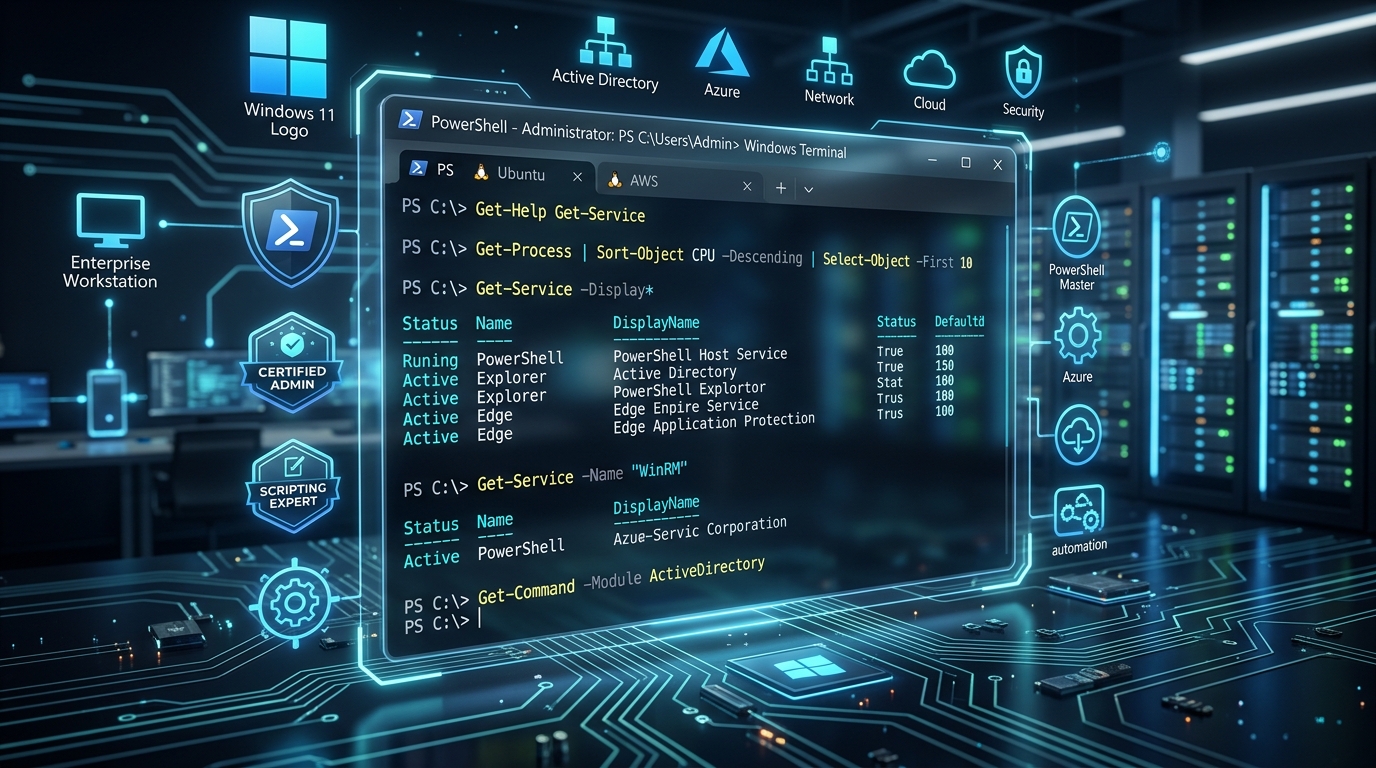
<p>PowerShell is an extraordinarily robust automation and configuration framework built directly into Windows 11. It allows IT engineers, sysadmins, and power users to interact directly with OS components, background services, network interfaces, and file streams without navigating through sluggish GUI windows.</p>

<p>Many users feel intimidated when opening PowerShell, assuming it demands complex programming knowledge. In reality, Microsoft engineered PowerShell around a remarkably consistent <strong>Verb-Noun</strong> syntax (<code class="language-plaintext highlighter-rouge">Get-Process</code>, <code class="language-plaintext highlighter-rouge">Start-Service</code>, <code class="language-plaintext highlighter-rouge">Copy-Item</code>). Once you understand this structure, discovering and executing commands becomes second nature.</p>

<p>Here are <strong>7 essential, high-impact PowerShell commands</strong> that form the backbone of day-to-day Windows administration and troubleshooting.</p>

<hr />

<h2 id="2-the-7-essential-commands">2. The 7 Essential Commands</h2>

<h3 id="1-get-help--the-ultimate-built-in-reference-manual">1. <code class="language-plaintext highlighter-rouge">Get-Help</code> — The Ultimate Built-in Reference Manual</h3>

<p>Whenever you encounter an unfamiliar cmdlet or need parameter syntax, <code class="language-plaintext highlighter-rouge">Get-Help</code> is your primary resource. It provides comprehensive descriptions, parameter lists, and practical usage examples directly within your terminal console.</p>

<div class="language-powershell highlighter-rouge"><div class="highlight"><pre class="highlight"><code><table class="rouge-table"><tbody><tr><td class="rouge-gutter gl"><pre class="lineno">1
2
3
4
5
6
7
8
</pre></td><td class="rouge-code"><pre><span class="c"># Get help and usage syntax for any cmdlet</span><span class="w">
</span><span class="n">Get-Help</span><span class="w"> </span><span class="nx">Get-Service</span><span class="w">

</span><span class="c"># View real-world command examples</span><span class="w">
</span><span class="n">Get-Help</span><span class="w"> </span><span class="nx">Get-Process</span><span class="w"> </span><span class="nt">-Examples</span><span class="w">

</span><span class="c"># Open Microsoft's online documentation in your default browser</span><span class="w">
</span><span class="n">Get-Help</span><span class="w"> </span><span class="nx">Start-Process</span><span class="w"> </span><span class="nt">-Online</span><span class="w">
</span></pre></td></tr></tbody></table></code></pre></div></div>

<blockquote>
  <p><strong>Pro Tip:</strong> Run <code class="language-plaintext highlighter-rouge">Update-Help</code> once per machine to download the latest offline help files for all installed modules.</p>
</blockquote>

<hr />

<h3 id="2-get-command--built-in-cmdlet-discovery-engine">2. <code class="language-plaintext highlighter-rouge">Get-Command</code> — Built-in Cmdlet Discovery Engine</h3>

<p>When you know <em>what</em> you want to accomplish but cannot recall the exact cmdlet name, <code class="language-plaintext highlighter-rouge">Get-Command</code> acts as your local search engine across all available modules.</p>

<div class="language-powershell highlighter-rouge"><div class="highlight"><pre class="highlight"><code><table class="rouge-table"><tbody><tr><td class="rouge-gutter gl"><pre class="lineno">1
2
3
4
5
6
7
8
</pre></td><td class="rouge-code"><pre><span class="c"># Find all cmdlets related to services</span><span class="w">
</span><span class="n">Get-Command</span><span class="w"> </span><span class="o">*</span><span class="nx">Service</span><span class="o">*</span><span class="w">

</span><span class="c"># List all commands that start with the verb 'Restart'</span><span class="w">
</span><span class="n">Get-Command</span><span class="w"> </span><span class="nt">-Verb</span><span class="w"> </span><span class="nx">Restart</span><span class="w">

</span><span class="c"># List all cmdlets available in the NetTCPIP network module</span><span class="w">
</span><span class="n">Get-Command</span><span class="w"> </span><span class="nt">-Module</span><span class="w"> </span><span class="nx">NetTCPIP</span><span class="w">
</span></pre></td></tr></tbody></table></code></pre></div></div>

<hr />

<h3 id="3-get-process--stop-process--inspect-and-tame-system-resources">3. <code class="language-plaintext highlighter-rouge">Get-Process</code> &amp; <code class="language-plaintext highlighter-rouge">Stop-Process</code> — Inspect and Tame System Resources</h3>

<p>When your PC freezes or an application spikes CPU usage, <code class="language-plaintext highlighter-rouge">Get-Process</code> gives you instantaneous visibility into active processes, memory usage (Working Set), and CPU time.</p>

<div class="language-powershell highlighter-rouge"><div class="highlight"><pre class="highlight"><code><table class="rouge-table"><tbody><tr><td class="rouge-gutter gl"><pre class="lineno">1
2
3
4
5
6
7
8
</pre></td><td class="rouge-code"><pre><span class="c"># List top 10 processes consuming the most CPU</span><span class="w">
</span><span class="n">Get-Process</span><span class="w"> </span><span class="o">|</span><span class="w"> </span><span class="n">Sort-Object</span><span class="w"> </span><span class="nx">CPU</span><span class="w"> </span><span class="nt">-Descending</span><span class="w"> </span><span class="o">|</span><span class="w"> </span><span class="n">Select-Object</span><span class="w"> </span><span class="nt">-First</span><span class="w"> </span><span class="nx">10</span><span class="w"> </span><span class="nx">Id</span><span class="p">,</span><span class="w"> </span><span class="nx">ProcessName</span><span class="p">,</span><span class="w"> </span><span class="nx">CPU</span><span class="p">,</span><span class="w"> </span><span class="nx">WorkingSet64</span><span class="w">

</span><span class="c"># Find an unruly application by name</span><span class="w">
</span><span class="n">Get-Process</span><span class="w"> </span><span class="nt">-Name</span><span class="w"> </span><span class="s2">"chrome"</span><span class="w">

</span><span class="c"># Terminate a frozen process cleanly or forcibly</span><span class="w">
</span><span class="n">Stop-Process</span><span class="w"> </span><span class="nt">-Name</span><span class="w"> </span><span class="s2">"Notepad"</span><span class="w"> </span><span class="nt">-Force</span><span class="w">
</span></pre></td></tr></tbody></table></code></pre></div></div>

<hr />

<h3 id="4-start-process--launch-applications-with-elevated-controls">4. <code class="language-plaintext highlighter-rouge">Start-Process</code> — Launch Applications with Elevated Controls</h3>

<p><code class="language-plaintext highlighter-rouge">Start-Process</code> provides far more granular control than double-clicking a desktop shortcut. You can launch programs as Administrator, pass arguments silently, or run processes in maximized windows.</p>

<div class="language-powershell highlighter-rouge"><div class="highlight"><pre class="highlight"><code><table class="rouge-table"><tbody><tr><td class="rouge-gutter gl"><pre class="lineno">1
2
3
4
5
6
7
8
</pre></td><td class="rouge-code"><pre><span class="c"># Launch an elevated Administrator PowerShell prompt</span><span class="w">
</span><span class="n">Start-Process</span><span class="w"> </span><span class="nx">powershell</span><span class="w"> </span><span class="nt">-Verb</span><span class="w"> </span><span class="nx">RunAs</span><span class="w">

</span><span class="c"># Launch an app with command-line arguments and wait for completion</span><span class="w">
</span><span class="n">Start-Process</span><span class="w"> </span><span class="nt">-FilePath</span><span class="w"> </span><span class="s2">"msiexec.exe"</span><span class="w"> </span><span class="nt">-ArgumentList</span><span class="w"> </span><span class="s2">"/i setup.msi /quiet"</span><span class="w"> </span><span class="nt">-Wait</span><span class="w">

</span><span class="c"># Open an application in a maximized window</span><span class="w">
</span><span class="n">Start-Process</span><span class="w"> </span><span class="s2">"notepad.exe"</span><span class="w"> </span><span class="nt">-WindowStyle</span><span class="w"> </span><span class="nx">Maximized</span><span class="w">
</span></pre></td></tr></tbody></table></code></pre></div></div>

<hr />

<h3 id="5-get-service--stop-service--manage-background-windows-services">5. <code class="language-plaintext highlighter-rouge">Get-Service</code> &amp; <code class="language-plaintext highlighter-rouge">Stop-Service</code> — Manage Background Windows Services</h3>

<p>Windows runs dozens of background services for networking, audio, printing, and remote management. PowerShell enables you to monitor service health and restart stuck daemons with zero mouse clicks.</p>

<div class="language-powershell highlighter-rouge"><div class="highlight"><pre class="highlight"><code><table class="rouge-table"><tbody><tr><td class="rouge-gutter gl"><pre class="lineno">1
2
3
4
5
6
7
8
</pre></td><td class="rouge-code"><pre><span class="c"># Check the status of the Windows Update and Print Spooler services</span><span class="w">
</span><span class="n">Get-Service</span><span class="w"> </span><span class="nt">-Name</span><span class="w"> </span><span class="s2">"wuauserv"</span><span class="p">,</span><span class="w"> </span><span class="s2">"Spooler"</span><span class="w">

</span><span class="c"># List all services currently stopped</span><span class="w">
</span><span class="n">Get-Service</span><span class="w"> </span><span class="o">|</span><span class="w"> </span><span class="n">Where-Object</span><span class="w"> </span><span class="p">{</span><span class="w"> </span><span class="bp">$_</span><span class="o">.</span><span class="nf">Status</span><span class="w"> </span><span class="o">-eq</span><span class="w"> </span><span class="s1">'Stopped'</span><span class="w"> </span><span class="p">}</span><span class="w">

</span><span class="c"># Safely restart a problematic service</span><span class="w">
</span><span class="n">Restart-Service</span><span class="w"> </span><span class="nt">-Name</span><span class="w"> </span><span class="s2">"Spooler"</span><span class="w"> </span><span class="nt">-Force</span><span class="w">
</span></pre></td></tr></tbody></table></code></pre></div></div>

<hr />

<h3 id="6-get-childitem--get-content--explore-directories-and-read-logs">6. <code class="language-plaintext highlighter-rouge">Get-ChildItem</code> &amp; <code class="language-plaintext highlighter-rouge">Get-Content</code> — Explore Directories and Read Logs</h3>

<p>Inspecting directories and reading log files is an hourly requirement in IT operations. <code class="language-plaintext highlighter-rouge">Get-ChildItem</code> (the modern <code class="language-plaintext highlighter-rouge">dir</code>/<code class="language-plaintext highlighter-rouge">ls</code>) and <code class="language-plaintext highlighter-rouge">Get-Content</code> (the modern <code class="language-plaintext highlighter-rouge">cat</code>/<code class="language-plaintext highlighter-rouge">type</code>) offer unmatched speed.</p>

<div class="language-powershell highlighter-rouge"><div class="highlight"><pre class="highlight"><code><table class="rouge-table"><tbody><tr><td class="rouge-gutter gl"><pre class="lineno">1
2
3
4
5
6
7
8
</pre></td><td class="rouge-code"><pre><span class="c"># Recursively search for all .log files in C:\Logs</span><span class="w">
</span><span class="n">Get-ChildItem</span><span class="w"> </span><span class="nt">-Path</span><span class="w"> </span><span class="s2">"C:\Logs"</span><span class="w"> </span><span class="nt">-Filter</span><span class="w"> </span><span class="s2">"*.log"</span><span class="w"> </span><span class="nt">-Recurse</span><span class="w">

</span><span class="c"># Read the last 20 lines of an active log file</span><span class="w">
</span><span class="n">Get-Content</span><span class="w"> </span><span class="nt">-Path</span><span class="w"> </span><span class="s2">"C:\Logs\app.log"</span><span class="w"> </span><span class="nt">-Tail</span><span class="w"> </span><span class="nx">20</span><span class="w">

</span><span class="c"># Stream log updates in real-time (like Linux 'tail -f')</span><span class="w">
</span><span class="n">Get-Content</span><span class="w"> </span><span class="nt">-Path</span><span class="w"> </span><span class="s2">"C:\Logs\app.log"</span><span class="w"> </span><span class="nt">-Wait</span><span class="w">
</span></pre></td></tr></tbody></table></code></pre></div></div>

<hr />

<h3 id="7-copy-item--rapid-file--directory-deployment">7. <code class="language-plaintext highlighter-rouge">Copy-Item</code> — Rapid File &amp; Directory Deployment</h3>

<p>Copying files between directories, across administrative network shares (<code class="language-plaintext highlighter-rouge">C$</code>), or creating quick script backups is seamless with <code class="language-plaintext highlighter-rouge">Copy-Item</code>.</p>

<div class="language-powershell highlighter-rouge"><div class="highlight"><pre class="highlight"><code><table class="rouge-table"><tbody><tr><td class="rouge-gutter gl"><pre class="lineno">1
2
3
4
5
</pre></td><td class="rouge-code"><pre><span class="c"># Copy a file to a destination directory</span><span class="w">
</span><span class="n">Copy-Item</span><span class="w"> </span><span class="nt">-Path</span><span class="w"> </span><span class="s2">"C:\Scripts\backup.ps1"</span><span class="w"> </span><span class="nt">-Destination</span><span class="w"> </span><span class="s2">"D:\Backups\"</span><span class="w">

</span><span class="c"># Copy an entire directory recursively including subfolders</span><span class="w">
</span><span class="n">Copy-Item</span><span class="w"> </span><span class="nt">-Path</span><span class="w"> </span><span class="s2">"C:\Project"</span><span class="w"> </span><span class="nt">-Destination</span><span class="w"> </span><span class="s2">"D:\Archive\Project"</span><span class="w"> </span><span class="nt">-Recurse</span><span class="w"> </span><span class="nt">-Force</span><span class="w">
</span></pre></td></tr></tbody></table></code></pre></div></div>

<hr />

<h2 id="3-practical-cheatsheet-table">3. Practical Cheatsheet Table</h2>

<table>
  <thead>
    <tr>
      <th style="text-align: left">Cmdlet</th>
      <th style="text-align: left">Verb-Noun Purpose</th>
      <th style="text-align: left">Real-World Use Case</th>
    </tr>
  </thead>
  <tbody>
    <tr>
      <td style="text-align: left"><code class="language-plaintext highlighter-rouge">Get-Help</code></td>
      <td style="text-align: left">Help / Documentation</td>
      <td style="text-align: left">Query syntax and copy-paste examples</td>
    </tr>
    <tr>
      <td style="text-align: left"><code class="language-plaintext highlighter-rouge">Get-Command</code></td>
      <td style="text-align: left">Command Discovery</td>
      <td style="text-align: left">Locate obscure cmdlets across modules</td>
    </tr>
    <tr>
      <td style="text-align: left"><code class="language-plaintext highlighter-rouge">Get-Process</code></td>
      <td style="text-align: left">Process Monitoring</td>
      <td style="text-align: left">Identify CPU/RAM hogs causing lag</td>
    </tr>
    <tr>
      <td style="text-align: left"><code class="language-plaintext highlighter-rouge">Start-Process</code></td>
      <td style="text-align: left">Execution Control</td>
      <td style="text-align: left">Launch installers silently or as Admin</td>
    </tr>
    <tr>
      <td style="text-align: left"><code class="language-plaintext highlighter-rouge">Get-Service</code></td>
      <td style="text-align: left">Service Management</td>
      <td style="text-align: left">Audit, restart, or disable system daemons</td>
    </tr>
    <tr>
      <td style="text-align: left"><code class="language-plaintext highlighter-rouge">Get-ChildItem</code></td>
      <td style="text-align: left">Filesystem Browsing</td>
      <td style="text-align: left">Recursively locate files matching patterns</td>
    </tr>
    <tr>
      <td style="text-align: left"><code class="language-plaintext highlighter-rouge">Copy-Item</code></td>
      <td style="text-align: left">File Transfer</td>
      <td style="text-align: left">Deploy scripts across machines and folders</td>
    </tr>
  </tbody>
</table>

<hr />

<h2 id="4-sysadmin-engineering-mindset">4. SysAdmin Engineering Mindset</h2>

<blockquote>
  <p><em>“Stop clicking through nested GUI dialogs for repetitive tasks. Real system mastery begins when your terminal commands handle the heavy lifting.”</em></p>
</blockquote>

<p>Embracing these 7 foundational PowerShell commands transitions your daily routine from manual troubleshooting to repeatable, scriptable workflows. Combine them with the pipeline (<code class="language-plaintext highlighter-rouge">|</code>) to filter, sort, and automate complex tasks effortlessly.</p>

<hr />

<blockquote>
  <p>💡 <strong>Related Resources:</strong></p>
  <ul>
    <li>Check out the interactive <a href="/powershell/">PowerShell Command Center</a> for production-tested administrative scripts.</li>
    <li>Explore the <a href="/videos/">Video Tutorials &amp; Shorts</a> for hands-on video breakdowns of Windows 11 performance tweaks.</li>
  </ul>
</blockquote>]]></content><author><name>Toan Nguyen</name></author><category term="Windows 11" /><category term="PowerShell" /><category term="PowerShell" /><category term="Windows 11" /><category term="SysAdmin" /><category term="IT Support" /><category term="Terminal" /><category term="Command Line" /><category term="Automation" /><category term="ToanNguyenItOz" /><summary type="html"><![CDATA[Unlock the true power of Windows 11 using PowerShell. Master 7 foundational cmdlets from Get-Help and Get-Process to service and file management.]]></summary><media:thumbnail xmlns:media="http://search.yahoo.com/mrss/" url="https://toannguyenitoz.github.io/assets/images/posts/mastering-windows-11-terminal-7-essential-powershell-commands.jpg" /><media:content medium="image" url="https://toannguyenitoz.github.io/assets/images/posts/mastering-windows-11-terminal-7-essential-powershell-commands.jpg" xmlns:media="http://search.yahoo.com/mrss/" /></entry><entry><title type="html">Windows Tips &amp;amp; Tricks – Part 104: Administrative Shares — No New Share Needed</title><link href="https://toannguyenitoz.github.io/posts/part-104-administrative-shares-no-new-share-needed/" rel="alternate" type="text/html" title="Windows Tips &amp;amp; Tricks – Part 104: Administrative Shares — No New Share Needed" /><published>2026-09-10T20:38:49+00:00</published><updated>2026-09-10T20:38:49+00:00</updated><id>https://toannguyenitoz.github.io/posts/part-104-administrative-shares-no-new-share-needed</id><content type="html" xml:base="https://toannguyenitoz.github.io/posts/part-104-administrative-shares-no-new-share-needed/"><![CDATA[<div class="cmd-annotation-card" style="margin-bottom: 24px;">
  <div class="annotation-badge">
    <svg viewBox="0 0 24 24" width="14" height="14" fill="none" stroke="currentColor" stroke-width="2"><circle cx="12" cy="12" r="10"></circle><line x1="12" y1="16" x2="12" y2="12"></line><line x1="12" y1="8" x2="12.01" y2="8"></line></svg>
    <span>LinkedIn Enterprise Series — Phase 3: SysAdmin Tools</span>
  </div>
  <p class="annotation-text">
    This guide is Part 104 of the <em>Windows Tips &amp; Tricks</em> series published by <strong>Toan Nguyen (Toan Nguyen IT OZ)</strong>. In Phase 3, we move from desktop troubleshooting to enterprise Systems Administration. Follow on <a href="https://www.linkedin.com/posts/toan-nguyen-it-oz_windowstips-sysadmin-itsupport-activity-7503914903888363520-cn1l" target="_blank" rel="noopener noreferrer">LinkedIn</a>.
  </p>
</div>

<p><img src="/assets/images/posts/part-104-administrative-shares-no-new-share-needed.jpg" alt="Windows Tips &amp; Tricks – Part 104: Administrative Shares — No New Share Needed" /></p>

<h2 id="1-scenario-overview--problem-context">1. Scenario Overview &amp; Problem Context</h2>

<p>📁 <strong>Windows Tips &amp; Tricks – Part 104</strong></p>

<p>🔐 <strong>Administrative Shares — No New Share Needed</strong></p>

<blockquote>
  <p><em>“Someone needs a log file from a remote PC, but there’s no shared folder. Do I really need to create one?”</em></p>
</blockquote>

<p>Not necessarily. 👨‍💻</p>

<p>Windows commonly provides hidden <strong>administrative shares</strong> such as <code class="language-plaintext highlighter-rouge">C$</code> and <code class="language-plaintext highlighter-rouge">ADMIN$</code> for authorized administrators out of the box.</p>

<hr />

<h2 id="2-️-quick-example-accessing-remote-drive-c">2. ⌨️ Quick Example: Accessing Remote Drive C$</h2>

<p>Press <kbd>Win</kbd> + <kbd>R</kbd> and enter:</p>

<div class="language-text highlighter-rouge"><div class="highlight"><pre class="highlight"><code><table class="rouge-table"><tbody><tr><td class="rouge-gutter gl"><pre class="lineno">1
</pre></td><td class="rouge-code"><pre>\\SERVER01\C$
</pre></td></tr></tbody></table></code></pre></div></div>

<p>🔎 This opens the remote machine’s <code class="language-plaintext highlighter-rouge">C:</code> drive directly when your account has the required administrative permissions and remote access is allowed on the network.</p>

<p>You can then easily navigate and access system directories such as:</p>

<ul>
  <li>📂 <code class="language-plaintext highlighter-rouge">C:\Windows</code></li>
  <li>📂 <code class="language-plaintext highlighter-rouge">C:\Program Files</code></li>
  <li>📂 <code class="language-plaintext highlighter-rouge">C:\Users</code></li>
  <li>📂 Troubleshooting logs, dump files, and scripts</li>
</ul>

<hr />

<h2 id="3--another-useful-share-admin">3. ⚡ Another Useful Share: ADMIN$</h2>

<p>Press <kbd>Win</kbd> + <kbd>R</kbd> and enter:</p>

<div class="language-text highlighter-rouge"><div class="highlight"><pre class="highlight"><code><table class="rouge-table"><tbody><tr><td class="rouge-gutter gl"><pre class="lineno">1
</pre></td><td class="rouge-code"><pre>\\SERVER01\ADMIN$
</pre></td></tr></tbody></table></code></pre></div></div>

<p><code class="language-plaintext highlighter-rouge">ADMIN$</code> normally points directly to the Windows installation root directory (typically <code class="language-plaintext highlighter-rouge">C:\Windows</code>). It is widely used by administrative tools, deployment systems, and management agents.</p>

<hr />

<h2 id="4--why-it-matters-for-sysadmins">4. 🎯 Why It Matters for SysAdmins</h2>

<ul>
  <li>✅ <strong>Retrieve logs without RDP:</strong> Pull application and system logs quickly from servers or workstations without interrupting user sessions or consuming RDP connection licenses.</li>
  <li>✅ <strong>Copy troubleshooting scripts:</strong> Silently drop diagnosis utilities or PowerShell scripts to a remote host.</li>
  <li>✅ <strong>Access administrative files remotely:</strong> View configuration files, backup dumps, or IIS logs on the fly.</li>
  <li>✅ <strong>Avoid creating temporary shares unnecessarily:</strong> Keep your file share inventory clean and prevent leaving open, forgotten shared folders on servers.</li>
  <li>✅ <strong>Useful for enterprise Windows administration:</strong> Standard practice across enterprise Active Directory environments.</li>
</ul>

<hr />

<h2 id="5-️-security--operational-note">5. ⚠️ Security &amp; Operational Note</h2>

<p>Administrative shares provide powerful root-level access.</p>

<ul>
  <li><strong>Authorization required:</strong> Always use them with least-privilege administrative accounts.</li>
  <li><strong>Network &amp; Policy requirements:</strong> Firewall rules (File and Printer Sharing / SMB port 445), Network Access Protection, UAC remote restrictions (<code class="language-plaintext highlighter-rouge">LocalAccountTokenFilterPolicy</code>), and Group Policies can affect remote access across endpoints.</li>
</ul>

<hr />

<h2 id="6--sysadmin-mindset">6. 💡 SysAdmin Mindset</h2>

<blockquote>
  <p><strong>Don’t create a new share for every admin task.</strong></p>

  <p><strong>Know the built-in tools that Windows already provides.</strong></p>
</blockquote>

<p>🚀 Phase 3 — SysAdmin Tools continues!</p>

<hr />

<blockquote>
  <p>🔗 <strong>Join the Live Community Discussion:</strong>
Have questions or additional tips about Administrative Shares and remote Windows troubleshooting?
👉 <strong><a href="https://www.linkedin.com/posts/toan-nguyen-it-oz_windowstips-sysadmin-itsupport-activity-7503914903888363520-cn1l">View and join the original LinkedIn post discussion</a></strong></p>

  <p><em>Authored by <a href="https://www.linkedin.com/in/toan-nguyen-it-oz/">Toan Nguyen (Toan Nguyen IT OZ)</a> — 20+ Years Enterprise &amp; Banking IT Experience in Adelaide, South Australia.</em></p>
</blockquote>]]></content><author><name>Toan Nguyen</name></author><category term="SysAdmin" /><category term="IT Support" /><category term="Windows Server" /><category term="SysAdmin" /><category term="IT Support" /><category term="Infrastructure" /><category term="File Server" /><category term="System Administrator" /><category term="ToanNguyenItOz" /><category term="Part-104" /><category term="WindowsTips" /><summary type="html"><![CDATA[Someone needs a log file from a remote PC, but there’s no shared folder. Do I really need to create one? Access hidden administrative shares like C$ and ADMIN$.]]></summary><media:thumbnail xmlns:media="http://search.yahoo.com/mrss/" url="https://toannguyenitoz.github.io/assets/images/posts/part-104-administrative-shares-no-new-share-needed.jpg" /><media:content medium="image" url="https://toannguyenitoz.github.io/assets/images/posts/part-104-administrative-shares-no-new-share-needed.jpg" xmlns:media="http://search.yahoo.com/mrss/" /></entry><entry><title type="html">Windows Tips &amp;amp; Tricks – Part 103: Force-Close a Locked File on a Network Share</title><link href="https://toannguyenitoz.github.io/posts/part-103-force-close-a-locked-file-on-a-network-share/" rel="alternate" type="text/html" title="Windows Tips &amp;amp; Tricks – Part 103: Force-Close a Locked File on a Network Share" /><published>2026-09-09T20:33:38+00:00</published><updated>2026-09-09T20:33:38+00:00</updated><id>https://toannguyenitoz.github.io/posts/part-103-force-close-a-locked-file-on-a-network-share</id><content type="html" xml:base="https://toannguyenitoz.github.io/posts/part-103-force-close-a-locked-file-on-a-network-share/"><![CDATA[<div class="cmd-annotation-card" style="margin-bottom: 24px;">
  <div class="annotation-badge">
    <svg viewBox="0 0 24 24" width="14" height="14" fill="none" stroke="currentColor" stroke-width="2"><circle cx="12" cy="12" r="10"></circle><line x1="12" y1="16" x2="12" y2="12"></line><line x1="12" y1="8" x2="12.01" y2="8"></line></svg>
    <span>LinkedIn Enterprise Series — Phase 3: SysAdmin Tools</span>
  </div>
  <p class="annotation-text">
    This guide is Part 103 of the <em>Windows Tips &amp; Tricks</em> series published by <strong>Toan Nguyen (Toan Nguyen IT OZ)</strong>. In Phase 3, we move from desktop troubleshooting to enterprise Systems Administration. Follow on <a href="https://www.linkedin.com/posts/toan-nguyen-it-oz_windowstips-sysadmin-powershell-activity-7503551213120983040-lK0y" target="_blank" rel="noopener noreferrer">LinkedIn</a>.
  </p>
</div>

<p><img src="/assets/images/posts/part-103-force-close-a-locked-file-on-a-network-share.jpg" alt="Windows Tips &amp; Tricks – Part 103: Force-Close a Locked File on a Network Share" /></p>

<h2 id="1-scenario-overview--problem-context">1. Scenario Overview &amp; Problem Context</h2>

<p>📂 Windows Tips &amp; Tricks – Part 103</p>

<p>🔓 Force-Close a Locked File on a Network Share</p>

<p>“Sarah went home, but the Excel file is still locked. How do I release it without RDP-ing into the File Server?”</p>

<p>This is a classic File Server ticket.</p>

<p>Instead of restarting the Server service — and disconnecting everyone — use PowerShell to identify and close the specific SMB file handle.</p>

<h3 id="️-step-1--find-the-locked-file">⌨️ Step 1 — Find the locked file</h3>

<div class="language-powershell highlighter-rouge"><div class="highlight"><pre class="highlight"><code><table class="rouge-table"><tbody><tr><td class="rouge-gutter gl"><pre class="lineno">1
2
3
</pre></td><td class="rouge-code"><pre><span class="n">Invoke-Command</span><span class="w"> </span><span class="nt">-ComputerName</span><span class="w"> </span><span class="nx">FS01</span><span class="w"> </span><span class="nt">-ScriptBlock</span><span class="w"> </span><span class="p">{</span><span class="w"> 
    </span><span class="n">Get-SmbOpenFile</span><span class="w"> </span><span class="o">|</span><span class="w"> </span><span class="n">Where-Object</span><span class="w"> </span><span class="p">{</span><span class="w"> </span><span class="bp">$_</span><span class="o">.</span><span class="nf">Path</span><span class="w"> </span><span class="o">-like</span><span class="w"> </span><span class="s2">"*Budget.xlsx"</span><span class="w"> </span><span class="p">}</span><span class="w"> 
</span><span class="p">}</span><span class="w">
</span></pre></td></tr></tbody></table></code></pre></div></div>

<p>🔎 Look for the <code class="language-plaintext highlighter-rouge">FileId</code> and confirm the path, user, and session before closing anything.</p>

<h3 id="-step-2--close-the-specific-file">🔐 Step 2 — Close the specific file</h3>

<div class="language-powershell highlighter-rouge"><div class="highlight"><pre class="highlight"><code><table class="rouge-table"><tbody><tr><td class="rouge-gutter gl"><pre class="lineno">1
2
3
</pre></td><td class="rouge-code"><pre><span class="n">Invoke-Command</span><span class="w"> </span><span class="nt">-ComputerName</span><span class="w"> </span><span class="nx">FS01</span><span class="w"> </span><span class="nt">-ScriptBlock</span><span class="w"> </span><span class="p">{</span><span class="w"> 
    </span><span class="n">Close-SmbOpenFile</span><span class="w"> </span><span class="nt">-FileId</span><span class="w"> </span><span class="nx">12345</span><span class="w"> </span><span class="nt">-Force</span><span class="w"> 
</span><span class="p">}</span><span class="w">
</span></pre></td></tr></tbody></table></code></pre></div></div>

<blockquote>
  <p>Replace <code class="language-plaintext highlighter-rouge">12345</code> with the actual <code class="language-plaintext highlighter-rouge">FileId</code> found in Step 1.</p>
</blockquote>

<h3 id="-pro-tip--multiple-matching-files">⚡ Pro Tip — Multiple matching files</h3>

<div class="language-powershell highlighter-rouge"><div class="highlight"><pre class="highlight"><code><table class="rouge-table"><tbody><tr><td class="rouge-gutter gl"><pre class="lineno">1
2
3
4
5
</pre></td><td class="rouge-code"><pre><span class="n">Invoke-Command</span><span class="w"> </span><span class="nt">-ComputerName</span><span class="w"> </span><span class="nx">FS01</span><span class="w"> </span><span class="nt">-ScriptBlock</span><span class="w"> </span><span class="p">{</span><span class="w"> 
    </span><span class="n">Get-SmbOpenFile</span><span class="w"> </span><span class="o">|</span><span class="w"> </span><span class="n">Where-Object</span><span class="w"> </span><span class="p">{</span><span class="w"> </span><span class="bp">$_</span><span class="o">.</span><span class="nf">Path</span><span class="w"> </span><span class="o">-like</span><span class="w"> </span><span class="s2">"*Budget*"</span><span class="w"> </span><span class="p">}</span><span class="w"> </span><span class="o">|</span><span class="w"> </span><span class="n">ForEach-Object</span><span class="w"> </span><span class="p">{</span><span class="w"> 
        </span><span class="n">Close-SmbOpenFile</span><span class="w"> </span><span class="nt">-FileId</span><span class="w"> </span><span class="bp">$_</span><span class="o">.</span><span class="nf">FileId</span><span class="w"> </span><span class="nt">-Force</span><span class="w"> 
    </span><span class="p">}</span><span class="w"> 
</span><span class="p">}</span><span class="w">
</span></pre></td></tr></tbody></table></code></pre></div></div>

<h3 id="-why-it-matters">🎯 Why it matters</h3>

<ul>
  <li>✅ Release a specific locked file</li>
  <li>✅ No RDP required</li>
  <li>✅ Avoid disconnecting every SMB user</li>
  <li>✅ Faster File Server troubleshooting</li>
  <li>✅ Practical PowerShell + SMB administration</li>
</ul>

<p>⚠️ Important</p>

<p>Closing an SMB file handle can discard unsaved changes.</p>

<p>Always verify the file path, user/session and FileId before using “-Force”.</p>

<p>💡 SysAdmin mindset:</p>

<p>Don’t restart the whole File Server for one locked file.</p>

<p>Find the handle. Verify it. Close only what you need. 🎯</p>

<p>🚀 Phase 3 — SysAdmin Tools continues!</p>

<hr />

<blockquote>
  <p>🔗 <strong>Join the Live Community Discussion:</strong>
Have questions or additional tips about this guide?
👉 <strong><a href="https://www.linkedin.com/posts/toan-nguyen-it-oz_windowstips-sysadmin-powershell-activity-7503551213120983040-lK0y">View and join the original LinkedIn post discussion</a></strong></p>

  <p><em>Authored by <a href="https://www.linkedin.com/in/toan-nguyen-it-oz/">Toan Nguyen (Toan Nguyen IT OZ)</a> — Enterprise Systems Administrator in Adelaide, South Australia.</em></p>
</blockquote>]]></content><author><name>Toan Nguyen</name></author><category term="SysAdmin" /><category term="PowerShell" /><category term="Windows Server" /><category term="SysAdmin" /><category term="PowerShell" /><category term="IT Support" /><category term="Troubleshooting" /><category term="ToanNguyenItOz" /><category term="Part-103" /><category term="WindowsTips" /><category term="WindowsServer" /><summary type="html"><![CDATA[Sarah went home, but the Excel file is still locked. How do I release it without RDP-ing into the File Server?]]></summary><media:thumbnail xmlns:media="http://search.yahoo.com/mrss/" url="https://toannguyenitoz.github.io/assets/images/posts/part-103-force-close-a-locked-file-on-a-network-share.jpg" /><media:content medium="image" url="https://toannguyenitoz.github.io/assets/images/posts/part-103-force-close-a-locked-file-on-a-network-share.jpg" xmlns:media="http://search.yahoo.com/mrss/" /></entry><entry><title type="html">Windows Tips &amp;amp; Tricks – Part 102: Why Did the Server Reboot?</title><link href="https://toannguyenitoz.github.io/posts/part-102-why-did-the-server-reboot/" rel="alternate" type="text/html" title="Windows Tips &amp;amp; Tricks – Part 102: Why Did the Server Reboot?" /><published>2026-09-08T11:30:00+00:00</published><updated>2026-09-08T11:30:00+00:00</updated><id>https://toannguyenitoz.github.io/posts/part-102-why-did-the-server-reboot</id><content type="html" xml:base="https://toannguyenitoz.github.io/posts/part-102-why-did-the-server-reboot/"><![CDATA[<div class="cmd-annotation-card" style="margin-bottom: 24px;">
  <div class="annotation-badge">
    <svg viewBox="0 0 24 24" width="14" height="14" fill="none" stroke="currentColor" stroke-width="2"><circle cx="12" cy="12" r="10"></circle><line x1="12" y1="16" x2="12" y2="12"></line><line x1="12" y1="8" x2="12.01" y2="8"></line></svg>
    <span>LinkedIn Enterprise Series — Phase 3: SysAdmin Tools</span>
  </div>
  <p class="annotation-text">
    This guide is Part 102 of the <em>Windows Tips &amp; Tricks</em> series published by <strong>Toan Nguyen (Toan Nguyen IT OZ)</strong>. In Phase 3, we move from desktop troubleshooting to enterprise Systems Administration. Follow on <a href="https://www.linkedin.com/posts/toan-nguyen-it-oz_windowstips-sysadmin-windowsserver-activity-7503192843394637825-BFB6" target="_blank" rel="noopener noreferrer">LinkedIn</a>.
  </p>
</div>

<p><img src="/assets/images/posts/part-102-why-did-the-server-reboot.jpg" alt="Windows Tips &amp; Tricks – Part 102: Why Did the Server Reboot?" /></p>

<h2 id="1-scenario-overview--problem-context">1. Scenario Overview &amp; Problem Context</h2>

<blockquote>
  <p><em>“It was down for 15 minutes last night. Did Windows Update restart it? Did someone reboot it manually? Or did the server crash?”</em></p>
</blockquote>

<p>Every SysAdmin and IT Support engineer has faced this question from management or application owners.</p>

<p>When a critical production server goes offline unexpectedly, <strong>don’t guess. Check the Event Log.</strong></p>

<p>Instead of opening Event Viewer (<code class="language-plaintext highlighter-rouge">eventvwr.msc</code>) and manually scrolling through thousands of event log entries across slow RDP connections, PowerShell can query the exact reboot-related events directly from your administrative workstation in seconds.</p>

<hr />

<h2 id="2--the-3-essential-event-ids-every-admin-must-know">2. 🎯 The 3 Essential Event IDs Every Admin Must Know</h2>

<p>All Windows reboot and shutdown events are logged in the <strong>System</strong> event log. These are the three critical Event IDs to look for:</p>

<table>
  <thead>
    <tr>
      <th style="text-align: left">Event ID</th>
      <th style="text-align: left">Status / Type</th>
      <th style="text-align: left">Source</th>
      <th style="text-align: left">What It Really Means</th>
    </tr>
  </thead>
  <tbody>
    <tr>
      <td style="text-align: left"><strong>🟢 1074</strong></td>
      <td style="text-align: left"><strong>Clean / Planned</strong></td>
      <td style="text-align: left"><code class="language-plaintext highlighter-rouge">USER32</code></td>
      <td style="text-align: left">A clean shutdown or restart was initiated. The event log provides the exact initiating process, user account, reason code, and comment (e.g., Windows Update, Scheduled Task, or Administrator action).</td>
    </tr>
    <tr>
      <td style="text-align: left"><strong>🟠 6008</strong></td>
      <td style="text-align: left"><strong>Unexpected</strong></td>
      <td style="text-align: left"><code class="language-plaintext highlighter-rouge">EventLog</code></td>
      <td style="text-align: left">Windows detected during boot that the previous system shutdown was unexpected (dirty shutdown, power loss, or hard freeze).</td>
    </tr>
    <tr>
      <td style="text-align: left"><strong>🔴 41</strong></td>
      <td style="text-align: left"><strong>Kernel-Power</strong></td>
      <td style="text-align: left"><code class="language-plaintext highlighter-rouge">Kernel-Power</code></td>
      <td style="text-align: left">The system rebooted without cleanly shutting down first. This event indicates power was abruptly interrupted or the system blue-screened (BSOD).</td>
    </tr>
  </tbody>
</table>

<hr />

<h2 id="3-️-query-the-reboot-logs-remotely-with-powershell">3. ⌨️ Query the Reboot Logs Remotely with PowerShell</h2>

<p>You don’t need to log into the server via RDP. Run this PowerShell command from your administrative terminal or jump box:</p>

<div class="language-powershell highlighter-rouge"><div class="highlight"><pre class="highlight"><code><table class="rouge-table"><tbody><tr><td class="rouge-gutter gl"><pre class="lineno">1
2
3
4
</pre></td><td class="rouge-code"><pre><span class="n">Get-WinEvent</span><span class="w"> </span><span class="nt">-ComputerName</span><span class="w"> </span><span class="nx">SERVER01</span><span class="w"> </span><span class="nt">-FilterHashtable</span><span class="w"> </span><span class="p">@{</span><span class="w">
    </span><span class="nx">LogName</span><span class="w"> </span><span class="o">=</span><span class="w"> </span><span class="s1">'System'</span><span class="w">
    </span><span class="nx">ID</span><span class="w">      </span><span class="o">=</span><span class="w"> </span><span class="mi">1074</span><span class="p">,</span><span class="w"> </span><span class="mi">6008</span><span class="p">,</span><span class="w"> </span><span class="mi">41</span><span class="w">
</span><span class="p">}</span><span class="w"> </span><span class="nt">-MaxEvents</span><span class="w"> </span><span class="nx">5</span><span class="w"> </span><span class="o">|</span><span class="w"> </span><span class="n">Format-Table</span><span class="w"> </span><span class="nx">TimeCreated</span><span class="p">,</span><span class="w"> </span><span class="nx">Id</span><span class="p">,</span><span class="w"> </span><span class="nx">Message</span><span class="w"> </span><span class="nt">-Wrap</span><span class="w">
</span></pre></td></tr></tbody></table></code></pre></div></div>

<blockquote>
  <p>💡 <strong>Tip:</strong> Replace <code class="language-plaintext highlighter-rouge">SERVER01</code> with the hostname, FQDN, or IP address of your target server.</p>
</blockquote>

<h3 id="understanding-the-output">Understanding the Output:</h3>
<ul>
  <li>If <strong>Event 1074</strong> is returned: Check the <code class="language-plaintext highlighter-rouge">Message</code> text. It will tell you:
    <ul>
      <li><strong>Process:</strong> e.g., <code class="language-plaintext highlighter-rouge">C:\Windows\System32\shutdown.exe</code> or <code class="language-plaintext highlighter-rouge">TiWorker.exe</code> (Windows Update).</li>
      <li><strong>User:</strong> e.g., <code class="language-plaintext highlighter-rouge">NT AUTHORITY\SYSTEM</code> (automated patch) or <code class="language-plaintext highlighter-rouge">DOMAIN\AdminUser</code> (manual reboot).</li>
      <li><strong>Reason:</strong> e.g., <code class="language-plaintext highlighter-rouge">Operating System: Service pack (Planned)</code>.</li>
    </ul>
  </li>
  <li>If <strong>Event 6008</strong> or <strong>Event 41</strong> appears: The server lost power, suffered a hardware watchdog reset, or crashed (BSOD).</li>
</ul>

<hr />

<h2 id="4--pro-tip-query-multiple-servers-at-once">4. ⚡ Pro Tip: Query Multiple Servers at Once</h2>

<p>Need to check the reboot history across an entire cluster, web farm, or multiple domain controllers after a power fluctuation or patch window?</p>

<p>Pipe an array of computer names into <code class="language-plaintext highlighter-rouge">ForEach-Object</code>:</p>

<div class="language-powershell highlighter-rouge"><div class="highlight"><pre class="highlight"><code><table class="rouge-table"><tbody><tr><td class="rouge-gutter gl"><pre class="lineno">1
2
3
4
5
6
</pre></td><td class="rouge-code"><pre><span class="s2">"Server01"</span><span class="p">,</span><span class="w"> </span><span class="s2">"Server02"</span><span class="p">,</span><span class="w"> </span><span class="s2">"Server03"</span><span class="w"> </span><span class="o">|</span><span class="w"> </span><span class="n">ForEach-Object</span><span class="w"> </span><span class="p">{</span><span class="w">
    </span><span class="n">Get-WinEvent</span><span class="w"> </span><span class="nt">-ComputerName</span><span class="w"> </span><span class="bp">$_</span><span class="w"> </span><span class="nt">-FilterHashtable</span><span class="w"> </span><span class="p">@{</span><span class="w">
        </span><span class="nx">LogName</span><span class="w"> </span><span class="o">=</span><span class="w"> </span><span class="s1">'System'</span><span class="w">
        </span><span class="nx">ID</span><span class="w">      </span><span class="o">=</span><span class="w"> </span><span class="mi">1074</span><span class="p">,</span><span class="w"> </span><span class="mi">6008</span><span class="p">,</span><span class="w"> </span><span class="mi">41</span><span class="w">
    </span><span class="p">}</span><span class="w"> </span><span class="nt">-MaxEvents</span><span class="w"> </span><span class="nx">1</span><span class="w">
</span><span class="p">}</span><span class="w"> </span><span class="o">|</span><span class="w"> </span><span class="n">Select-Object</span><span class="w"> </span><span class="nx">MachineName</span><span class="p">,</span><span class="w"> </span><span class="nx">TimeCreated</span><span class="p">,</span><span class="w"> </span><span class="nx">Id</span><span class="p">,</span><span class="w"> </span><span class="nx">Message</span><span class="w">
</span></pre></td></tr></tbody></table></code></pre></div></div>

<p><strong>One command → multiple servers queried simultaneously.</strong></p>

<hr />

<h2 id="5--why-this-matters-for-it-operations">5. 🎯 Why This Matters for IT Operations</h2>

<ul>
  <li>✅ <strong>Investigate unexpected outages:</strong> Pinpoint the exact second a server went down and came back up.</li>
  <li>✅ <strong>Identify planned vs. unexpected restarts:</strong> Instantly know if an engineer rebooted the server without an approved Change Request (CR) or if Windows Update triggered automatically.</li>
  <li>✅ <strong>Build a server health-check workflow:</strong> Integrate this query into post-patching verification scripts.</li>
  <li>✅ <strong>Reduce unnecessary RDP sessions:</strong> Gather evidence in under 5 seconds from your local shell.</li>
  <li>✅ <strong>Evidence-based troubleshooting:</strong> Present concrete event logs to stakeholders rather than assumptions.</li>
</ul>

<hr />

<h2 id="6-️-enterprise-pro-note-root-cause-analysis-rca">6. ⚠️ Enterprise Pro Note: Root Cause Analysis (RCA)</h2>

<blockquote>
  <p><strong>Important:</strong> Event 41 and Event 6008 indicate that an unexpected shutdown or restart occurred — they do <strong>not</strong>, by themselves, prove the root cause.</p>

  <p>To determine <em>why</em> the unexpected shutdown happened:</p>
  <ol>
    <li><strong>Correlate with BugCheck entries:</strong> Look for Event ID <code class="language-plaintext highlighter-rouge">1001</code> (<code class="language-plaintext highlighter-rouge">BugCheck</code>) in the System log to check if a memory dump (<code class="language-plaintext highlighter-rouge">MEMORY.DMP</code> or Minidump) was generated.</li>
    <li><strong>Check Hypervisor logs:</strong> If running on VMware ESXi or Hyper-V, verify VM power state events and host hardware logs.</li>
    <li><strong>Inspect UPS &amp; PDU logs:</strong> Rule out power supply failure or UPS battery test interruptions.</li>
    <li><strong>Check Windows Update history:</strong> Ensure a driver update didn’t trigger kernel instability.</li>
  </ol>
</blockquote>

<p><strong>Stop guessing. Let the logs tell you what happened.</strong></p>

<hr />

<blockquote>
  <p>🔗 <strong>Join the Live Community Discussion:</strong>
Have questions or additional tips about server reboot investigation and PowerShell event log querying?
👉 <strong><a href="https://www.linkedin.com/posts/toan-nguyen-it-oz_windowstips-sysadmin-windowsserver-activity-7503192843394637825-BFB6">View and join the original LinkedIn post discussion</a></strong></p>

  <p><em>Authored by <a href="https://www.linkedin.com/in/toan-nguyen-it-oz/">Toan Nguyen (Toan Nguyen IT OZ)</a> — 20+ Years Enterprise &amp; Banking IT Experience in Adelaide, South Australia.</em></p>
</blockquote>]]></content><author><name>Toan Nguyen</name></author><category term="SysAdmin" /><category term="PowerShell" /><category term="Windows Server" /><category term="SysAdmin" /><category term="PowerShell" /><category term="Event Viewer" /><category term="Troubleshooting" /><category term="Part-102" /><category term="IT Operations" /><category term="Infrastructure" /><category term="ToanNguyenItOz" /><summary type="html"><![CDATA[Why did the server reboot? Troubleshoot unexpected server reboots without opening RDP sessions using PowerShell and Windows Event IDs 1074, 6008, and 41.]]></summary><media:thumbnail xmlns:media="http://search.yahoo.com/mrss/" url="https://toannguyenitoz.github.io/assets/images/posts/part-102-why-did-the-server-reboot.jpg" /><media:content medium="image" url="https://toannguyenitoz.github.io/assets/images/posts/part-102-why-did-the-server-reboot.jpg" xmlns:media="http://search.yahoo.com/mrss/" /></entry></feed>