

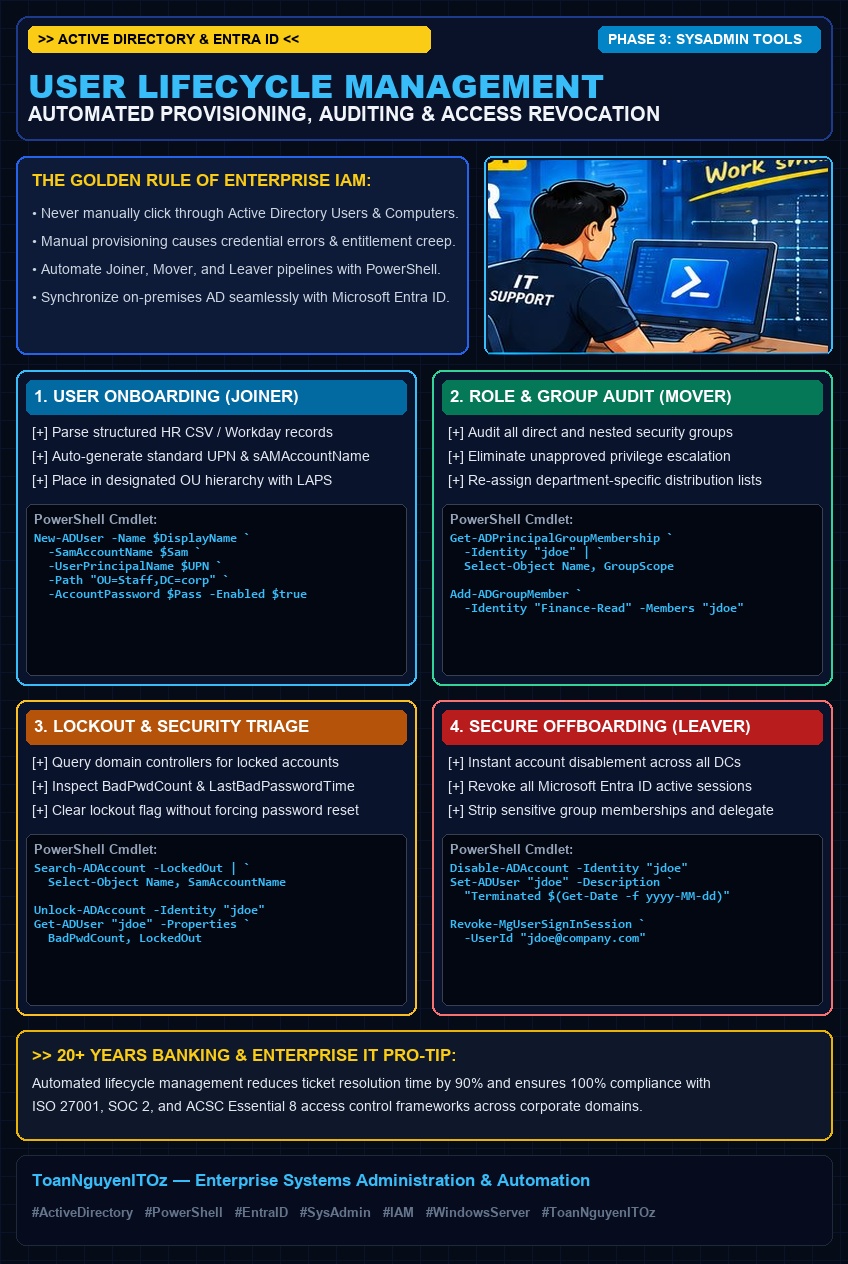
Identity and Access Management (IAM) is the cornerstone of corporate cybersecurity. In an enterprise setting, manually creating, modifying, and offboarding users through the GUI (Active Directory Users and Computers or the Entra Portal) introduces human error, audit non-compliance, and security risks.
This guide provides tested, robust PowerShell automation routines for managing the full employee lifecycle in hybrid Active Directory and Microsoft Entra ID environments.
1. Rapid Account Lockout Diagnosis & Remediation
When an executive or critical service account gets locked out repeatedly, identifying the offending source workstation or rogue mobile device is vital.
1
2
3
4
5
6
7
8
9
10
11
12
13
# 1. Locate all locked-out user accounts across the domain
Search-ADAccount -LockedOut | Select-Object SamAccountName, Name, LastLogonDate

# 2. Inspect bad password attempts and lockout timing on the PDC Emulator
$User = "jdoe"
$PDC = (Get-ADDomainController -Discover -Service PrimaryDC).HostName

Get-ADUser -Identity $User -Server $PDC -Properties BadLogonCount, BadPasswordTime, `
    LockedOut, AccountLockoutTime, PasswordLastSet |
    Select-Object Name, BadLogonCount, BadPasswordTime, LockedOut, AccountLockoutTime, PasswordLastSet

# 3. Unlock the account safely
Unlock-ADAccount -Identity $User -Server $PDC
Security Note: To locate the source machine generating bad password attempts, filter the Security Event Log on your Domain Controllers for Event ID 4740:
2. Standardized User Provisioning Routine
When onboarding new team members, enforcing standard attributes (UPN, department, manager, employee ID) ensures seamless synchronization via Microsoft Entra Connect:
1
2
3
4
5
6
7
8
9
10
11
12
13
14
15
16
17
18
19
20
21
22
23
24
25
26
27
28
# Import the Active Directory module
Import-Module ActiveDirectory

$UserParams = @{
    Name                  = "Sarah Jenkins"
    GivenName             = "Sarah"
    Surname               = "Jenkins"
    SamAccountName        = "sjenkins"
    UserPrincipalName     = "sjenkins@contoso.com"
    EmailAddress          = "sjenkins@contoso.com"
    Department            = "Finance"
    Title                 = "Senior Financial Analyst"
    Company               = "Contoso Australia"
    Path                  = "OU=Users,OU=Finance,OU=Corporate,DC=corp,DC=contoso,DC=com"
    AccountPassword       = (ConvertTo-SecureString "TempP@ssword2026!#" -AsPlainText -Force)
    Enabled               = $true
    ChangePasswordAtLogon = $true
}

# Create the user object
New-ADUser @UserParams

# Assign Department Security Groups
$TargetGroups = @("Finance-ReadWrite-SG", "M365-Business-Premium-Users", "VPN-Users-SG")
foreach ($Group in $TargetGroups) {
    Add-ADGroupMember -Identity $Group -Members "sjenkins"
    Write-Host "Assigned membership in $Group" -ForegroundColor Green
}
3. Auditing Stale and Inactive Accounts
Dormant accounts present an attractive attack vector for adversaries. Running automated audits to identify accounts with no logon activity over the past 90 days is a compliance prerequisite:
1
2
3
4
5
6
7
8
9
10
# Query accounts inactive for over 90 days
$Threshold = (Get-Date).AddDays(-90)

$InactiveUsers = Get-ADUser -Filter {LastLogonDate -lt $Threshold -and Enabled -eq $true} `
    -Properties LastLogonDate, Department, Title |
    Select-Object SamAccountName, Name, Department, Title, LastLogonDate

# Export to CSV for compliance review
$InactiveUsers | Export-Csv -Path "C:\Reports\InactiveUsers_90Days.csv" -NoTypeInformation
Write-Host "Found $($InactiveUsers.Count) stale accounts." -ForegroundColor Yellow
4. Secure Employee Offboarding Workflow
When an employee departs, their credentials must be revoked immediately to protect company resources:
1
2
3
4
5
6
7
8
9
10
11
12
13
14
15
16
17
18
19
20
21
22
23
24
25
26
27
28
29
function Invoke-EmployeeOffboarding {
    param(
        [Parameter(Mandatory=$true)]
        [string]$SamAccountName
    )

    Write-Host "Initiating offboarding for: $SamAccountName" -ForegroundColor Cyan

    # 1. Disable the Active Directory Account
    Disable-ADAccount -Identity $SamAccountName
    Write-Host "[✓] AD Account Disabled" -ForegroundColor Green

    # 2. Reset password to a cryptographically random string
    $RandomSecret = (-join ((65..90) + (97..122) + (48..57) | Get-Random -Count 24 | ForEach-Object {[char]$_}))
    Set-ADAccountPassword -Identity $SamAccountName -NewPassword (ConvertTo-SecureString $RandomSecret -AsPlainText -Force) -Reset
    Write-Host "[✓] Account Password Scrambled" -ForegroundColor Green

    # 3. Strip all non-essential security and distribution groups
    $UserGroups = Get-ADPrincipalGroupMembership -Identity $SamAccountName | Where-Object { $_.Name -ne "Domain Users" }
    foreach ($Group in $UserGroups) {
        Remove-ADGroupMember -Identity $Group -Members $SamAccountName -Confirm:$false
        Write-Host "[-] Removed from group: $($Group.Name)" -ForegroundColor DarkGray
    }

    # 4. Move to Terminated Users OU
    $TerminatedOU = "OU=Terminated,OU=Corporate,DC=corp,DC=contoso,DC=com"
    Move-ADObject -Identity (Get-ADUser $SamAccountName).DistinguishedName -TargetPath $TerminatedOU
    Write-Host "[✓] Moved to Terminated OU" -ForegroundColor Green
}
Conclusion
Automating identity workflows with PowerShell saves hundreds of hours in operational overhead while enforcing consistent audit compliance. Incorporating these scripts into scheduled tasks or Azure Automation runbooks elevates your IT operations to true enterprise maturity.