

This standard operating procedure is part of the practical *Windows & IT Support Quick Fix* series published by Toan Nguyen (Toan Nguyen IT OZ). Connect with over 20+ years of banking and enterprise systems administration experience on LinkedIn.
1. Scenario Overview & Problem Context
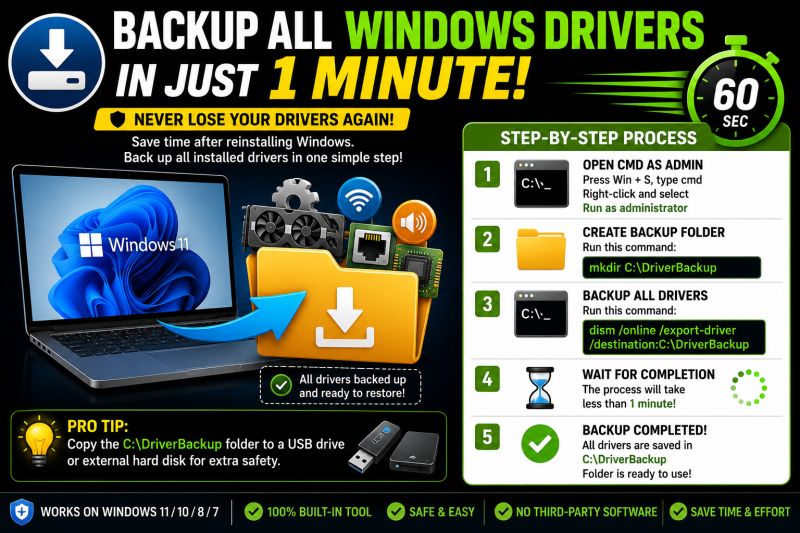
Backup All Your Windows Drivers in Just 1 Minute Reinstalling Windows soon? Dont waste hours hunting for drivers afterward. Back up all your installed drivers before you begin Open Command Prompt as Administrator Create a backup folder: Batch file mkdir C:DriverBackup Export all installed drivers: Batch file dism /online /export-driver /destination:C:DriverBackup Wait for the process to finish Done Your drivers are now safely backed up in: C:DriverBackup Pro Tip: Copy the backup folder to a USB drive, external hard disk, or NAS for additional protection. This command exports installed third-party drivers, making it much easier to restore devices after a clean Windows installation.
Backup All Your Windows Drivers in Just 1 Minute Reinstalling Windows soon? Dont waste hours hunting for drivers afterward. Back up all your installed drivers before you begin Open Command Prompt as Administrator Create a backup folder: Batch file mkdir C:DriverBackup Export all installed drivers: Batch file dism /online /export-driver /destination:C:DriverBackup Wait for the process to finish Done Your drivers are now safely backed up in: C:DriverBackup Pro Tip: Copy the backup folder to a USB drive, external hard disk, or NAS for additional protection. This command exports installed third-party drivers, making it much easier to restore devices after a clean Windows installation.
2. Step-by-Step Diagnostic & Remediation SOP
Execute this procedure using an elevated console (Run as Administrator) to ensure necessary system access:
-
Open Command Prompt as Administrator
-
Create a backup folder:
-
Export all installed drivers:
-
Wait for the process to finish
3. Production Command Scripts
1
Get-Service
4. Technical Breakdown & Parameter Deep Dive
Understanding how native Windows administrative tools operate helps prevent unintended side effects across domain environments:
<span class="cmd-tag">Elevated PowerShell</span>: Operates within the elevated administrative security context to interact directly with core OS services.- Silent Background Execution: Minimizes end-user disruption by querying or modifying configuration parameters without requiring an intrusive remote desktop takeover.
5. Enterprise Troubleshooting & Verification Checklist
| Checkpoint | Verification Step | Common Remediation |
|---|---|---|
| Administrative Privilege | Run whoami /priv or check elevated terminal badge |
Ensure PowerShell is launched via Run as Administrator |
| Firewall & Ports | Verify local Windows Defender Firewall state | Permit WinRM (TCP 5985/5986) or ICMP/RPC rules if remote |
| Service Dependencies | Query associated Windows Service state | Check Event Viewer (eventvwr.msc) Application/System logs for error codes |
💡 20+ Years Banking & Enterprise IT Pro-Tip
In high-availability enterprise environments, resolving endpoint anomalies at the command line without requiring a full system reboot or user session interruption significantly lowers Mean Time to Resolution (MTTR). Always verify event logs and confirm service availability before closing user tickets.
🔗 Join the Live Community Discussion: Have questions or additional variations for this command? 👉 View and join the original LinkedIn post discussion
Authored by Toan Nguyen (Toan Nguyen IT OZ) — 20+ Years Enterprise & Banking IT Experience in Adelaide, South Australia.