

This enterprise command-line guide and cheatsheet was curated by Toan Nguyen (Toan Nguyen IT OZ). Move beyond basic GUI clicking and leverage built-in Windows automation cmdlets like a seasoned systems engineer.
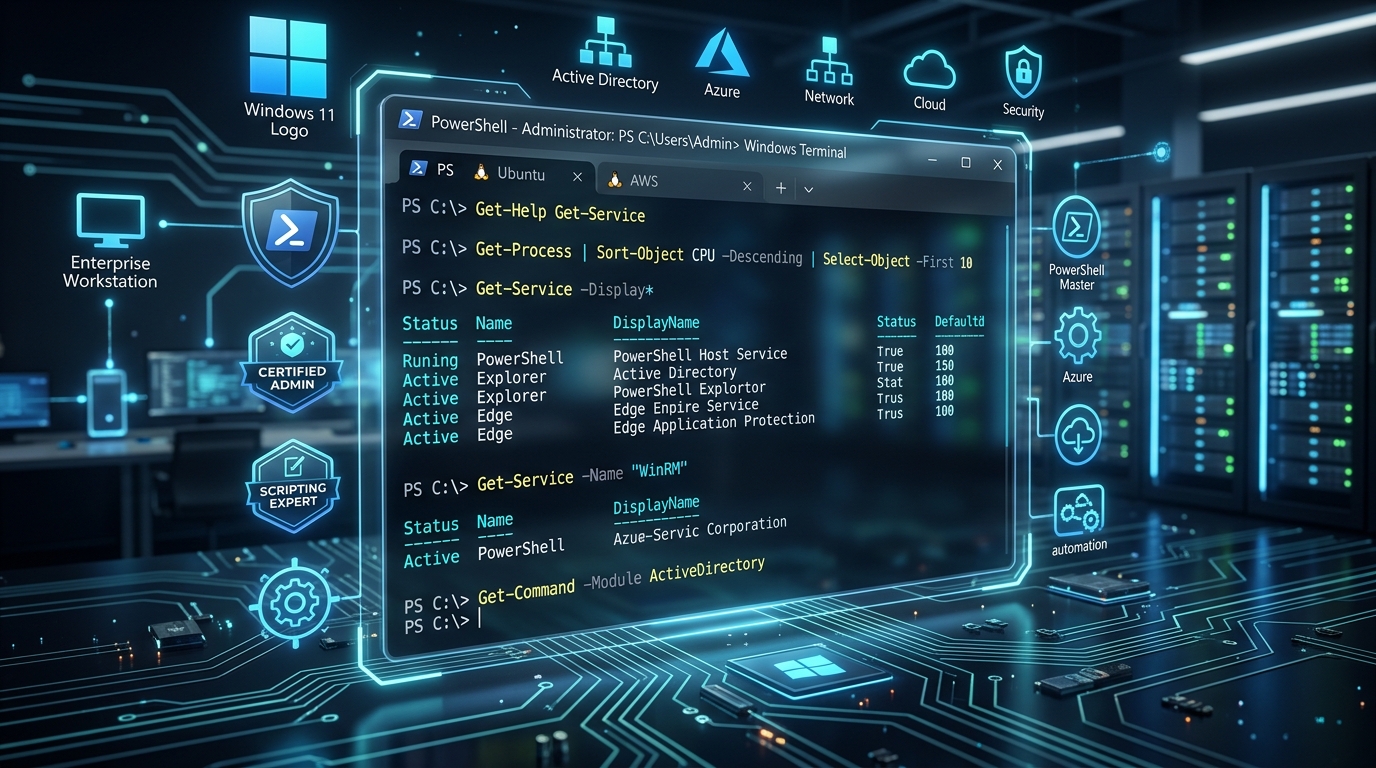
1. Scenario Overview: Why PowerShell Matters
PowerShell is an extraordinarily robust automation and configuration framework built directly into Windows 11. It allows IT engineers, sysadmins, and power users to interact directly with OS components, background services, network interfaces, and file streams without navigating through sluggish GUI windows.
Many users feel intimidated when opening PowerShell, assuming it demands complex programming knowledge. In reality, Microsoft engineered PowerShell around a remarkably consistent Verb-Noun syntax (Get-Process, Start-Service, Copy-Item). Once you understand this structure, discovering and executing commands becomes second nature.
Here are 7 essential, high-impact PowerShell commands that form the backbone of day-to-day Windows administration and troubleshooting.
2. The 7 Essential Commands
1. Get-Help — The Ultimate Built-in Reference Manual
Whenever you encounter an unfamiliar cmdlet or need parameter syntax, Get-Help is your primary resource. It provides comprehensive descriptions, parameter lists, and practical usage examples directly within your terminal console.
1
2
3
4
5
6
7
8
# Get help and usage syntax for any cmdlet
Get-Help Get-Service

# View real-world command examples
Get-Help Get-Process -Examples

# Open Microsoft's online documentation in your default browser
Get-Help Start-Process -Online
Pro Tip: Run
Update-Helponce per machine to download the latest offline help files for all installed modules.
2. Get-Command — Built-in Cmdlet Discovery Engine
When you know what you want to accomplish but cannot recall the exact cmdlet name, Get-Command acts as your local search engine across all available modules.
1
2
3
4
5
6
7
8
# Find all cmdlets related to services
Get-Command *Service*

# List all commands that start with the verb 'Restart'
Get-Command -Verb Restart

# List all cmdlets available in the NetTCPIP network module
Get-Command -Module NetTCPIP
3. Get-Process & Stop-Process — Inspect and Tame System Resources
When your PC freezes or an application spikes CPU usage, Get-Process gives you instantaneous visibility into active processes, memory usage (Working Set), and CPU time.
1
2
3
4
5
6
7
8
# List top 10 processes consuming the most CPU
Get-Process | Sort-Object CPU -Descending | Select-Object -First 10 Id, ProcessName, CPU, WorkingSet64

# Find an unruly application by name
Get-Process -Name "chrome"

# Terminate a frozen process cleanly or forcibly
Stop-Process -Name "Notepad" -Force
4. Start-Process — Launch Applications with Elevated Controls
Start-Process provides far more granular control than double-clicking a desktop shortcut. You can launch programs as Administrator, pass arguments silently, or run processes in maximized windows.
1
2
3
4
5
6
7
8
# Launch an elevated Administrator PowerShell prompt
Start-Process powershell -Verb RunAs

# Launch an app with command-line arguments and wait for completion
Start-Process -FilePath "msiexec.exe" -ArgumentList "/i setup.msi /quiet" -Wait

# Open an application in a maximized window
Start-Process "notepad.exe" -WindowStyle Maximized
5. Get-Service & Stop-Service — Manage Background Windows Services
Windows runs dozens of background services for networking, audio, printing, and remote management. PowerShell enables you to monitor service health and restart stuck daemons with zero mouse clicks.
1
2
3
4
5
6
7
8
# Check the status of the Windows Update and Print Spooler services
Get-Service -Name "wuauserv", "Spooler"

# List all services currently stopped
Get-Service | Where-Object { $_.Status -eq 'Stopped' }

# Safely restart a problematic service
Restart-Service -Name "Spooler" -Force
6. Get-ChildItem & Get-Content — Explore Directories and Read Logs
Inspecting directories and reading log files is an hourly requirement in IT operations. Get-ChildItem (the modern dir/ls) and Get-Content (the modern cat/type) offer unmatched speed.
1
2
3
4
5
6
7
8
# Recursively search for all .log files in C:\Logs
Get-ChildItem -Path "C:\Logs" -Filter "*.log" -Recurse

# Read the last 20 lines of an active log file
Get-Content -Path "C:\Logs\app.log" -Tail 20

# Stream log updates in real-time (like Linux 'tail -f')
Get-Content -Path "C:\Logs\app.log" -Wait
7. Copy-Item — Rapid File & Directory Deployment
Copying files between directories, across administrative network shares (C$), or creating quick script backups is seamless with Copy-Item.
1
2
3
4
5
# Copy a file to a destination directory
Copy-Item -Path "C:\Scripts\backup.ps1" -Destination "D:\Backups\"

# Copy an entire directory recursively including subfolders
Copy-Item -Path "C:\Project" -Destination "D:\Archive\Project" -Recurse -Force
3. Practical Cheatsheet Table
| Cmdlet | Verb-Noun Purpose | Real-World Use Case |
|---|---|---|
Get-Help |
Help / Documentation | Query syntax and copy-paste examples |
Get-Command |
Command Discovery | Locate obscure cmdlets across modules |
Get-Process |
Process Monitoring | Identify CPU/RAM hogs causing lag |
Start-Process |
Execution Control | Launch installers silently or as Admin |
Get-Service |
Service Management | Audit, restart, or disable system daemons |
Get-ChildItem |
Filesystem Browsing | Recursively locate files matching patterns |
Copy-Item |
File Transfer | Deploy scripts across machines and folders |
4. SysAdmin Engineering Mindset
“Stop clicking through nested GUI dialogs for repetitive tasks. Real system mastery begins when your terminal commands handle the heavy lifting.”
Embracing these 7 foundational PowerShell commands transitions your daily routine from manual troubleshooting to repeatable, scriptable workflows. Combine them with the pipeline (|) to filter, sort, and automate complex tasks effortlessly.
💡 Related Resources:
- Check out the interactive PowerShell Command Center for production-tested administrative scripts.
- Explore the Video Tutorials & Shorts for hands-on video breakdowns of Windows 11 performance tweaks.