

This standard operating procedure is part of the practical *Windows & IT Support Quick Fix* series published by Toan Nguyen (Toan Nguyen IT OZ). Connect with over 20+ years of banking and enterprise systems administration experience on LinkedIn.
1. Scenario Overview & Problem Context
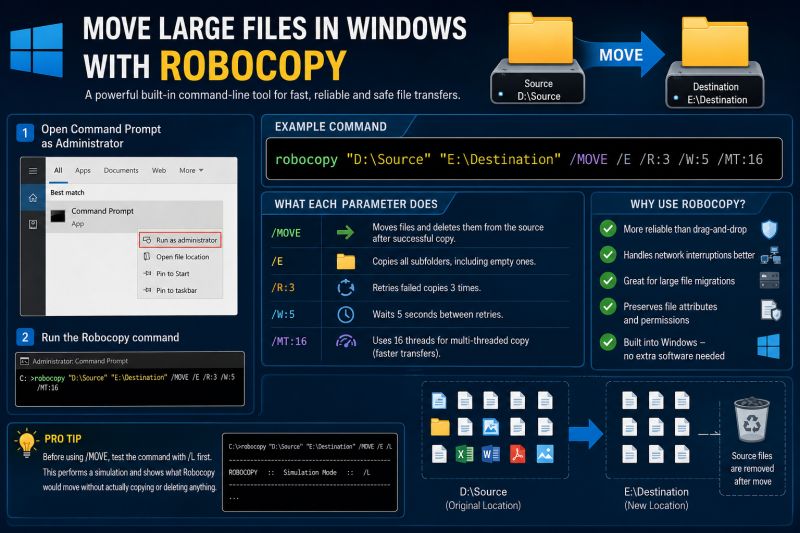
Move Large Files Faster and Safer with Robocopy
Move Large Files Faster and Safer with Robocopy
Need to move hundreds of GBs or even TBs of data without interruptions?
Instead of using File Explorer, use Robocopy – Microsofts powerful built-in file copy tool.
2. Step-by-Step Diagnostic & Remediation SOP
Execute this procedure using an elevated console (Run as Administrator) to ensure necessary system access:
-
Open Command Prompt as Administrator
-
Run:
-
Handles network interruptions better
-
Great for large file migrations
-
Preserves file attributes and permissions
-
Built into Windows – no extra software needed
3. Production Command Scripts
1
robocopy "D:\Source" "E:\Destination" /MOVE /E /R:3 /W:5 /MT:16
4. Technical Breakdown & Parameter Deep Dive
Understanding how native Windows administrative tools operate helps prevent unintended side effects across domain environments:
<span class="cmd-tag">robocopy</span>: Interacts with the underlying Windows subsystem, CIM/WMI repository, or Active Directory directory partition to execute the administrative operation.- Silent Background Execution: Minimizes end-user disruption by querying or modifying configuration parameters without requiring an intrusive remote desktop takeover.
5. Enterprise Troubleshooting & Verification Checklist
| Checkpoint | Verification Step | Common Remediation |
|---|---|---|
| Administrative Privilege | Run whoami /priv or check elevated terminal badge |
Ensure PowerShell is launched via Run as Administrator |
| Firewall & Ports | Verify local Windows Defender Firewall state | Permit WinRM (TCP 5985/5986) or ICMP/RPC rules if remote |
| Service Dependencies | Query associated Windows Service state | Check Event Viewer (eventvwr.msc) Application/System logs for error codes |
💡 20+ Years Banking & Enterprise IT Pro-Tip
In high-availability enterprise environments, resolving endpoint anomalies at the command line without requiring a full system reboot or user session interruption significantly lowers Mean Time to Resolution (MTTR). Always verify event logs and confirm service availability before closing user tickets.
🔗 Join the Live Community Discussion: Have questions or additional variations for this command? 👉 View and join the original LinkedIn post discussion
Authored by Toan Nguyen (Toan Nguyen IT OZ) — 20+ Years Enterprise & Banking IT Experience in Adelaide, South Australia.