
This standard operating procedure is part of Part 73 of the *Windows Tips & Tricks* series published by Toan Nguyen (Toan Nguyen IT OZ). Connect with over 20+ years of banking and enterprise systems administration experience on LinkedIn.
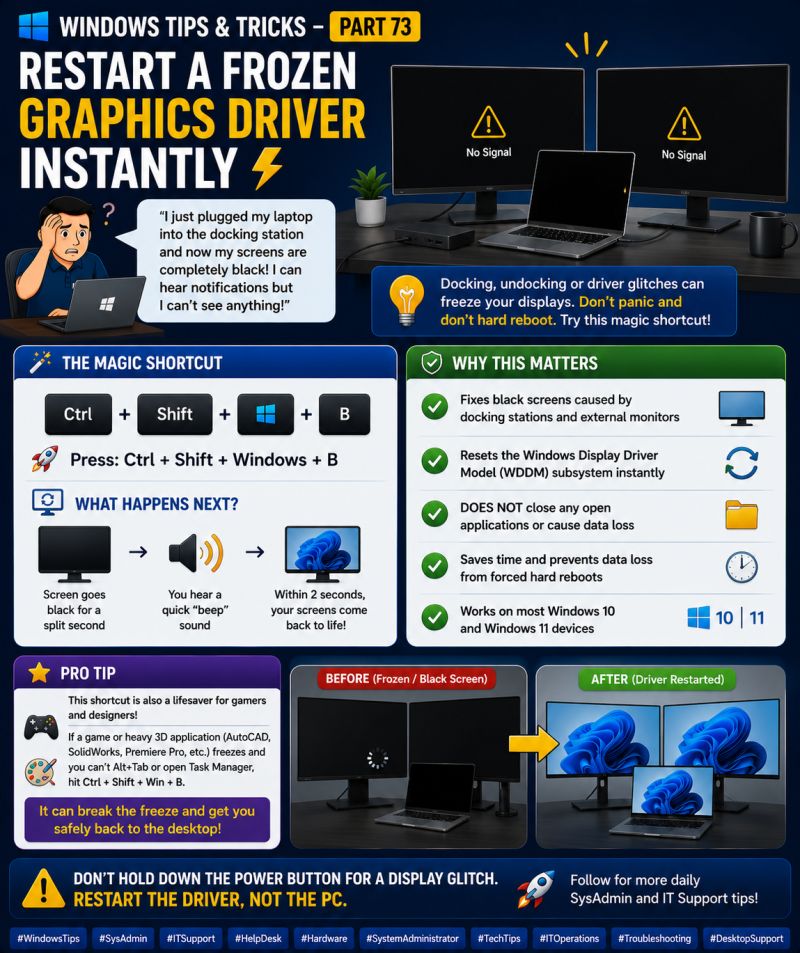
1. Scenario Overview & Problem Context
My laptop is running, but both external monitors are completely black
My laptop is running, but both external monitors are completely black
Before holding down the power button, try this simple Windows shortcut:
Ctrl Shift Windows B
2. Step-by-Step Diagnostic & Remediation SOP
Execute this procedure using an elevated console (Run as Administrator) to ensure necessary system access:
-
Black screen after docking
-
External monitor not responding
-
Display flickering or freezing
-
No need to reboot the PC
-
No need to close your applications
3. Production Command Scripts
1
ipconfig /all
4. Technical Breakdown & Parameter Deep Dive
Understanding how native Windows administrative tools operate helps prevent unintended side effects across domain environments:
<span class="cmd-tag">Elevated PowerShell</span>: Operates within the elevated administrative security context to interact directly with core OS services.- Silent Background Execution: Minimizes end-user disruption by querying or modifying configuration parameters without requiring an intrusive remote desktop takeover.
5. Enterprise Troubleshooting & Verification Checklist
| Checkpoint | Verification Step | Common Remediation |
|---|---|---|
| Administrative Privilege | Run whoami /priv or check elevated terminal badge |
Ensure PowerShell is launched via Run as Administrator |
| Firewall & Ports | Verify local Windows Defender Firewall state | Permit WinRM (TCP 5985/5986) or ICMP/RPC rules if remote |
| Service Dependencies | Query associated Windows Service state | Check Event Viewer (eventvwr.msc) Application/System logs for error codes |
💡 20+ Years Banking & Enterprise IT Pro-Tip
In high-availability enterprise environments, resolving endpoint anomalies at the command line without requiring a full system reboot or user session interruption significantly lowers Mean Time to Resolution (MTTR). Always verify event logs and confirm service availability before closing user tickets.
🔗 Join the Live Community Discussion: Have questions or additional variations for this command? 👉 View and join the original LinkedIn post discussion
Authored by Toan Nguyen (Toan Nguyen IT OZ) — 20+ Years Enterprise & Banking IT Experience in Adelaide, South Australia.