
This standard operating procedure and technical reference was authored by Toan Nguyen (Toan Nguyen IT OZ). Connect with over 20+ years of banking and enterprise systems administration experience on LinkedIn.
1. Scenario Overview & Problem Context
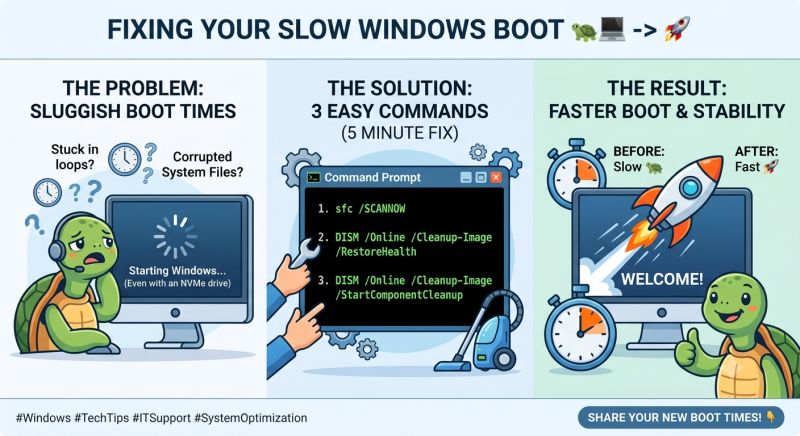
Sometimes, the real culprit behind a sluggish boot isn’t background apps or Fast Startup. The root cause often lies in corrupted system files or a damaged component store.
When this happens, instead of throwing a Blue Screen of Death (BSOD), your system attempts to find replacement files or gets stuck in invisible diagnostic loops. These hidden “retries” can add anywhere from dozens of seconds to a few minutes every time you press the power button.
Rather than spending money on hardware upgrades or wasting hours reinstalling the OS, here is a 5-minute maintenance routine using Microsoft’s built-in tools that helped me cut my Windows boot time in half:
2. Step-by-Step Diagnostic & Implementation SOP
To resolve or implement this standard operating procedure effectively, execute the following technical workflow:
-
Sometimes, the real culprit behind a slu: Sometimes, the real culprit behind a sluggish boot isn’t background apps or Fast Startup. The root cause often lies in corrupted system files or a damaged component store.
-
When this happens, instead of throwing a: When this happens, instead of throwing a Blue Screen of Death (BSOD), your system attempts to find replacement files or gets stuck in invisible diagnostic loops. These hidden “retries” can add anywhere from dozens of seconds to a few minutes every time you press the power button.
-
Rather than spending money on hardware u: Rather than spending money on hardware upgrades or wasting hours reinstalling the OS, here is a 5-minute maintenance routine using Microsoft’s built-in tools that helped me cut my Windows boot time in half:
-
🔧 3 Terminal Commands to Clean and Repai: 🔧 3 Terminal Commands to Clean and Repair Your System
-
Simply open Command Prompt as an Adminis: Simply open Command Prompt as an Administrator and run the following commands sequentially:
-
(Automatically scans and replaces corrup: (Automatically scans and replaces corrupted system files with clean cached copies)
3. Production Command Scripts & Automation
1
2
3
4
5
6
7
8
# Check SSD Trim status (0 = Enabled, 1 = Disabled)
fsutil behavior query DisableDeleteNotify

# Query NVMe Physical Disk bus type and operational health
Get-PhysicalDisk | Select-Object DeviceId, FriendlyName, MediaType, BusType, OperationalStatus, HealthStatus

# Verify Windows Fast Startup status in Registry (0 = Disabled, recommended for clean boot)
Get-ItemProperty -Path "HKLM:\SYSTEM\CurrentControlSet\Control\Session Manager\Power" -Name "HiberbootEnabled"
4. Technical Breakdown & Architecture Deep Dive
Understanding the low-level operating system mechanics and service interactions prevents unintended side effects:
<span class="cmd-tag">Administrative Security Context</span>: Operations altering system state require local administrator privileges or domain delegatory rights.<span class="cmd-tag">Service Architecture</span>: Windows services and WMI/CIM providers interact directly with the hardware abstraction layer and kernel objects.- Enterprise Scale: Implementing scripted automation reduces Mean Time to Resolution (MTTR) from hours to minutes across distributed endpoints.
5. Enterprise Verification Checklist
| Checkpoint | Verification Step | Common Remediation |
|---|---|---|
| Administrative Privilege | Run whoami /priv or verify elevated prompt |
Launch PowerShell or Terminal via Run as Administrator |
| Port & Network Health | Test TCP handshake via Test-NetConnection |
Verify firewall state and domain edge security rules |
| Service Status | Query service via Get-Service or sc query |
Restart dependent services and inspect event logs |
💡 20+ Years Banking & Enterprise IT Pro-Tip
In mission-critical banking and corporate networks, always test administrative scripts against a staging organizational unit (OU) or non-production test tenant before applying widespread changes. Keep audit logs enabled to maintain complete regulatory compliance.
🔗 Join the Live Community Discussion: Have questions or insights about this technical guide? 👉 View and join the original LinkedIn post discussion
Authored by Toan Nguyen (Toan Nguyen IT OZ) — 20+ Years Enterprise & Banking IT Experience in Adelaide, South Australia.