
When troubleshooting an executive’s laptop or an active production workstation, taking over their screen via Remote Desktop (RDP) or Quick Assist causes immediate disruption to their work.
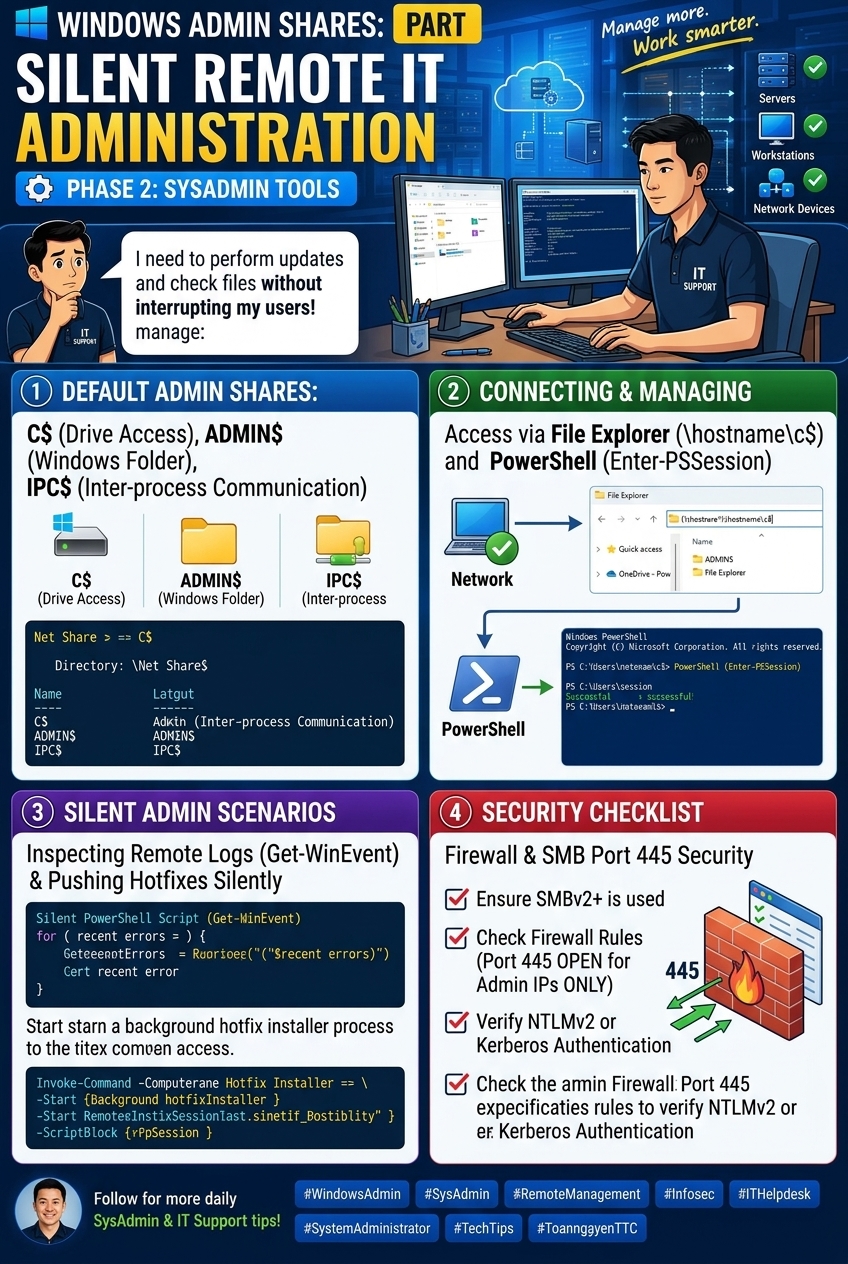
Experienced Windows Systems Administrators frequently rely on Hidden Administrative Shares (such as C$, ADMIN$, and IPC$) over Server Message Block (SMB Port 445) to perform silent diagnostics, retrieve application log dumps, and stage software packages in the background.
1. Understanding Default Administrative Shares
Windows operating systems automatically create hidden administrative root shares denoted by the trailing $ character:
\\hostname\C$: Grants full file system access to the root volumeC:\.\\hostname\ADMIN$: Maps directly to the%SystemRoot%directory (typicallyC:\Windows), ideal for reviewing logs or staging installer binaries.\\hostname\IPC$: Inter-Process Communication share utilized by named pipes and remote administrative tools (e.g., PSExec, RPC).
To inspect all shares currently hosted on a local or remote Windows client, run:
1
Get-SmbShare | Format-Table Name, Path, Description, Special -AutoSize
2. Firewall and Security Prerequisites
By default in modern Windows 11 and Windows Server environments, inbound SMB file sharing is restricted by Windows Defender Firewall and User Account Control (UAC) remote restrictions.
Domain Environment Firewall Configuration (via Group Policy or PowerShell)
Ensure the File and Printer Sharing (SMB-In) rule group is permitted within the Domain Network Profile:
1
2
# Enable File and Printer Sharing for the Domain Profile only
Enable-NetFirewallRule -DisplayGroup "File and Printer Sharing" -Profile Domain
Addressing Local Administrator Token Filtering (UAC Remote Restrictions)
If you are administering standalone workgroup endpoints or non-domain machines, Windows restricts local administrator credentials connecting over SMB. You must configure the LocalAccountTokenFilterPolicy registry key:
1
2
3
# Grant full administrative tokens over network share connections
Set-ItemProperty -Path "HKLM:\SOFTWARE\Microsoft\Windows\CurrentVersion\Policies\System" `
    -Name "LocalAccountTokenFilterPolicy" -Value 1 -Type DWord
3. Practical Administrative Use Cases
A. Silent Log File Retrieval
When troubleshooting a failed application install or crash:
1
2
3
4
5
6
7
8
9
10
$TargetPC = "WS-FINANCE-042"
$RemoteLogPath = "\\$TargetPC\C$\ProgramData\ContosoApp\Logs\AppCrash.log"
$LocalDestination = "C:\SupportCases\Incident-9821\"

if (Test-Path $RemoteLogPath) {
    Copy-Item -Path $RemoteLogPath -Destination $LocalDestination -Force
    Write-Host "[✓] Log file retrieved successfully without user interruption." -ForegroundColor Green
} else {
    Write-Warning "Log file not found at $RemoteLogPath"
}
B. Remote Staging of PowerShell Scripts and Installers
Stage software or diagnostic utilities directly into the target machine’s temporary directory:
1
2
3
4
5
6
$TargetPC = "WS-ENGINEERING-10"
$SourceInstaller = "D:\Deployment\NetSpeedTest.exe"
$DestinationPath = "\\$TargetPC\ADMIN$\Temp\NetSpeedTest.exe"

Copy-Item -Path $SourceInstaller -Destination $DestinationPath
Write-Host "Staged installer into remote Windows Temp directory." -ForegroundColor Cyan
4. Auditing and Securing Administrative Shares
While administrative shares are invaluable for IT operations, they must be protected from unauthorized lateral movement by adversaries or ransomware:
- Enforce SMB 3.1.1 Signing and Encryption: Prevent adversary-in-the-middle attacks over the internal LAN.
- Restrict Local Administrator Credentials: Ensure unique passwords across all workstations using Microsoft LAPS (Local Administrator Password Solution).
- Monitor Event Logs: Inbound administrative share access is audited under Event ID 5140 (A network share object was accessed) within the Windows Security log:
1
2
3
Get-WinEvent -FilterHashtable @{LogName='Security'; Id=5140} -MaxEvents 10 |
    Where-Object { $_.Message -match "C\$" } |
    Select-Object TimeCreated, Message
Conclusion
Leveraging Windows Administrative Shares allows tier-2 and tier-3 support teams to gather intelligence, remediate client issues, and deploy critical patches silently. Coupled with strong firewall governance and LAPS, it remains one of the most powerful native tools in the Systems Administrator’s arsenal.