
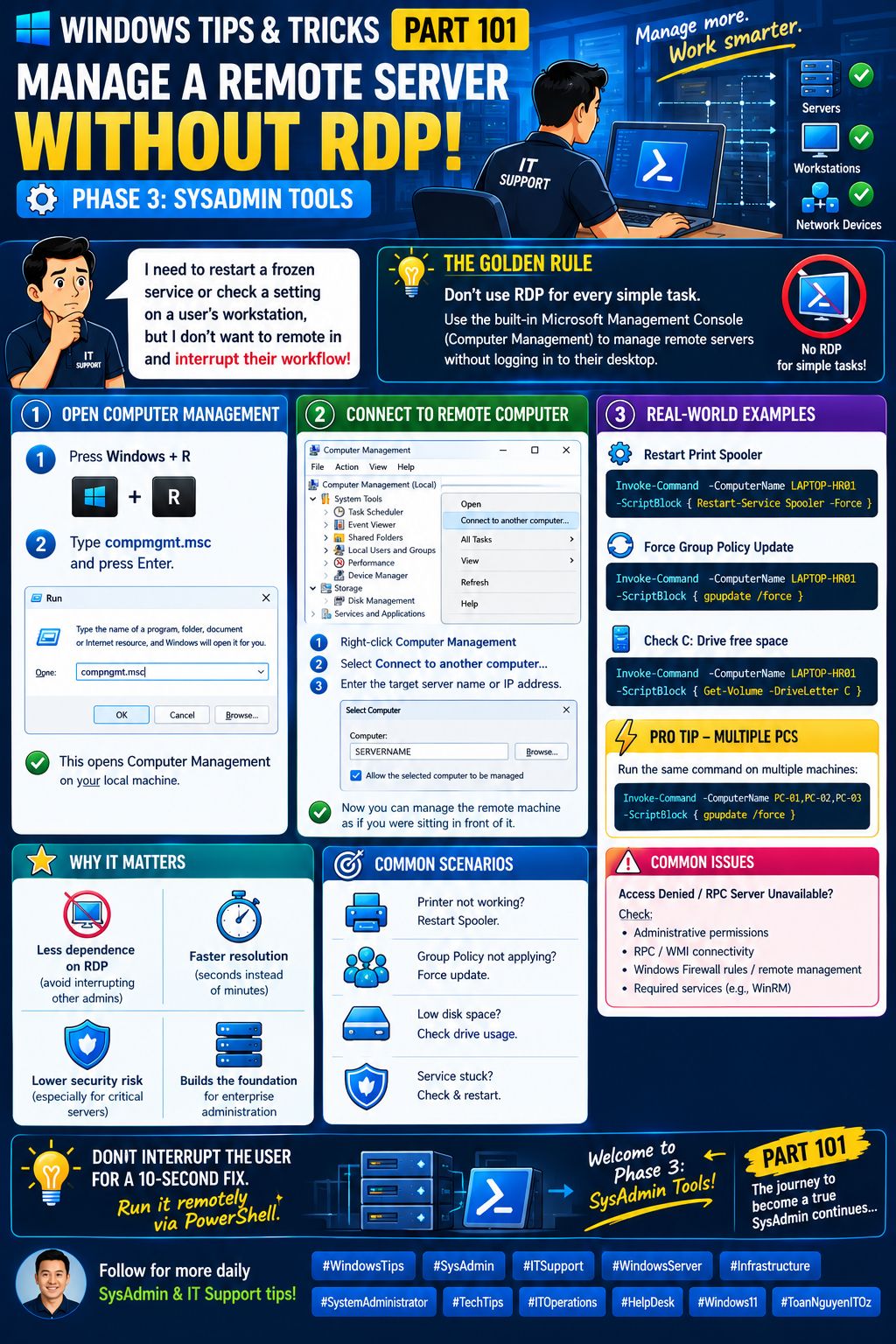
This guide is Part 101 of the Windows Tips & Tricks series published by Toan Nguyen (Toan Nguyen IT OZ). Part 100 was the milestone — now we start Phase 3, moving from fixing individual PCs to thinking like a Systems Administrator. Follow on LinkedIn.
1. Scenario Overview & Problem Context
Part 100 was the milestone. Now we start Phase 3 — moving from fixing individual PCs to thinking like a Systems Administrator.
One important principle every SysAdmin needs to internalize early:
💡 Don’t RDP into a server for every simple task.
Need to check Event Viewer, Services, Shared Folders, or Local Users on a remote machine?
You don’t need a full Remote Desktop session for that. Try the built-in Computer Management console — it connects to remote machines directly from your workstation.
2. Step-by-Step: Connect to a Remote Server via Computer Management
⌨️ Step 1 — Open Computer Management
Press Win + R, then type:
1
compmgmt.msc
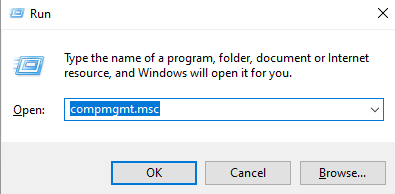
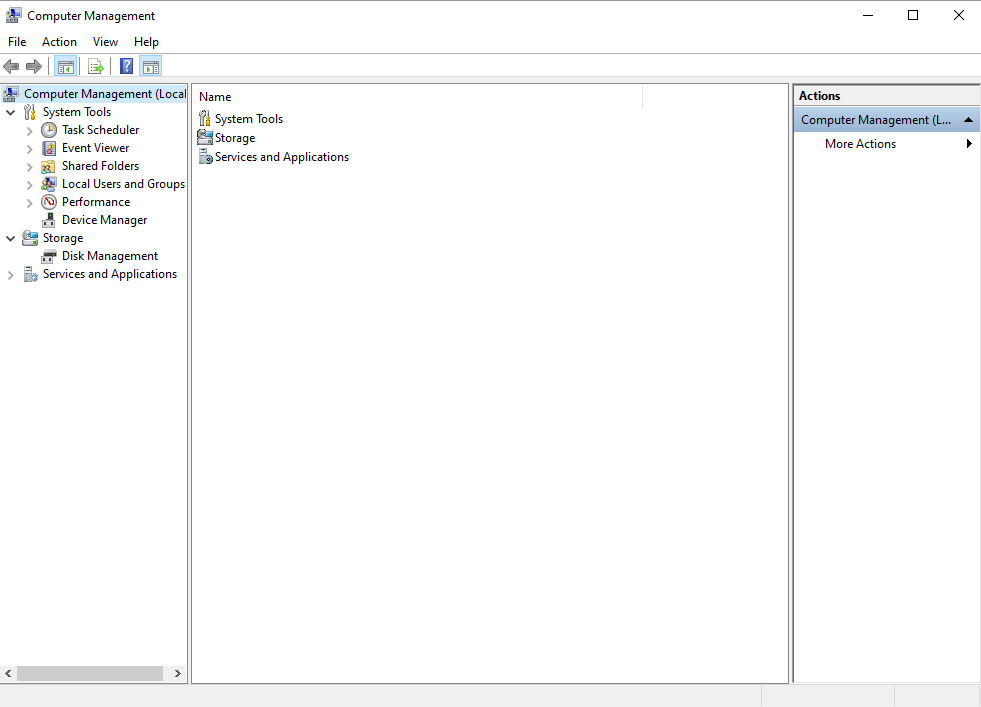
Hit Enter (or click OK). The Computer Management console opens on your local machine:
⌨️ Step 2 — Connect to Another Computer
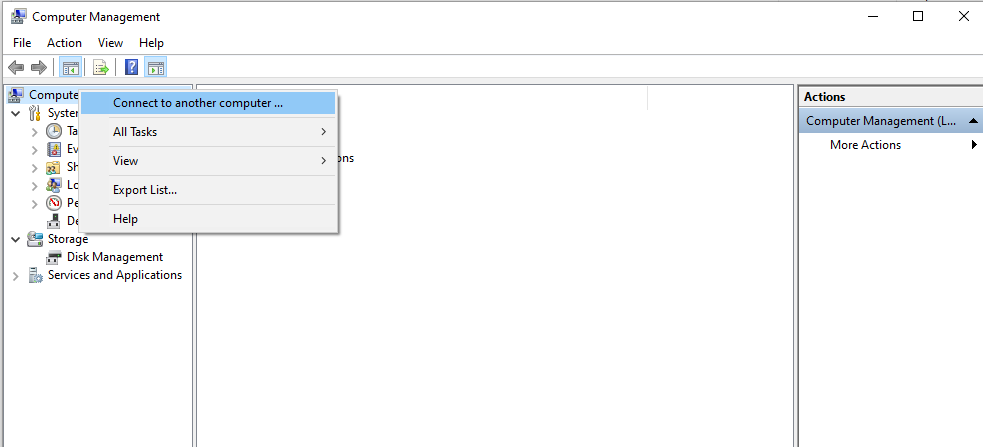
- In the left navigation pane, right-click on Computer Management (Local).
- From the context menu, select “Connect to another computer…“:
- In the Select Computer prompt, choose Another computer, type the hostname or IP of the target machine (e.g.
pc1orSERVERNAME), and click OK:
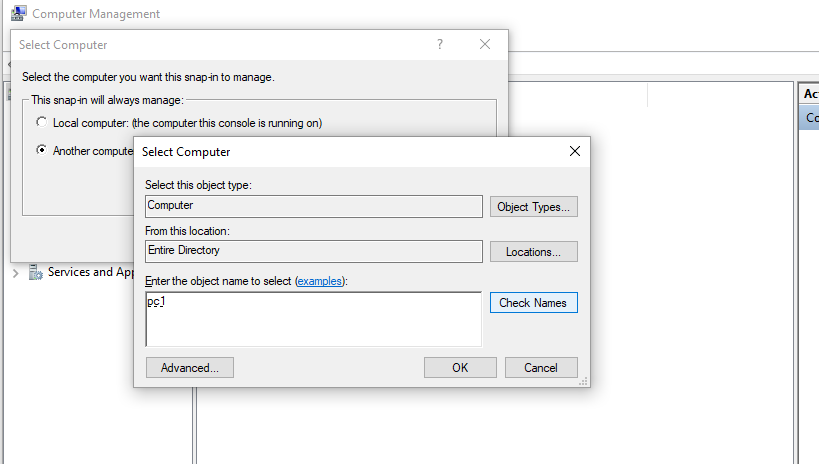
You can now manage the remote machine’s components directly from your workstation — no RDP session required!
3. What You Can Manage Remotely via compmgmt.msc
| Component | What you can do |
|---|---|
| Event Viewer | Read Application, System & Security logs in real-time |
| Services | Start, stop, restart and configure Windows services |
| Shared Folders | View open sessions, shared folders and open files |
| Local Users & Groups | Manage local accounts and group memberships |
| Device Manager | View hardware and driver status (limited remote support) |
| Disk Management | View volume layout and disk health (read-only remotely) |
| Task Scheduler | Browse and manage scheduled tasks |
4. Production Command Scripts
For SysAdmins who prefer the command line, here are the equivalent PowerShell commands:
1
2
# Check remote services (equivalent to Services in compmgmt)
Get-Service -ComputerName SERVERNAME | Where-Object {$_.Status -eq "Stopped"} | Select-Object Name, DisplayName
1
2
# View remote Event Viewer logs (equivalent to Event Viewer in compmgmt)
Get-EventLog -LogName System -ComputerName SERVERNAME -Newest 20 | Select-Object TimeGenerated, EntryType, Source, Message
1
2
# List shared folders on remote server (equivalent to Shared Folders in compmgmt)
Get-SmbShare -CimSession SERVERNAME | Select-Object Name, Path, Description
1
2
# Open Computer Management connected to a remote server directly from CLI
compmgmt.msc /computer:SERVERNAME
5. Technical Breakdown & Parameter Deep Dive
Why Computer Management works remotely
compmgmt.msc uses RPC (Remote Procedure Call) and WMI (Windows Management Instrumentation) under the hood to query and control remote systems — the same protocols that PowerShell remoting and RSAT tools rely on.
Troubleshooting: Access Denied or RPC Server Unavailable
If you see Access Denied or RPC Server Unavailable, check:
| Issue | What to check |
|---|---|
| Permissions | Ensure your account is a local administrator on the target server |
| Firewall | Windows Firewall must allow RPC and WMI traffic (TCP 135 + dynamic ports) |
| WMI rules | Enable the “Windows Management Instrumentation (WMI)” firewall rule group on the target |
| Services running | Verify RemoteRegistry, WinMgmt, and RpcSs services are running on the target |
Enable the required WMI firewall rules remotely via PowerShell:
1
2
3
Invoke-Command -ComputerName SERVERNAME -ScriptBlock {
    Enable-NetFirewallRule -DisplayGroup "Windows Management Instrumentation (WMI)"
}
6. Enterprise Troubleshooting & Verification Checklist
| Checkpoint | Verification Step | Common Remediation |
|---|---|---|
| Admin rights | Run whoami /groups and confirm membership in Administrators |
Add account to local Administrators group on target |
| RPC connectivity | Test-NetConnection SERVERNAME -Port 135 |
Allow TCP 135 through the firewall |
| WMI access | Get-WmiObject -Class Win32_ComputerSystem -ComputerName SERVERNAME |
Enable WMI firewall rules |
| Remote Registry | sc \\SERVERNAME query RemoteRegistry |
Start RemoteRegistry service if needed |
💡 20+ Years Banking & Enterprise IT Pro-Tip
The SysAdmin mindset: manage the infrastructure from your desk — don’t jump into every server.
Every unnecessary RDP session:
- Consumes a Remote Desktop license slot (CAL)
- Adds load to the server’s display stack
- Creates security audit trail noise
- Takes 30–60 seconds longer than a targeted tool connection
Build the habit of using compmgmt.msc, services.msc, eventvwr.msc, and PowerShell remoting for routine tasks. Save RDP for when you genuinely need the full desktop environment.
Phase 3 has 50 more SysAdmin tools coming. This is just the beginning.
🔗 Join the Live Community Discussion: Have questions or additional tips about remote server management without RDP? 👉 View and join the original LinkedIn post discussion
Authored by Toan Nguyen (Toan Nguyen IT OZ) — 20+ Years Enterprise & Banking IT Experience in Adelaide, South Australia.