
This guide is Part 102 of the Windows Tips & Tricks series published by Toan Nguyen (Toan Nguyen IT OZ). In Phase 3, we move from desktop troubleshooting to enterprise Systems Administration. Follow on LinkedIn.
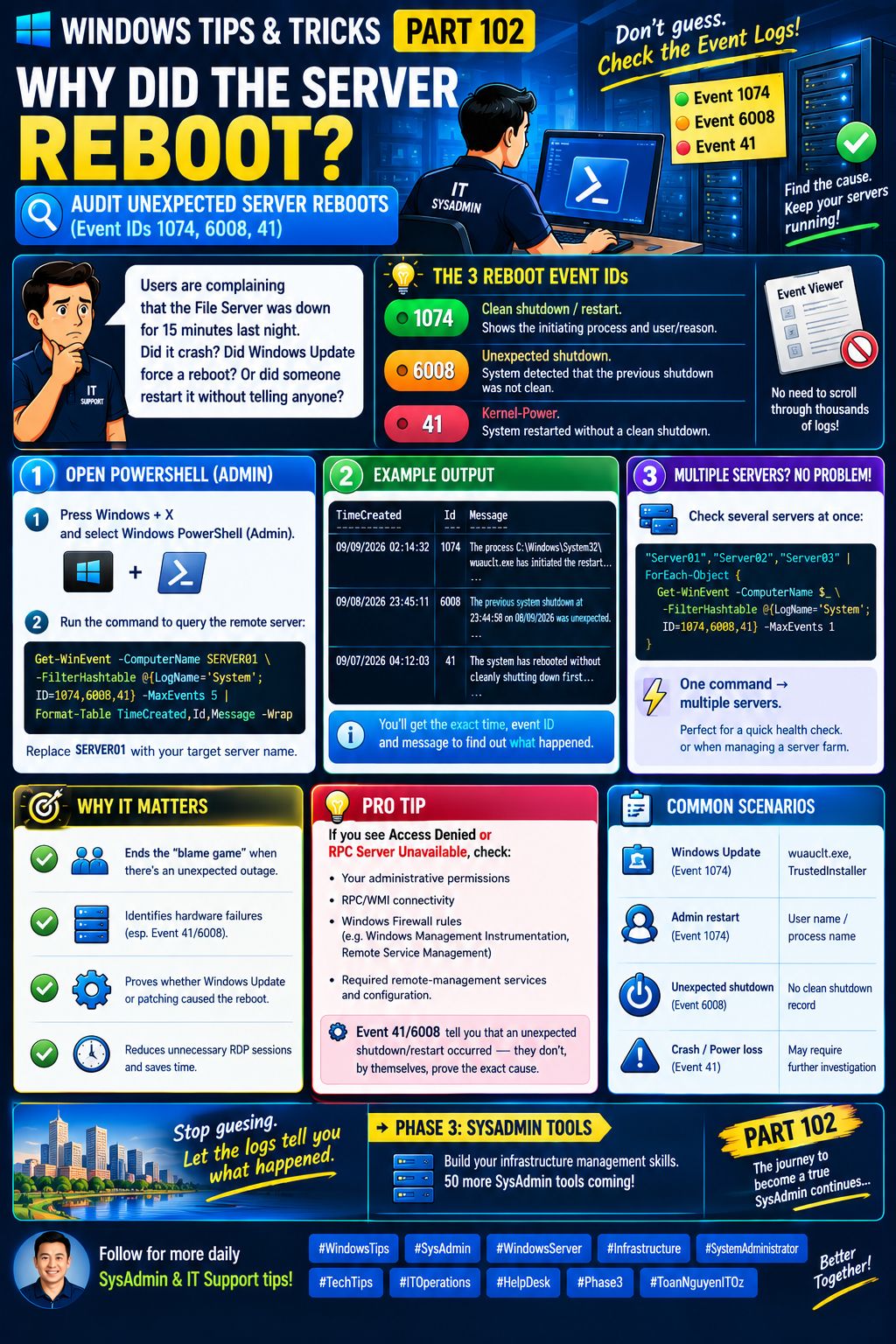
1. Scenario Overview & Problem Context
“It was down for 15 minutes last night. Did Windows Update restart it? Did someone reboot it manually? Or did the server crash?”
Every SysAdmin and IT Support engineer has faced this question from management or application owners.
When a critical production server goes offline unexpectedly, don’t guess. Check the Event Log.
Instead of opening Event Viewer (eventvwr.msc) and manually scrolling through thousands of event log entries across slow RDP connections, PowerShell can query the exact reboot-related events directly from your administrative workstation in seconds.
2. 🎯 The 3 Essential Event IDs Every Admin Must Know
All Windows reboot and shutdown events are logged in the System event log. These are the three critical Event IDs to look for:
| Event ID | Status / Type | Source | What It Really Means |
|---|---|---|---|
| 🟢 1074 | Clean / Planned | USER32 |
A clean shutdown or restart was initiated. The event log provides the exact initiating process, user account, reason code, and comment (e.g., Windows Update, Scheduled Task, or Administrator action). |
| 🟠 6008 | Unexpected | EventLog |
Windows detected during boot that the previous system shutdown was unexpected (dirty shutdown, power loss, or hard freeze). |
| 🔴 41 | Kernel-Power | Kernel-Power |
The system rebooted without cleanly shutting down first. This event indicates power was abruptly interrupted or the system blue-screened (BSOD). |
3. ⌨️ Query the Reboot Logs Remotely with PowerShell
You don’t need to log into the server via RDP. Run this PowerShell command from your administrative terminal or jump box:
1
2
3
4
Get-WinEvent -ComputerName SERVER01 -FilterHashtable @{
    LogName = 'System'
    ID      = 1074, 6008, 41
} -MaxEvents 5 | Format-Table TimeCreated, Id, Message -Wrap
💡 Tip: Replace
SERVER01with the hostname, FQDN, or IP address of your target server.
Understanding the Output:
- If Event 1074 is returned: Check the
Messagetext. It will tell you:- Process: e.g.,
C:\Windows\System32\shutdown.exeorTiWorker.exe(Windows Update). - User: e.g.,
NT AUTHORITY\SYSTEM(automated patch) orDOMAIN\AdminUser(manual reboot). - Reason: e.g.,
Operating System: Service pack (Planned).
- Process: e.g.,
- If Event 6008 or Event 41 appears: The server lost power, suffered a hardware watchdog reset, or crashed (BSOD).
4. ⚡ Pro Tip: Query Multiple Servers at Once
Need to check the reboot history across an entire cluster, web farm, or multiple domain controllers after a power fluctuation or patch window?
Pipe an array of computer names into ForEach-Object:
1
2
3
4
5
6
"Server01", "Server02", "Server03" | ForEach-Object {
    Get-WinEvent -ComputerName $_ -FilterHashtable @{
        LogName = 'System'
        ID      = 1074, 6008, 41
    } -MaxEvents 1
} | Select-Object MachineName, TimeCreated, Id, Message
One command → multiple servers queried simultaneously.
5. 🎯 Why This Matters for IT Operations
- ✅ Investigate unexpected outages: Pinpoint the exact second a server went down and came back up.
- ✅ Identify planned vs. unexpected restarts: Instantly know if an engineer rebooted the server without an approved Change Request (CR) or if Windows Update triggered automatically.
- ✅ Build a server health-check workflow: Integrate this query into post-patching verification scripts.
- ✅ Reduce unnecessary RDP sessions: Gather evidence in under 5 seconds from your local shell.
- ✅ Evidence-based troubleshooting: Present concrete event logs to stakeholders rather than assumptions.
6. ⚠️ Enterprise Pro Note: Root Cause Analysis (RCA)
Important: Event 41 and Event 6008 indicate that an unexpected shutdown or restart occurred — they do not, by themselves, prove the root cause.
To determine why the unexpected shutdown happened:
- Correlate with BugCheck entries: Look for Event ID
1001(BugCheck) in the System log to check if a memory dump (MEMORY.DMPor Minidump) was generated.- Check Hypervisor logs: If running on VMware ESXi or Hyper-V, verify VM power state events and host hardware logs.
- Inspect UPS & PDU logs: Rule out power supply failure or UPS battery test interruptions.
- Check Windows Update history: Ensure a driver update didn’t trigger kernel instability.
Stop guessing. Let the logs tell you what happened.
🔗 Join the Live Community Discussion: Have questions or additional tips about server reboot investigation and PowerShell event log querying? 👉 View and join the original LinkedIn post discussion
Authored by Toan Nguyen (Toan Nguyen IT OZ) — 20+ Years Enterprise & Banking IT Experience in Adelaide, South Australia.