

This guide is Part 112 of the Windows Tips & Tricks series published by Toan Nguyen (Toan Nguyen IT OZ). In Phase 3, we bust viral social media myths, master core storage integrity tools, and teach modern NTFS self-healing methods that replace legacy multi-hour downtime. Follow on LinkedIn.
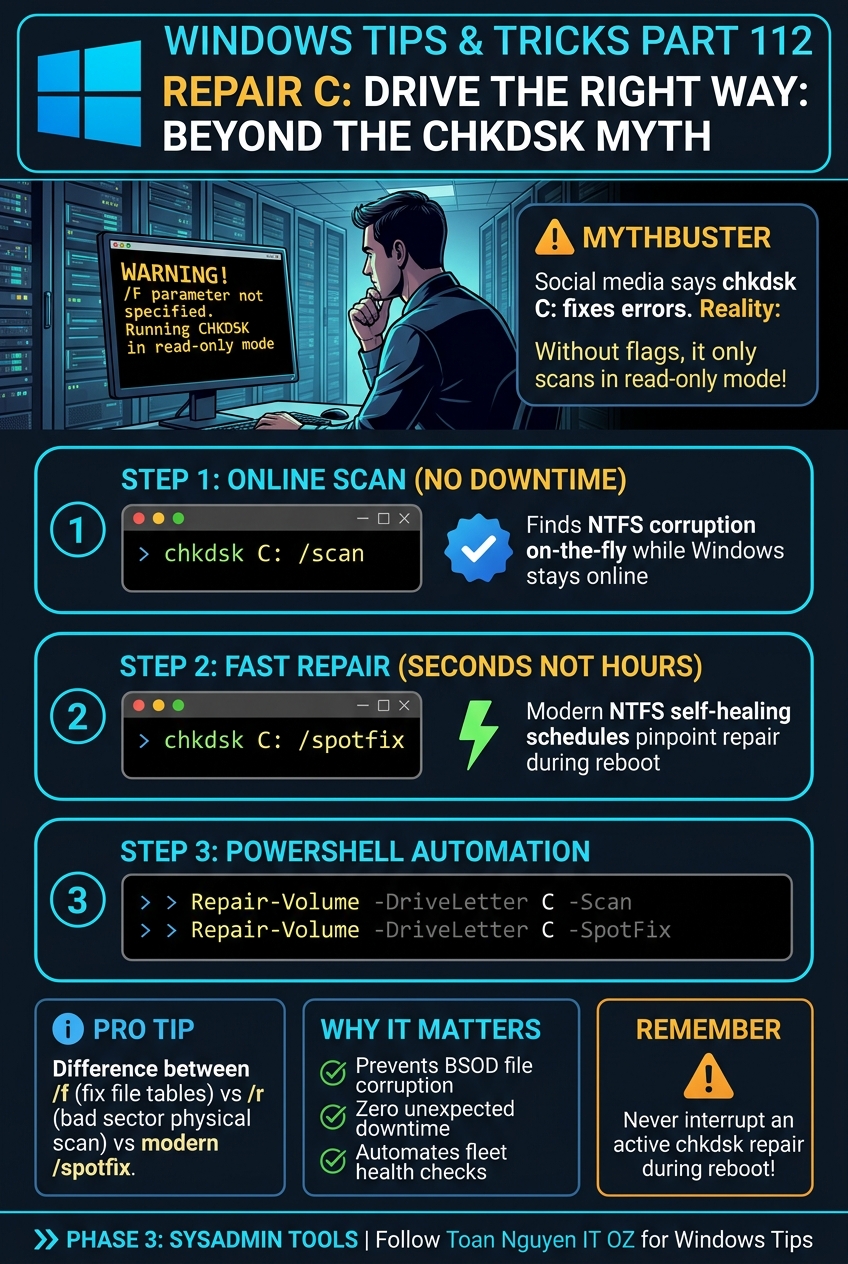
1. Scenario Overview & The Social Media Myth
🚀 Windows Tips & Tricks – Part 112
🛠️ The Truth About CHKDSK: Repair C: Drive Errors the Right Way
You have probably seen viral TikToks, YouTube Shorts, or Facebook Reels showing this quick trick:
- Open Command Prompt as Administrator.
- Type
chkdsk C:and press Enter. - Voiceover announces: “This simple command will automatically find errors on your C drive and fix them for you!”
🛑 Wait! Did you notice the message in the terminal?
1
2
WARNING! /F parameter not specified.
Running CHKDSK in read-only mode.
When you run chkdsk C: without flags, Windows will NEVER fix a single error. It runs purely in read-only mode, merely analyzing the Master File Table (MFT) and volume descriptors without writing any corrections to disk.
If filesystem corruption exists, running a naked chkdsk leaves the damage completely untouched.
2. ⚡ Modern NTFS: Why You Rarely Need 4-Hour Offline Scans
In the days of Windows 7 and Windows Server 2008, repairing drive C: with chkdsk /f /r was a nightmare:
- The system locked the drive and forced a reboot.
- The computer stayed stuck at a black screen counting percentage for 3 to 8 hours.
- If power cut out during the scan, the repair would stop mid-way and, in rare cases, could leave filesystem corruption behind — but chkdsk itself does not destroy the partition table.
Fortunately, modern Windows (Windows 10, 11, and Windows Server 2016–2025) features Self-Healing NTFS. You no longer need to lock down an entire workstation or server for half a day to repair filesystem anomalies.
3. ⚡ The Professional CHKDSK Playbook
Here is the exact hierarchy of commands enterprise SysAdmins use depending on the severity of the issue:
Step 1: Online Non-Intrusive Scan (Zero Downtime)
Before scheduling reboots, perform an online scan while Windows and all user applications remain running:
chkdsk C: /scan
🔍 What this does:
Windows scans the volume in the background. If it finds inconsistencies, it writes the repair instructions into a system log file without taking the volume offline.
Step 2: Instant SpotFix (Repairs in Seconds, Not Hours)
If /scan detects issues, do not run a brute-force /f. Instead, use modern spot-fixing:
chkdsk C: /spotfix
💡 Why it is revolutionary:
Windows prompts to schedule the fix upon the next reboot. When the computer restarts, instead of re-scanning all millions of files, it only touches the specific corrupt records logged by /scan. The repair finishes in under 10 seconds!
Step 3: Traditional Offline Fix (When Metadata is Severely Corrupt)
If an online scan cannot resolve the corruption, force a traditional repair:
chkdsk C: /f
Windows will prompt:
1
2
Chkdsk cannot run because the volume is in use by another process.
Would you like to schedule this volume to be checked the next time the system restarts? (Y/N)
Type Y and restart during your approved maintenance window.
Step 4: Bad Sector Scan (Physical Surface Inspection)
chkdsk C: /r
- Locates physical bad sectors on the disk and attempts to salvage readable data.
- Includes the functionality of
/f.
⚠️ SSD & NVMe Notice: Do NOT routinely run
chkdsk /ron modern Solid State Drives (SSDs). SSDs use internal wear-leveling controllers that automatically remap dead NAND blocks. Running/rcauses unnecessary write cycles without diagnostic benefits.
4. 🛠️ Modern PowerShell Cmdlets: Repair-Volume
For IT automation engineers and RMM scripting (Intune, NinjaOne, Datto), use the native Storage module cmdlets:
1. Non-Disruptive Online Scan:
1
Repair-Volume -DriveLetter C -Scan
(Returns NoErrorsFound or logs issues for remediation).
2. Schedule Instant SpotFix:
1
Repair-Volume -DriveLetter C -SpotFix
3. Full Offline Scan & Fix:
1
Repair-Volume -DriveLetter C -OfflineScanAndFix
5. 💡 Pro Tip — Check Disk Health via S.M.A.R.T. First!
Filesystem errors are often a symptom, not the root cause. If chkdsk keeps finding errors repeatedly on the same machine, the physical drive is likely failing.
Before running aggressive disk repairs, check the hardware health via PowerShell:
1
Get-PhysicalDisk | Select-Object DeviceId, FriendlyName, MediaType, OperationalStatus, HealthStatus
If HealthStatus returns anything other than Healthy, immediately image the drive and replace the hardware before running write-intensive repair commands!
6. 🎯 Why It Matters for IT Operations
- ✅ Busts Helpdesk Misconceptions: Ensures Tier 1/2 engineers understand that plain
chkdskdoes not repair corruption. - ✅ Prevents Unplanned Downtime: Replacing
/fwith/scan+/spotfixcuts downtime from hours to seconds. - ✅ Stops BSOD Boot Loops: Eliminates crashes caused by corrupted system pointers (
NTFS_FILE_SYSTEM,CRITICAL_PROCESS_DIED). - ✅ Automated Fleet Maintenance: Cmdlets like
Repair-Volume -Scancan run weekly across 1,000+ endpoints via Intune Proactive Remediations with zero user disruption.
7. 🎯 The SysAdmin Mindset
Don’t believe every 15-second social media reel claiming to “fix your PC in one command.”
Senior SysAdmins read the command flags.
We know thatchkdsk C:without parameters is just an audit. Real repairs require purpose. 🛡️
💬 Community Discussion:
When was the last time you ran a fullchkdsk /rand had it run overnight? Have you migrated your maintenance workflows toRepair-Volume -SpotFix?
👉 Share your experiences and connect with Toan Nguyen on LinkedInAuthored by Toan Nguyen (Toan Nguyen IT OZ) — Enterprise Systems Administrator in Adelaide, South Australia.