

This guide is Part 111 of the Windows Tips & Tricks series published by Toan Nguyen (Toan Nguyen IT OZ). In Phase 3, we dive into enterprise storage forensics, low-disk-space triage, and native command-line utilities that solve stubborn endpoint and server crises. Follow on LinkedIn.
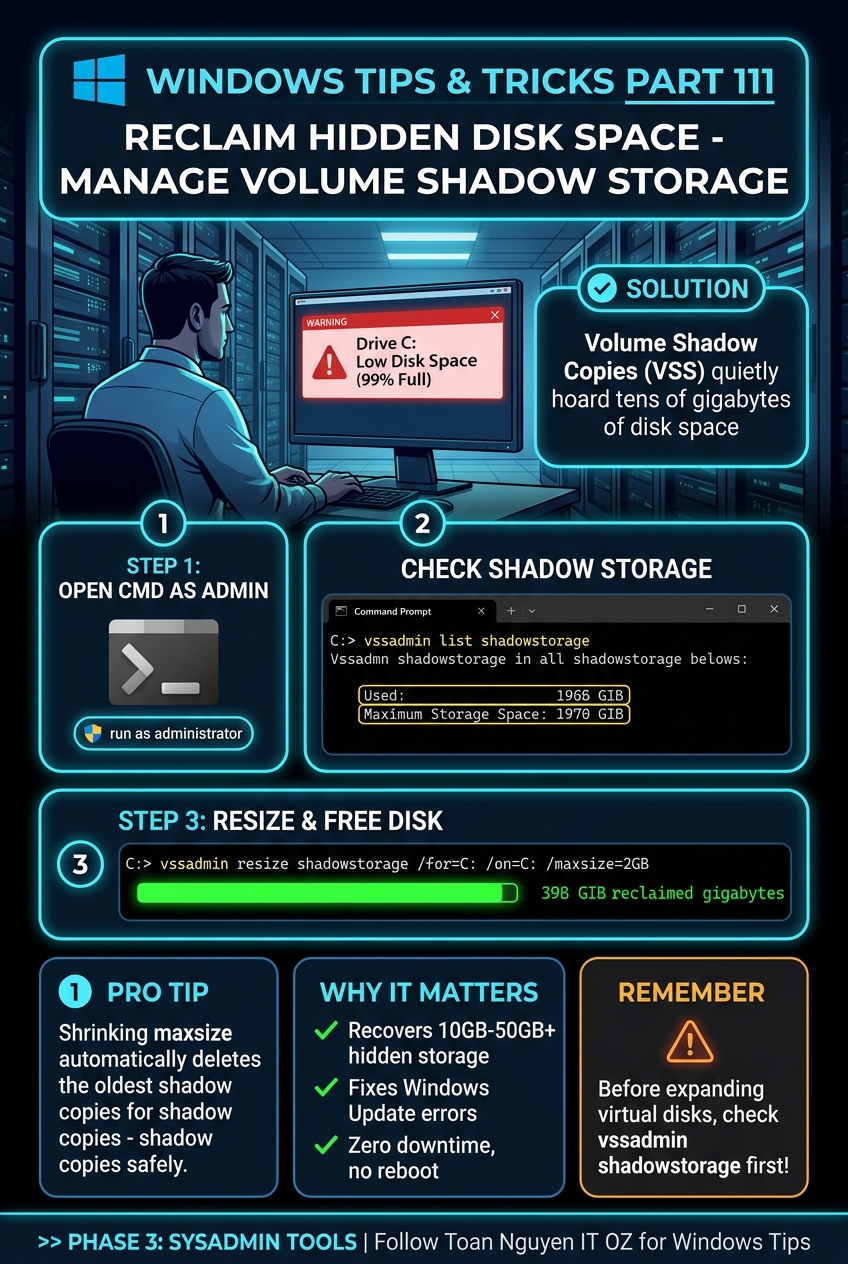
1. Scenario Overview & Problem Context
🚀 Windows Tips & Tricks – Part 111
💾 Reclaim Hidden Disk Space: Manage Volume Shadow Storage
- A user or monitoring alert warns that Drive C: is at 99% capacity (Low Disk Space).
- You run standard Disk Cleanup (
cleanmgr), empty the Recycle Bin, and clear%TEMP%folders. - Result: You barely freed 500 MB. File Explorer still displays a scary red progress bar.
- When you highlight all folders in
C:\and check Properties, the total size is 60 GB, yet Windows insists your 128 GB drive is completely full.
❓ Where did 40 to 60 GB of storage disappear?
In Windows and Windows Server, the primary suspect behind phantom disk consumption is the Volume Shadow Copy Service (VSS). Windows automatically creates shadow copies for:
- System Restore Points before Windows updates, driver installations, or patch cycles.
- Previous Versions file history snapshots on local and network shares.
- Backup Solutions (such as Windows Server Backup, Veeam, or Azure Backup) that retain delta change logs.
By default, Windows can reserve 10% to 20% (or even an unbounded maximum) of the entire volume for shadow copies. Because these snapshots reside in the protected System Volume Information folder, regular file explorers and cleanup tools cannot see or calculate them!
2. ⚡ Step-by-Step Resolution with vssadmin
You do not need third-party disk cleaners or partition expanders. Windows provides a built-in administrative tool: vssadmin.
Step 1: Open Command Prompt or Windows Terminal as Administrator
Press Windows + S, type cmd (or Terminal), right-click and choose Run as administrator.
Step 2: Check Current Shadow Storage Allocation
Run the following command to see how much space VSS is actively consuming and what its maximum allowed limit is:
vssadmin list shadowstorage
Example Output:
1
2
3
4
5
6
7
8
9
10
C:\Windows\system32>vssadmin list shadowstorage
vssadmin 1.1 - Volume Shadow Copy Service administrative command-line tool
(C) Copyright 2001-2013 Microsoft Corp.

Shadow Copy Storage association
   For volume: (C:)\\?\Volume{a1b2c3d4-e5f6-7890-abcd-ef1234567890}\
   Shadow Copy Storage volume: (C:)\\?\Volume{a1b2c3d4-e5f6-7890-abcd-ef1234567890}\
   Used Shadow Copy Storage space: 48.35 GB (38%)
   Allocated Shadow Copy Storage space: 50.12 GB (40%)
   Maximum Shadow Copy Storage space: UNBOUNDED (100%)
🔍 Key metrics to observe:
- Used Shadow Copy Storage space: The actual size currently consumed by existing snapshots (here: nearly 50 GB!).
- Maximum Shadow Copy Storage space: The ceiling limit. If set to
UNBOUNDEDor a high percentage, VSS will greedily hold storage.
Step 3: Resize and Reclaim Space Instantly
To set a safe, manageable cap and immediately release excessive shadow copies, run:
vssadmin resize shadowstorage /for=C: /on=C: /maxsize=2GB
(You can adjust /maxsize= to 2GB, 5GB, or 10GB depending on your retention needs).
Example Confirmation:
1
Successfully resized the shadow copy storage association
💡 What happens under the hood?
Windows immediately calculates the new boundary and automatically purges the oldest shadow copies to fit within the new limit. It retains your newest restore point while releasing tens of gigabytes back to Drive C: in seconds!
Step 4: Bonus — Deleting Old Shadow Copies Directly
If you want to manually purge shadow copies without altering the maximum storage limit:
Delete only the oldest snapshot:
vssadmin delete shadows /for=C: /oldest
Delete all existing snapshots on drive C:
vssadmin delete shadows /for=C: /all
3. 🛠️ Modern PowerShell Equivalent
If you are managing remote systems or writing enterprise automation scripts, PowerShell can audit and manage shadow copies via WMI / CIM:
Audit Shadow Copies with PowerShell:
1
Get-CimInstance Win32_ShadowCopy | Select-Object ID, InstallDate, DeviceObject, VolumeName | Format-Table -AutoSize
Delete the Oldest Shadow Copy via PowerShell:
1
2
3
4
$OldestSnapshot = Get-CimInstance Win32_ShadowCopy | Sort-Object InstallDate | Select-Object -First 1
if ($OldestSnapshot) {
    Remove-CimInstance -InputObject $OldestSnapshot -Verbose
}
4. 💡 Pro Tip — Production & Server Considerations
Before aggressively purging or resizing VSS on production systems, keep these best practices in mind:
- Windows Workstations (Endpoints):
- Setting
/maxsize=2GBor5GBis typically ideal. It keeps 1 to 2 fresh System Restore points for disaster recovery while preventing disk exhaustion.
- Setting
- File Servers with “Previous Versions”:
- If users rely on Windows File History or Volume Shadow Copies to recover earlier versions of deleted files, do not shrink maxsize too small, or their recovery window will shorten.
- Hyper-V & Backup Integrations:
- If a backup job failed mid-process, an orphaned VSS snapshot might stay locked. If
vssadmin list shadowsshows persistent snapshots from previous backup dates, deleting them or restarting theVolume Shadow Copyservice (net stop vss && net start vss) resolves the lock.
- If a backup job failed mid-process, an orphaned VSS snapshot might stay locked. If
5. 🎯 Why It Matters for IT Operations
- ✅ Instant Triage in Under 60 Seconds: Eliminates urgent disk-space helpdesk tickets without rebooting the system or closing applications.
- ✅ Fixes Windows Update Failures: Resolves update installation errors such as
0x80070070(ERROR_DISK_FULL) caused by invisible VSS saturation. - ✅ Stops Unnecessary Cloud Disk Expansion: Avoids requesting expensive cloud storage upgrades (Azure Managed Disks / AWS EBS) when the VM only needed a VSS prune.
- ✅ Fleet-Wide Automation: Easily deployable via Microsoft Intune Proactive Remediations, Datto, NinjaOne, or PowerShell Remoting (
Invoke-Command).
6. 🎯 The SysAdmin Mindset
When a drive runs out of space, junior techs look for large video files or download folders. Senior SysAdmins look at the storage allocation tables and the shadow copies.
Before you resize the virtual disk, check what is hiding in the shadows.
vssadmin list shadowstorageis your first line of defense. 🛡️
💬 Community Discussion:
Have you ever had a server or user PC run out of disk space due to runaway shadow copies? What is your standard maximum VSS threshold?
👉 Share your thoughts and connect with Toan Nguyen on LinkedInAuthored by Toan Nguyen (Toan Nguyen IT OZ) — Enterprise Systems Administrator in Adelaide, South Australia.