

This guide is Part 103 of the Windows Tips & Tricks series published by Toan Nguyen (Toan Nguyen IT OZ). In Phase 3, we move from desktop troubleshooting to enterprise Systems Administration. Follow on LinkedIn.
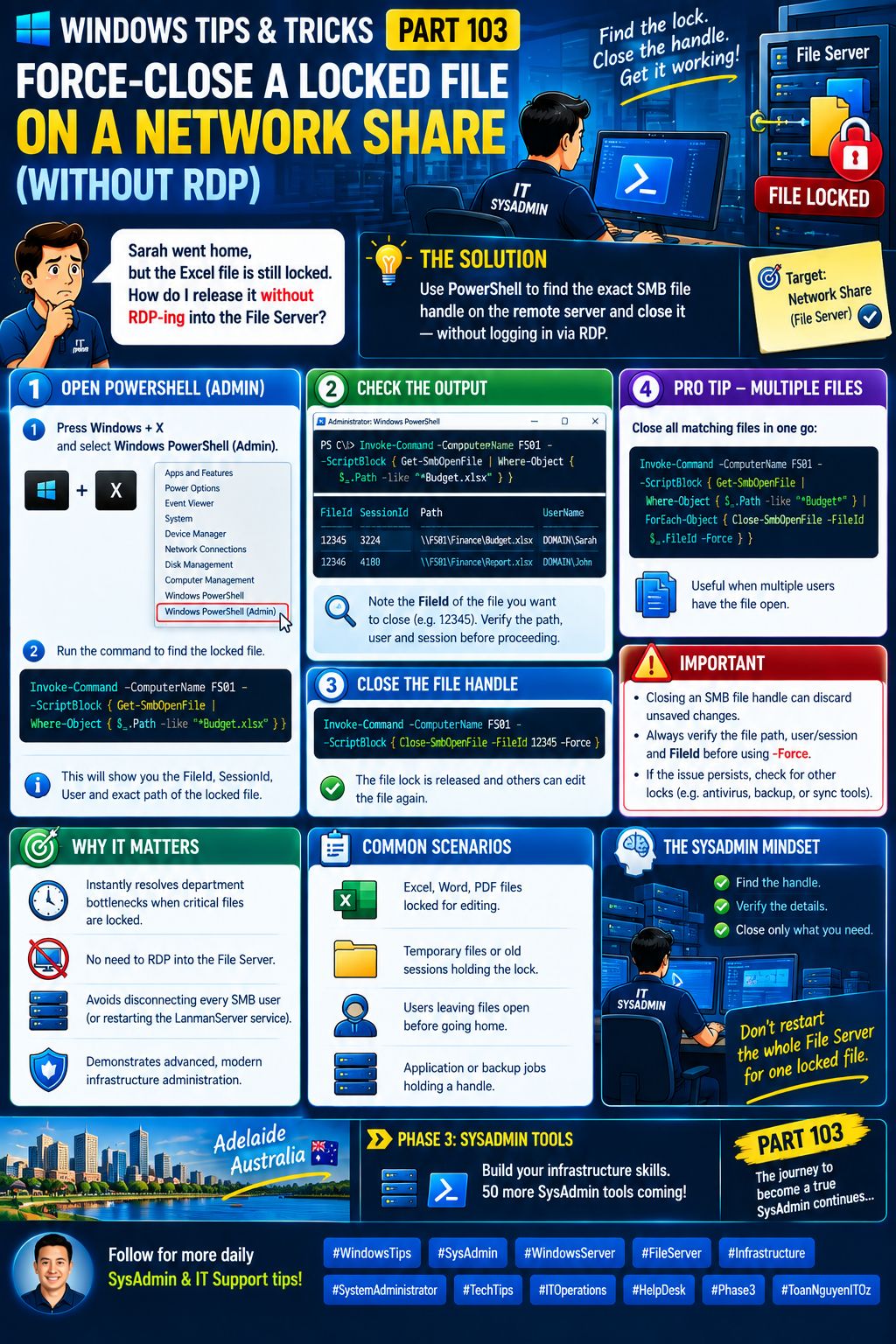
1. Scenario Overview & Problem Context
📂 Windows Tips & Tricks – Part 103
🔓 Force-Close a Locked File on a Network Share
“Sarah went home, but the Excel file is still locked. How do I release it without RDP-ing into the File Server?”
This is a classic File Server ticket.
Instead of restarting the Server service — and disconnecting everyone — use PowerShell to identify and close the specific SMB file handle.
⌨️ Step 1 — Find the locked file
1
2
3
Invoke-Command -ComputerName FS01 -ScriptBlock {
    Get-SmbOpenFile | Where-Object { $_.Path -like "*Budget.xlsx" }
}
🔎 Look for the FileId and confirm the path, user, and session before closing anything.
🔐 Step 2 — Close the specific file
1
2
3
Invoke-Command -ComputerName FS01 -ScriptBlock {
    Close-SmbOpenFile -FileId 12345 -Force
}
Replace
12345with the actualFileIdfound in Step 1.
⚡ Pro Tip — Multiple matching files
1
2
3
4
5
Invoke-Command -ComputerName FS01 -ScriptBlock {
    Get-SmbOpenFile | Where-Object { $_.Path -like "*Budget*" } | ForEach-Object {
        Close-SmbOpenFile -FileId $_.FileId -Force
    }
}
🎯 Why it matters
- ✅ Release a specific locked file
- ✅ No RDP required
- ✅ Avoid disconnecting every SMB user
- ✅ Faster File Server troubleshooting
- ✅ Practical PowerShell + SMB administration
⚠️ Important
Closing an SMB file handle can discard unsaved changes.
Always verify the file path, user/session and FileId before using “-Force”.
💡 SysAdmin mindset:
Don’t restart the whole File Server for one locked file.
Find the handle. Verify it. Close only what you need. 🎯
🚀 Phase 3 — SysAdmin Tools continues!
🔗 Join the Live Community Discussion: Have questions or additional tips about this guide? 👉 View and join the original LinkedIn post discussion
Authored by Toan Nguyen (Toan Nguyen IT OZ) — Enterprise Systems Administrator in Adelaide, South Australia.