

This guide is Part 106 of the Windows Tips & Tricks series published by Toan Nguyen (Toan Nguyen IT OZ). In Phase 3, we scale operational skills from single-workstation support to multi-server infrastructure management. Follow on LinkedIn.
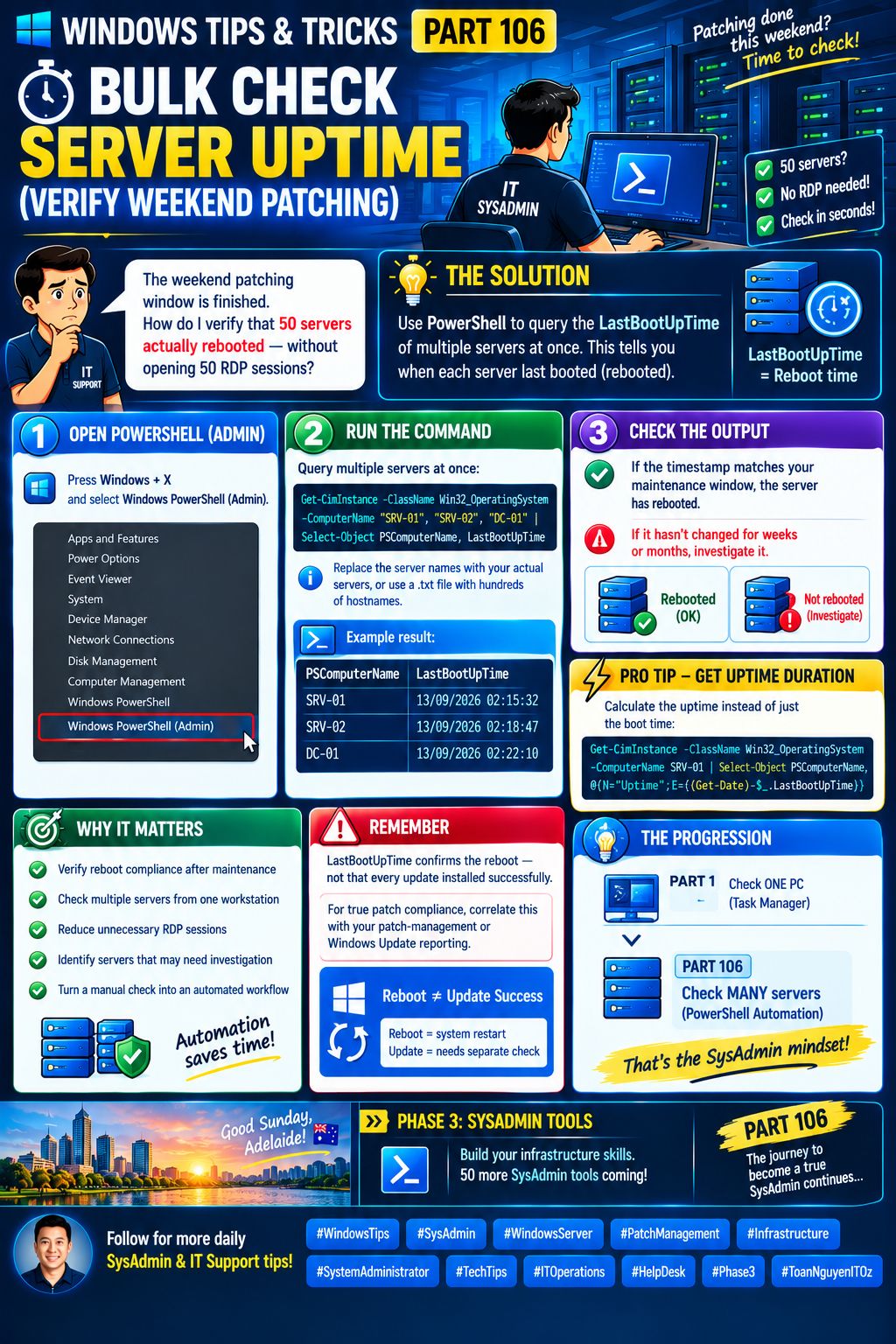
1. Scenario Overview & Problem Context
⏱️ Windows Tips & Tricks – Part 106
🏢 Bulk Check Server Uptime
“The weekend patching window is finished. How do you verify that 50 servers actually rebooted — without opening 50 RDP sessions?” 👨💻
Back in Part 1, we checked uptime on a single PC using Task Manager.
Now in Phase 3, we scale that exact same concept across your entire infrastructure using PowerShell and WMI/CIM.
2. ⚡ PowerShell Solution: Bulk Query Across Servers
Instead of logging into each server individually, run Get-CimInstance against multiple target machines simultaneously from your management console:
1
2
Get-CimInstance Win32_OperatingSystem -ComputerName "SRV-01","SRV-02","DC-01" |
    Select-Object PSComputerName, LastBootUpTime
🔎 What you get:
- Server Name → Last Boot Time
If the boot time matches your maintenance or patching schedule, the server has rebooted successfully.
If it hasn’t changed for weeks or months, you immediately know which servers failed to restart and require further investigation.
3. 🚀 Pro Tip — Calculate Human-Readable Uptime
Want to see exact uptime duration (Days, Hours, Minutes) instead of raw timestamps? Calculate the time difference directly:
1
2
Get-CimInstance Win32_OperatingSystem -ComputerName SRV-01 |
    Select-Object PSComputerName, @{N="Uptime"; E={(Get-Date) - $_.LastBootUpTime}}
You can also pipe an entire list of servers from Active Directory or a text file:
1
2
3
4
$Servers = Get-Content -Path "C:\Admin\ServerList.txt"
Get-CimInstance Win32_OperatingSystem -ComputerName $Servers |
    Select-Object PSComputerName, LastBootUpTime, @{N="UptimeDays"; E={[math]::Round(((Get-Date) - $_.LastBootUpTime).TotalDays, 1)}} |
    Sort-Object LastBootUpTime
4. 🎯 Why It Matters for SysAdmins
- ✅ Verify reboot compliance: Instantly validate that all systems restarted as part of patch maintenance.
- ✅ Check multiple servers simultaneously: Audit 10, 50, or 200 servers from a single workstation or jump host.
- ✅ Reduce unnecessary RDP sessions: Avoid opening and closing dozens of remote desktop windows.
- ✅ Spot stuck systems early: Identify servers that failed to reboot before Monday morning users arrive.
- ✅ Turn manual checks into automated workflows: Integrate into post-patching verification scripts and alerting pipelines.
5. ⚠️ Operational Note: Reboot vs. Patch Compliance
Important:
LastBootUpTimeconfirms that a reboot occurred — it does not automatically prove that every update installed without errors.For comprehensive patch compliance reporting, always correlate boot timestamps with your centralized update tool (WSUS, Intune, MECM, or Windows Update event logs).
6. 💡 The SysAdmin Progression
Part 1 → Check ONE PC (Task Manager)
Part 106 → Check MANY servers (PowerShell + CIM)That is the SysAdmin mindset: scale, automate, and eliminate repetitive manual clicks. 🚀
Phase 3 — SysAdmin Tools continues!
🔗 Join the Live Community Discussion: Have questions or additional tips about bulk server administration and PowerShell CIM queries? 👉 View and join the original LinkedIn post discussion
Authored by Toan Nguyen (Toan Nguyen IT OZ) — Enterprise Systems Administrator in Adelaide, South Australia.