
This guide is Part 108 of the Windows Tips & Tricks series published by Toan Nguyen (Toan Nguyen IT OZ). In Phase 3, we build enterprise infrastructure skills and replace disruptive RDP troubleshooting with non-intrusive remote audit tools. Follow on LinkedIn.
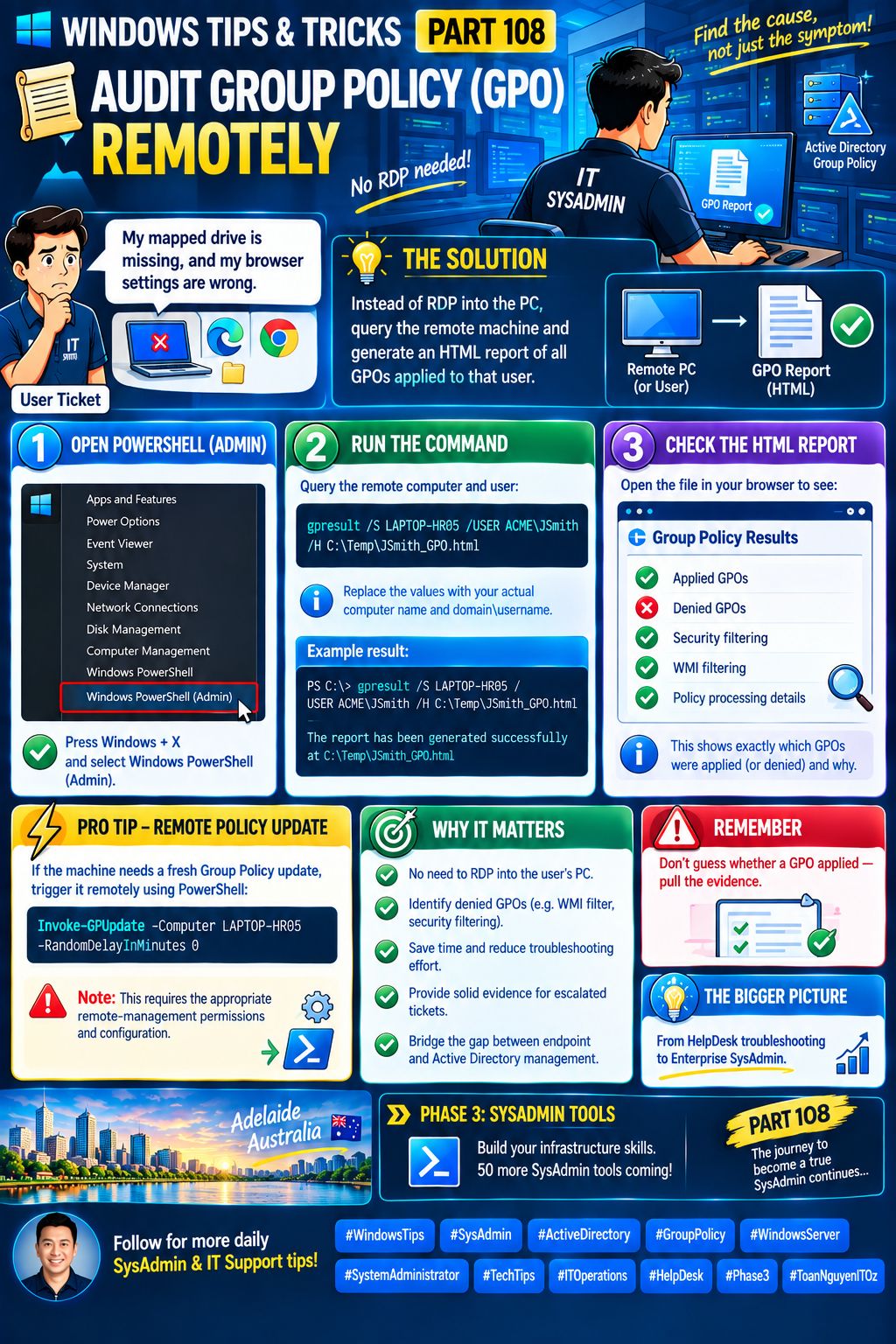
1. Scenario Overview & Problem Context
🚀 Windows Tips & Tricks – Part 108
📜 Audit Group Policy (GPO) Remotely
💻 User says:
“My mapped drive is missing, and my browser settings are wrong.”
Before interrupting the user by establishing an RDP session or taking over their screen, check exactly what Group Policy Objects (GPOs) were applied to their machine and account.
💡 The SysAdmin Solution:
Instead of logging into the workstation, query the remote machine directly and generate an HTML report of all GPOs processed for that specific user.
2. ⚡ Step-by-Step Remote GPO Audit
Step 1: Open PowerShell or CMD as Administrator
Press Windows + X and select Windows PowerShell (Admin) or Terminal (Admin) on your IT management workstation.
Step 2: Run the Remote GPResult Command
Query the target workstation and user scope to export a clean, structured HTML report:
1
gpresult /S LAPTOP-HR05 /USER ACME\JSmith /H C:\Temp\JSmith_GPO.html
ℹ️ Replace
LAPTOP-HR05with your target computer name andACME\JSmithwith the actual domain\username.
Example result:
1
2
PS C:\> gpresult /S LAPTOP-HR05 /USER ACME\JSmith /H C:\Temp\JSmith_GPO.html
The report has been generated successfully at C:\Temp\JSmith_GPO.html
3. 📊 What to Investigate in the HTML Report
Open C:\Temp\JSmith_GPO.html in your browser. The generated report breaks down every detail of the client-side Group Policy processing:
- ✅ Applied GPOs: Verified policies successfully running on the machine (drive maps, firewall rules, security baselines).
- ❌ Denied GPOs: Policies that failed to apply, along with the explicit reason (Disabled, Empty, WMI Filter Failed, or Access Denied).
- 🔐 Security Filtering: Check whether the user or machine object has Read and Apply Group Policy permissions.
- 🧩 WMI Filtering: Validate if WMI queries (such as OS version or chassis type) evaluated to
TrueorFalse. - ⏱️ Policy Processing Details: Inspect client-side extension (CSE) execution times and detect slow link thresholds or DC discovery issues.
ℹ️ This provides irrefutable evidence showing exactly which GPOs were applied or denied, and why.
4. 💡 Pro Tip — Remote Policy Update via PowerShell
If your investigation confirms the policy was recently fixed in the Group Policy Management Console (GPMC) and the remote computer just needs a fresh refresh, trigger it remotely without touching the user’s desktop:
1
Invoke-GPUpdate -Computer LAPTOP-HR05 -RandomDelayInMinutes 0
⚠️ Note: This requires remote management permissions (WinRM / RPC ports enabled and configured in your domain environment).
5. 🎯 Why It Matters for IT Operations
- 🚀 No RDP Needed: Never interrupt end-user productivity by kicking them off their desktop or locking their session.
- 🔍 Identify Denied GPOs Instantly: Rapidly diagnose root causes (WMI filter syntax errors, security filtering exclusions, OU link order).
- ⏱️ Save Valuable Helpdesk Time: Eliminate guesswork and resolve escalations with empirical evidence.
- 📋 Solid Evidence for Escalations: Attach the generated HTML report directly to the ITSM service ticket for Tier 3 / Identity engineers.
- 🌉 Bridge the Gap: Transition your daily operational workflow from Helpdesk reactive firefighting to proactive Enterprise Active Directory management.
6. 🎯 SysAdmin Mindset
Don’t guess whether a GPO applied — pull the evidence.
From HelpDesk troubleshooting → Enterprise SysAdmin. 🚀
🔗 Join the Live Community Discussion:
Have questions or best practices about troubleshooting Group Policy remotely?
👉 View and join the original LinkedIn post discussionAuthored by Toan Nguyen (Toan Nguyen IT OZ) — Enterprise Systems Administrator in Adelaide, South Australia.